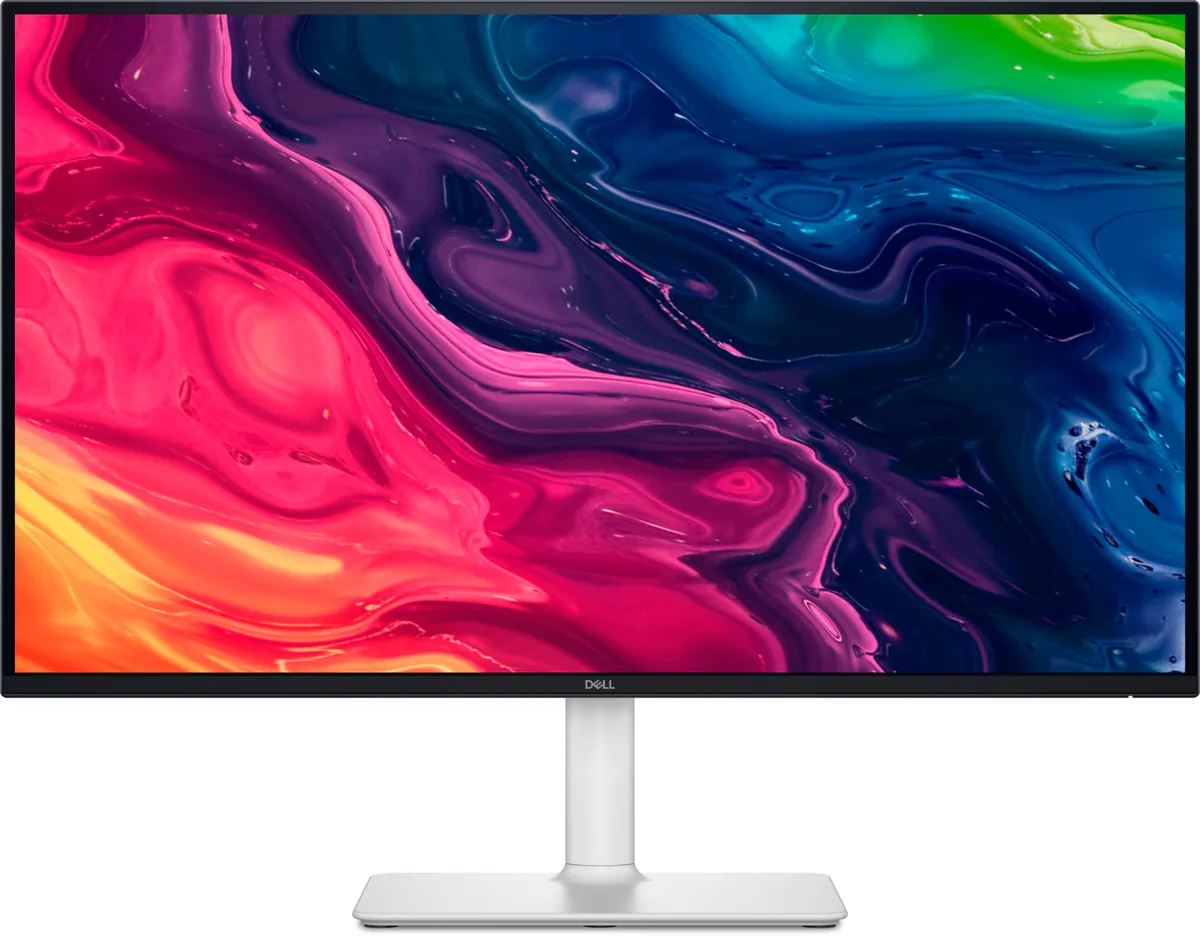
Dell UltraSharp U2724DE monitorProductivity~$640

Dell

Dell UltraSharp U2724DE

Everything the U2725QE offers except the pixels and part of the power budget: IPS Black contrast at 2000:1 rather than 3000:1, Thunderbolt 4 at 90 W rather than 140, the same KVM, at 1440p instead of 4K. Dell makes no HDR claim for it at all, which is more honest than a 350-nit badge would be. 1440p at 27 inches needs no display scaling at all, which removes a whole class of blurry-application problems that 4K at 27 inches creates on Windows.

Approx. price

~$640

snapshot, not a live price

Sharpness

46ppd · sharp

text is clean; pixel edges show if you look for them

HDR tier

No HDR

the maker makes no HDR claim for this panel

Peak brightness

350nits claimed

no HDR certification

USB-C power

90 W

keeps a 14-inch machine charged under normal load

Max refresh

120 Hz

5 ms GtG rated

Port speed — can each input carry this panel?

  • HDMI 2.1· full speed
  • DisplayPort 1.4· full speed
  • Thunderbolt (DP 1.4)· full speed

This panel needs 15.9 Gbps at 2560×1440, 120 Hz and 30 bits per pixel, with no DSC to fall back on.

Best for: A docked work laptop where 100% scaling matters more than pixel density

Specifications

Approx. price
~$640
Type
Productivity
Resolution
2560×1440
Pixels per degree
46 — sharp
Finish
matte
VRR
Adaptive-Sync
HDR tier
No HDR
Peak brightness
350 nits claimed
Colour gamut
98% DCI-P3
HDMI
1 × HDMI 2.1
DisplayPort
1 × DisplayPort 1.4
DSC
Not supported
Port speed
3 of 3 inputs at full speed
USB-C
Video in over USB-C
USB-C power
90 W — 14-inch class laptop
KVM
Built in
USB hub
5 ports
Speakers
None
Stand
height, tilt, swivel, pivot
VESA
100x100
Weight
16.25 lb
$ per inch
$24
$ per megapixel
$174

Features

  • IPS Black panel with 2000:1 static contrast
  • Thunderbolt 4 with 90 W power delivery
  • Built-in KVM with 2.5 GbE Ethernet
  • 120 Hz refresh
  • Five-port USB hub

What it does well

  • 1440p at 27 inches is the native-scaling sweet spot — no fractional scaling, no blurry legacy applications
  • 2000:1 IPS Black contrast is double a conventional IPS panel
  • KVM plus Ethernet plus 90 W over one Thunderbolt cable covers a complete desk
  • 120 Hz on a dock-and-KVM monitor, where 60 Hz is still the default

What it gives up

  • 90 watts is enough for a thin-and-light and marginal for a 16-inch workstation
  • 46 pixels per degree, well short of the 68 the 4K version of this monitor reaches
  • One HDMI and one DisplayPort input, so on a three-machine desk the Thunderbolt port has to carry the third
  • No HDR at all — Dell does not claim even HDR10 here, and 350 nits would not carry it

The two lists above come from the maker’s specifications and from published third-party measurements, not from owner reports. Where owner discussion has been read it appears in its own section below, so the two are never mistaken for each other.

What owners say

Almost everyone who ends up here arrives from a spreadsheet of requirements rather than a review. Thunderbolt hub, KVM, daisy-chaining, power delivery big enough to charge a laptop, 120Hz, and an appearance that would not embarrass anyone in a video call — the combination is rare enough that buyers comparing it against the ASUS ProArt and BenQ professional panels keep coming back to it, and two of them together genuinely substitute for a dock and switch that would cost about the same.

The frustrations are mostly about the last mile rather than the screen. Mac owners in particular struggle to get colour agreement: one saw a distinct green cast against their MacBook that no preset on either side would fix, another was reduced to asking for a colour profile to match an iMac, and a third found their Mac alone rendering it washed out while phones and other computers looked right on the same panel. A second oddity that nobody has explained is the monitor's own input banner announcing 60Hz while Windows, the driver and games are all demonstrably running at 120. And one owner went through three units chasing dead pixels before giving up on the model entirely.

For a two-machine desk that does documents, code and ticket queues, with a console or a slow game in the evening, it is the obvious pick and the styling is a bonus. Anyone who needs HDR should look at the 4K UltraSharp instead and accept 60Hz; anyone who cares about fast motion should not be shopping this family at all. And if colour agreement with a Mac panel matters to your work, plan on profiling it rather than assuming the presets will get you there.
What owners like

  • Buyers who write out a requirements list — 120Hz, a hub, USB-C power delivery, a Thunderbolt KVM, no gamer styling — keep finding that this is the monitor that satisfies all of it, and one owner sums it up simply as loving the features
  • A pair of them replaces an expensive dock and switch: owners run a MacBook and a Windows desktop into two of these, daisy-chained over Thunderbolt, and use the built-in KVM to move keyboard and mouse between machines
  • Choosing 1440p over 4K is deliberate for people on work laptops with integrated graphics, where two of these are comfortably drivable and two 4K panels are not
  • The plain office design is a selling point in its own right — several buyers say outright that they find gaming monitors ugly and that this is why they shortlisted it
  • Single-cable docking with enough power delivery to charge a laptop is the feature that gets it bought for home offices where the same desk serves a work machine and a personal one

Common complaints

  • Panel quality control burned one owner badly: dead pixels on the original unit and on both replacements, which sent them looking at a slower BenQ with a similar feature set instead
  • Matching it to a Mac is a recurring struggle — a first-time monitor buyer editing photos found a clear green cast against their MacBook that survived every preset on both machines, another hunts for a colour profile to match an iMac, and a third found colours washed out from their Mac while the same monitor looked correct from every other device
  • The on-screen input banner reports 60Hz even when Windows and the graphics driver are running 120Hz, and turning off automatic input selection makes the message disappear rather than explaining it — no owner has yet got a straight answer
  • HDR is absent entirely, which is the trade-off against the 4K UltraSharp in the same family: this one has 120Hz and Thunderbolt, that one has HDR at 60Hz
  • Console support is undocumented to the point that a buyer could not establish anywhere online whether an Xbox gets 120Hz out of it, and response times are the part owners describe as not ideal when they weigh it for gaming

Questions owners ask about the Dell UltraSharp U2724DE

Why does it say 60Hz when I've set 120Hz?

No owner has an answer, which is worth knowing before it unsettles you. An owner on a single-monitor Windows setup gets an input banner reading 2560×1440 at 60Hz assigned to USB-C at every boot, while the display settings, the Nvidia control panel and games all offer and run 120Hz. Switching off automatic input selection suppresses the message rather than changing anything. Check the refresh rate in the operating system and trust that instead.

Why don't the colours match my MacBook?

This is the most common complaint about it and it comes up in several forms. One owner saw an obvious green component against their MacBook that no preset on the monitor or colour profile on the Mac would remove. Another found the panel looking washed out from their Mac specifically while an iPhone and a second computer drove it correctly. Expect to look for a colour profile, and treat a cast that is clearly visible to an untrained eye as grounds for exchange.

Can I run two monitors and two computers through it?

That is exactly what owners buy it for. The pattern that works is one Thunderbolt cable from the laptop to this monitor, the second display chained downstream or fed from the monitor's own output, and the built-in KVM moving the keyboard and mouse when you switch machines. One owner running this at work with two of them through a Thunderbolt dock replicated it at home; their IT department's first attempt using two HDMI ports on the dock just mirrored the displays.

Should I get this or the 4K version at 60Hz?

The trade is concrete: this one gives you 1440p at 120Hz with Thunderbolt, the 4K sibling gives you HDR at 60Hz for a bit more money. Buyers editing photos lean 4K; buyers whose work laptop has integrated graphics and who want two screens lean here, since two 4K panels are hard to drive from an integrated GPU. If the price gap in your region is small, resolution is the more durable upgrade.

Will my Xbox run at 120Hz on it?

No owner has confirmed it, and the buyer who went looking could not find the answer anywhere. The panel does 120Hz from a PC, but console handshakes at 1440p are their own subject and Dell's material does not address it. If evening console gaming is a real requirement rather than an occasional thing, buy somewhere you can return it and test it yourself in the first week.

How likely am I to get a bad panel?

Nobody can put a number on it, but one account is sobering: an owner who liked everything about the monitor hit dead pixels on their original unit and on two replacements in a row, and switched to a different brand rather than try a fourth. Dell exchanges are straightforward, so run a full-screen colour cycle as soon as it is unboxed rather than weeks later.

Others in the same part of the catalog

Dell UltraSharp U2725QE monitor
Dell~$850

Dell UltraSharp U2725QE

27″ · 3840×2160 · 120 Hz · IPS

Sharpness
68ppd · retina-class
HDR
Accepts an HDR signal
  • IPS Black 3000:1
  • Thunderbolt 4, 140 W
  • KVM
  • Console at full speed

Best for: A two-machine desk that should run from one cable and one keyboard

Dell S2725QS monitor
Dell~$300

Dell S2725QS

27″ · 3840×2160 · 120 Hz · IPS

Sharpness
68ppd · retina-class
HDR
No HDR
USB-C power
No USB-C power
  • 4K at 120 Hz
  • Around $300
  • Four-way stand
  • Console at full speed

Best for: A cheap sharp desktop for a console and a recent graphics card

More from Dell →

← Back to the catalog