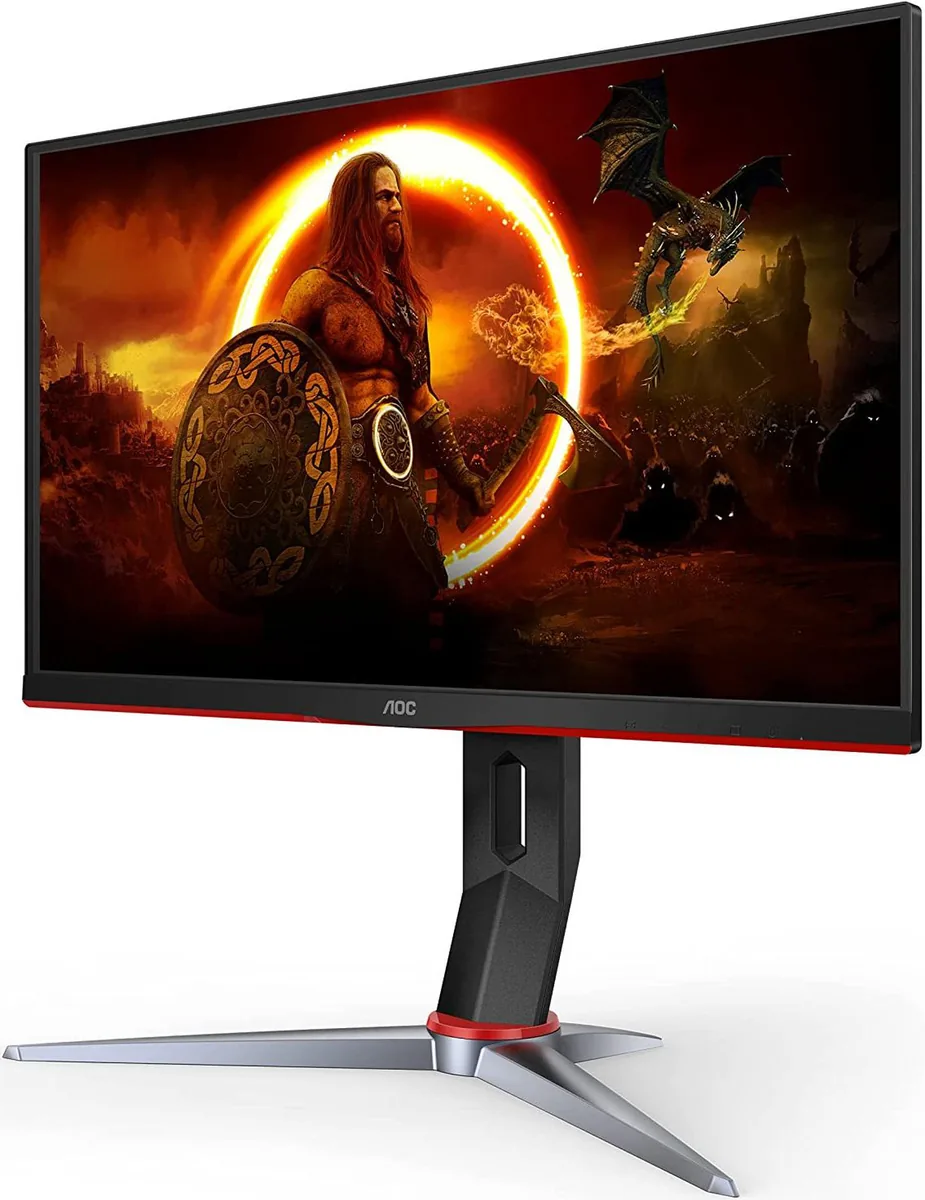
AOC Gaming 24G2SP
23.8″ · 1920×1080 · 165 Hz · IPS
- Sharpness
- 39ppd · visible pixels
- HDR
- No HDR
- USB-C power
- No USB-C power
- 165 Hz IPS
- Four-way stand
- Under $200
Best for: A first 1080p gaming monitor, or a second screen that still needs to move
Gaming~$270AOC
Local dimming starts here: nothing else in this catalog costs less and still has a backlight that dims in sections. TFTCentral measured 1,365 nits peak against AOC's 1,000-nit claim, so the DisplayHDR 1000 badge is earned rather than borrowed. The compromises are all in the ordinary parts: a VA panel, 8-bit plus dithering, one DisplayPort, and no USB hub at all.
Approx. price
~$270
snapshot, not a live price
Port speed — can each input carry this panel?
This panel needs 23.9 Gbps at 2560×1440, 180 Hz and 30 bits per pixel, with no DSC to fall back on.
Best for: Real HDR highlights on a budget that normally buys edge-lit DisplayHDR 400
The two lists above come from the maker’s specifications and from published third-party measurements, not from owner reports. Where owner discussion has been read it appears in its own section below, so the two are never mistaken for each other.
Local dimming under $300 is the whole story here, and owner accounts line up with that framing more closely than most budget monitors manage. People arriving from cheap IPS panels describe the contrast change as the upgrade they actually feel, and the HDR highlights get called bright to the point of discomfort — one owner comparing it side by side with an OLED television found the AOC's small highlights noticeably brighter, even while conceding the OLED's overall image was better.
The complaints are consistent and they are all VA complaints. Viewing angles draw the most fire: a 27-inch VA panel puts its own corners far enough off-axis that colour and gamma shift, and at least one owner returned a unit for that reason alone after giving it a month. A red tint on white is widely reported, with owners trading the same OSD fix (red down to roughly 45), and buyers of the European /BK variant add third-party gamut clamping because that revision ships without an sRGB mode. Black smearing and ordinary VA motion at 60 Hz are taken as the cost of the contrast.
HDR setup is where new owners lose the most time. Posts asking why HDR looks washed out, overly bright or no different from a fake-HDR panel are a recurring pattern, and the answers always involve the same three-part fiddle: the right HDR picture mode on the monitor, local dimming set to medium or strong, and the Windows HDR calibration tool run properly. Console buyers hit a different wall — the HDMI inputs are 2.0, and at least one owner was planning an active HDMI-to-DisplayPort adapter to get variable refresh out of a PlayStation 5. Availability has also been patchy, with owners outside the US asking repeatedly about regional equivalents and restocks.
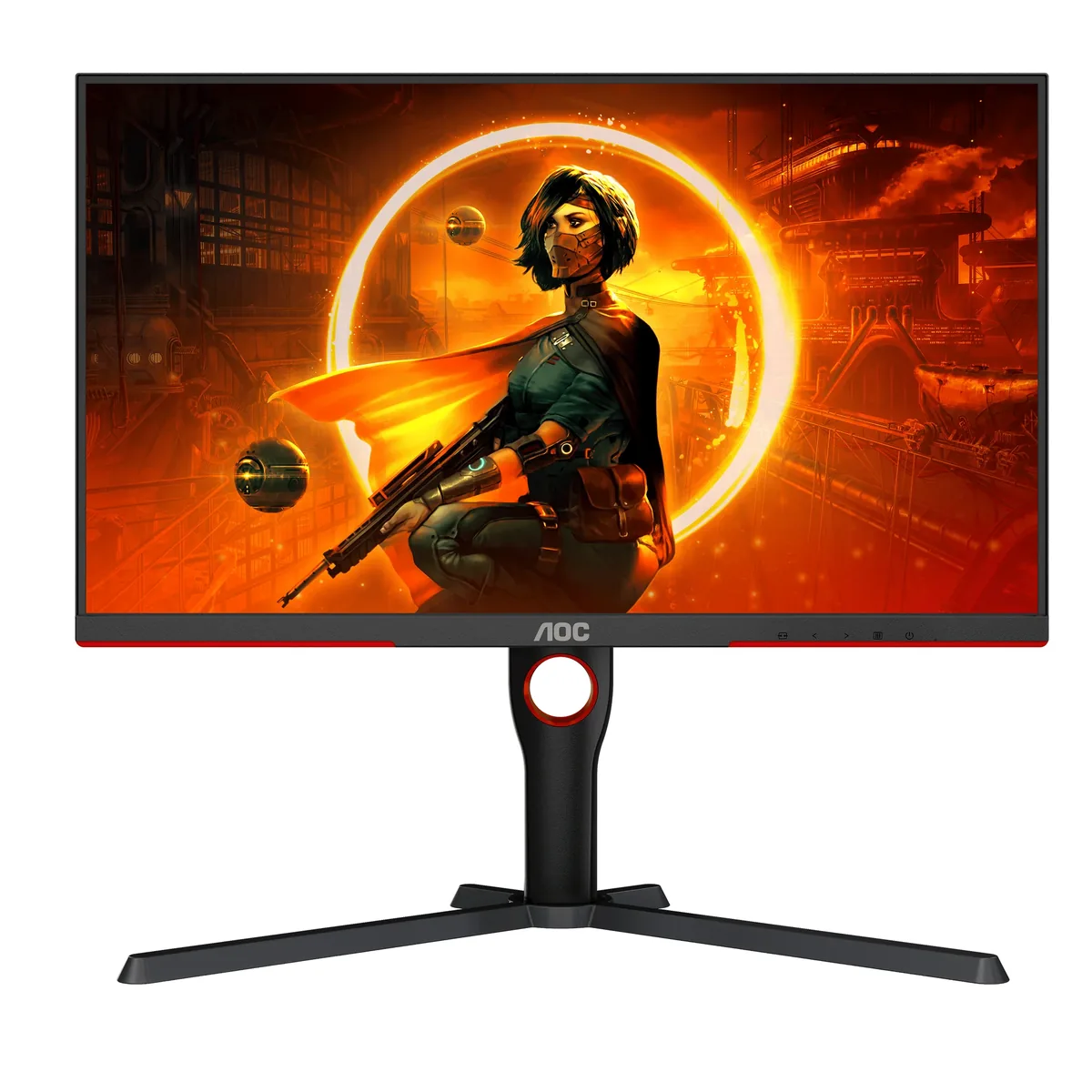
This is the most-asked question from new owners, and it is usually configuration rather than a fault. The monitor has several HDR picture modes and owners report the DisplayHDR mode plus local dimming on medium or strong as the starting point, then running the Windows HDR Calibration app and leaving Auto HDR off. Several owners note the Windows desktop itself looks dull with HDR enabled regardless of settings, and toggle HDR on only for games and video.
Enough owners describe it that it reads as a panel characteristic rather than a bad unit. The fix people pass around is reducing the red channel in the OSD to roughly 45, which neutralises white without wrecking anything else. Owners of the European /BK revision add that it has no sRGB clamp, so they run gamut-clamping software on the desktop to stop colours looking oversaturated.
They are the leading reason owners return it. On a 27-inch VA panel your eyes sit close enough that the screen's own corners are meaningfully off-axis, and owners describe colour and gamma shifting there. One buyer kept the monitor a month specifically trying to get used to it and could not. If you plan to use it angled as a secondary screen in a multi-monitor setup, this is the spec to weigh hardest.
It takes a 1440p signal from a console, but the HDMI inputs are 2.0 and console owners looking for variable refresh rate have found that the sticking point — one was planning an active HDMI-to-DisplayPort adapter to get VRR working. Owners who game mainly on console tend to be pointed toward a monitor with HDMI 2.1 instead.
Owners ask this constantly, and the answers split on room lighting and content. Those who moved to a 1440p OLED describe better blacks and much better motion but are frequently surprised by how much dimmer the OLED is in HDR — one owner posted specifically about their new OLED's whites failing to reach anywhere near the AOC's peak. People in bright rooms, or those who leave static game UI on screen for hours, generally report keeping the AOC and adding an OLED rather than replacing it.
Owners see it, describe it as acceptable for the price, and a handful report the harsher version: dimming zones that stay dark after a game closes until the display is power-cycled. A few also mention slight black crush in HDR test patterns and horizontal banding at 180 Hz over DisplayPort. None of these come up as often as the viewing angles do.

23.8″ · 1920×1080 · 165 Hz · IPS
Best for: A first 1080p gaming monitor, or a second screen that still needs to move

27″ · 2560×1440 · 180 Hz · Fast IPS
Best for: Wide colour and a KVM on a $250 budget

27″ · 2560×1440 · 180 Hz · IPS
Best for: A mid-range gaming PC that needs refresh rate and colour more than ports