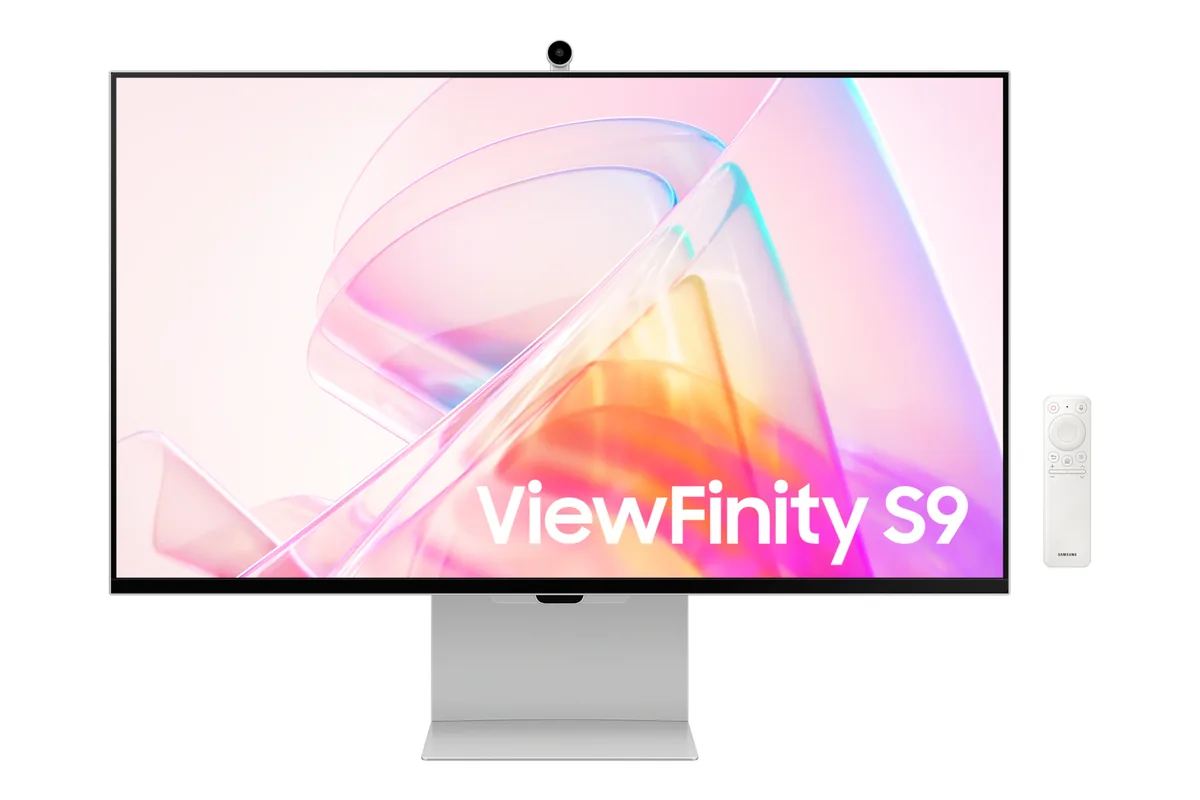
Samsung~$1,600
Samsung ViewFinity S9
27″ · 5120×2880 · 60 Hz · IPS
- Sharpness
- 91ppd · retina-class
- HDR
- No HDR
- USB-C power
- 90 W
- 5K at 27 inches
- Thunderbolt 4, 90 W
- Matte 5K
Best for: macOS at a true 2× scaling factor without a glass panel
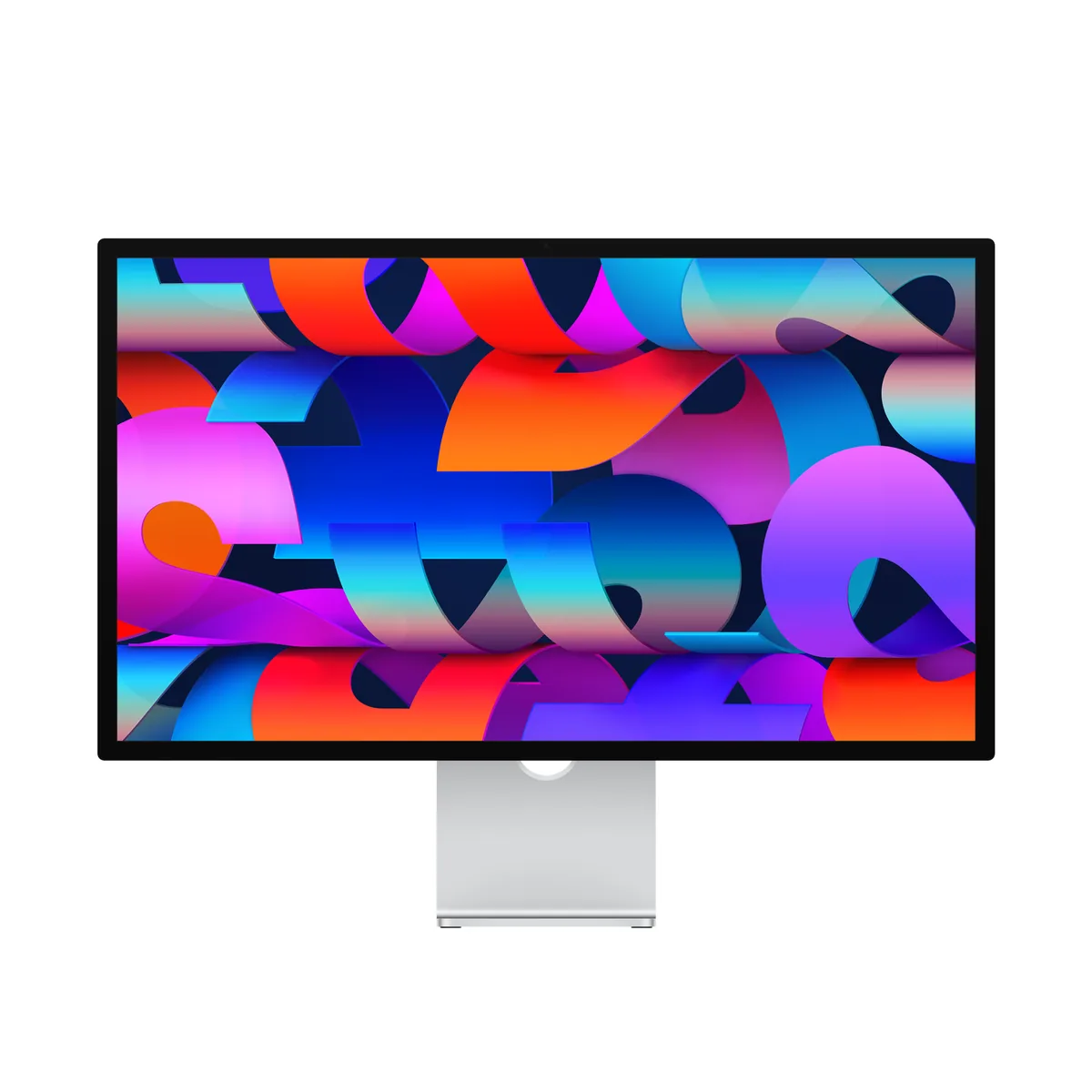 4K/5K creator~$1,599
Apple
Apple sells this as a Mac accessory as much as a monitor, and the spec sheet follows: 218 pixels per inch, 600 nits, 60 Hz, and no video input that is not Thunderbolt. The March 2026 revision kept the enclosure, the panel and the refresh rate and changed the connections — two Thunderbolt 5 ports, the downstream one able to daisy-chain further displays, plus two 10 Gb/s USB-C ports and 96 W of charging for the host. The six-speaker array, three-mic array and 12MP Center Stage camera with Desk View mean it replaces a webcam and a speakerphone as well as a monitor.
Approx. price
~$1,599
snapshot, not a live price
Port speed — can each input carry this panel?
This panel needs 31.9 Gbps at 5120×2880, 60 Hz and 30 bits per pixel, and supports DSC compression.
Best for: A Mac desk where text sharpness and a clean cable matter more than refresh rate
The two lists above come from the maker’s specifications and from published third-party measurements, not from owner reports. Where owner discussion has been read it appears in its own section below, so the two are never mistaken for each other.
Five years of competitors later, the question people ask about this display is still not whether it is good but whether anything has caught up. The answer keeps coming back as partly — 5K panels now exist from ASUS, BenQ, ViewSonic and a couple of newer names, several of them cheaper, one with HDMI and daisy-chaining Apple refuses to offer. What none of them have replicated is the whole package: milled aluminium and glass instead of plastic, speakers and a camera good enough to make people refuse to buy a second unit and pay for duplicates, and a light sensor that manages brightness the way a MacBook does.
The complaints are consistent and mostly structural. Thunderbolt is the only input, so consoles and second machines are awkward. Windows works, but joylessly: no native brightness control, one owner with intermittent lag that vanished on his Mac, another whose video signal flickered unusably on a work laptop while the display's speakers and webcam carried on fine over the same cable. The stand you choose is effectively permanent, with a VESA conversion costing real money afterwards. And panel uniformity at this price disappoints enough buyers — bleed along the edges, dark corners — that checking it in a dark room on day one is genuine advice rather than caution.
It makes sense for a Mac desk where sharpness, a clean single cable and the absence of a webcam, speakers and a separate microphone are worth paying for, and where 60 Hz is not a loss. For a Windows machine, a mixed console-and-computer desk, or anyone who would rather have HDMI and 300 dollars back, the alternatives have finally become real.
It works, with friction, and occasionally it does not. Brightness has no native Windows control — owners use third-party tools, including an open-source one written specifically to read this display's ambient light sensor. Beyond that the reports get strange: one owner saw intermittent cursor and application lag on a PC laptop that never occurred on his Mac, and another had the video signal flicker unusably on a ThinkPad while the speakers and webcam worked over the same cable, which points at the laptop's DisplayPort Alt Mode bandwidth rather than the display. If a Mac is not in the picture, buy something else.
Yes, but it costs and it is fiddly. The mount itself is around 105 dollars through Apple's self-service parts programme, and the adhesive seals need replacing, which owners budget roughly 150 dollars per display for if doing it themselves; having Apple perform the swap has been quoted near 219 dollars. Owners plan around this — several choose the configuration they want at purchase precisely to avoid it. Decide whether the display is going on an arm before you order.
At 27 inches it is the difference between sharp and effectively invisible pixels, and it is the upgrade people single out after switching from 1440p or 4K. It also scales cleanly on macOS at a 2x factor, which 4K at 27 inches does not, so text rendering is noticeably cleaner without the compromises of fractional scaling. Whether that is worth the price gap is the real question, and buyers increasingly answer it by looking at the cheaper 5K panels that have appeared.
It is more common than the price suggests. One owner's brand-new unit direct from Apple had a poor lower-right corner and visible bleed at the top and left edges; another reported shadows in both bottom corners; one owner with two units found the refurbished one worse than the new one. Check on dark content in a dark room during the return window, and do not talk yourself into keeping a bad panel — the owners who asked whether to accept it were all told to exchange it.
Not straightforwardly. Thunderbolt is the only input; there is no HDMI and no DisplayPort, so anything that is not a computer needs an adapter chain that owners describe as convoluted. It is a genuine reason buyers choose one of the newer 5K competitors instead, since at least one of them includes HDMI as well as daisy-chaining. If a console shares your desk, plan for a second input on a different screen.
Used units appear around 1050 dollars open-box and roughly 1000 to 1400 with the stand people want, while refurbished from Apple carries a one-year warranty and can be extended with a support plan, which used purchases cannot. That warranty matters more here than usual because the failure people actually hit is panel uniformity, and because a logic board repair has been quoted at around 600 dollars. One owner with both a new and a refurbished unit found the refurbished one had the light bleed and the new one did not — a sample of two, but it argues for keeping a warranty behind it.
27″ · 5120×2880 · 60 Hz · IPS
Best for: macOS at a true 2× scaling factor without a glass panel
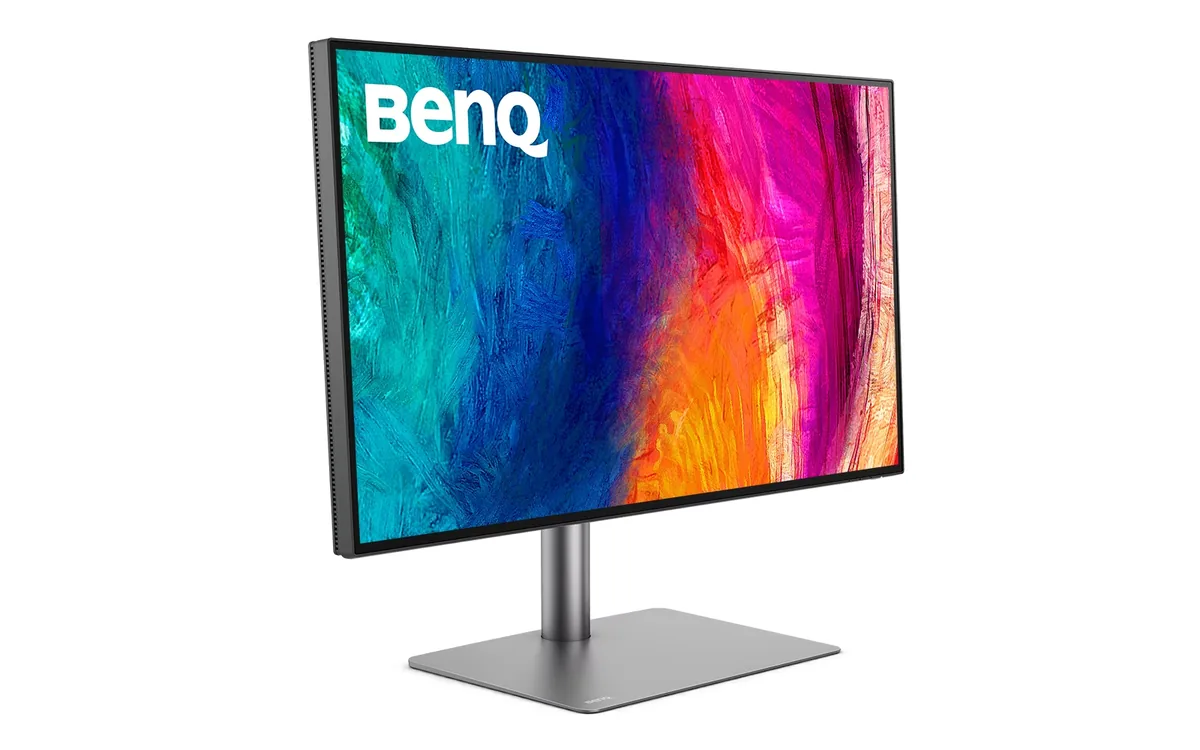
31.5″ · 3840×2160 · 60 Hz · IPS
Best for: Mac-based photo and video work that needs deep blacks and a Thunderbolt dock in one box
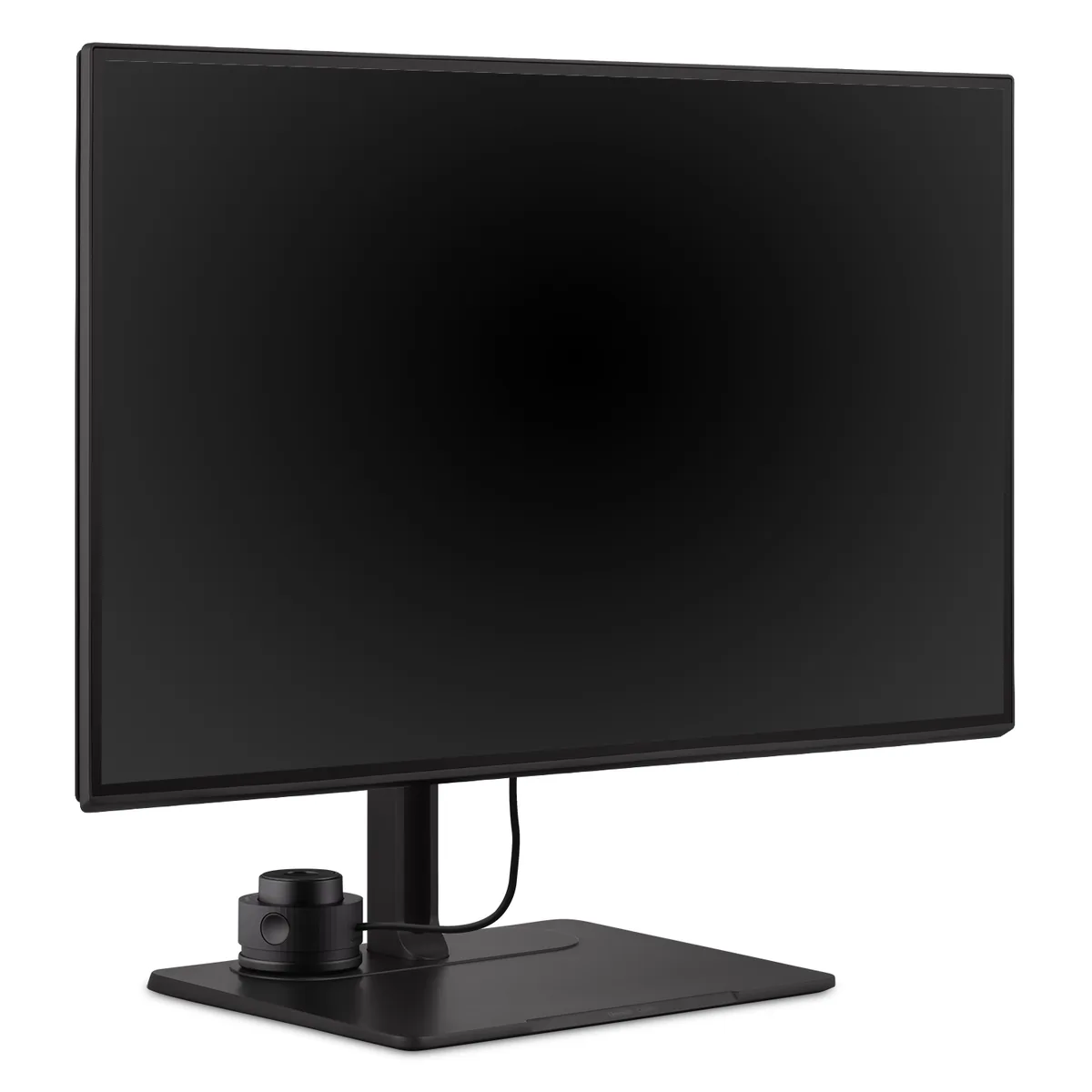
27″ · 3840×2160 · 60 Hz · IPS
Best for: Print and prepress work where Adobe RGB matters more than refresh rate