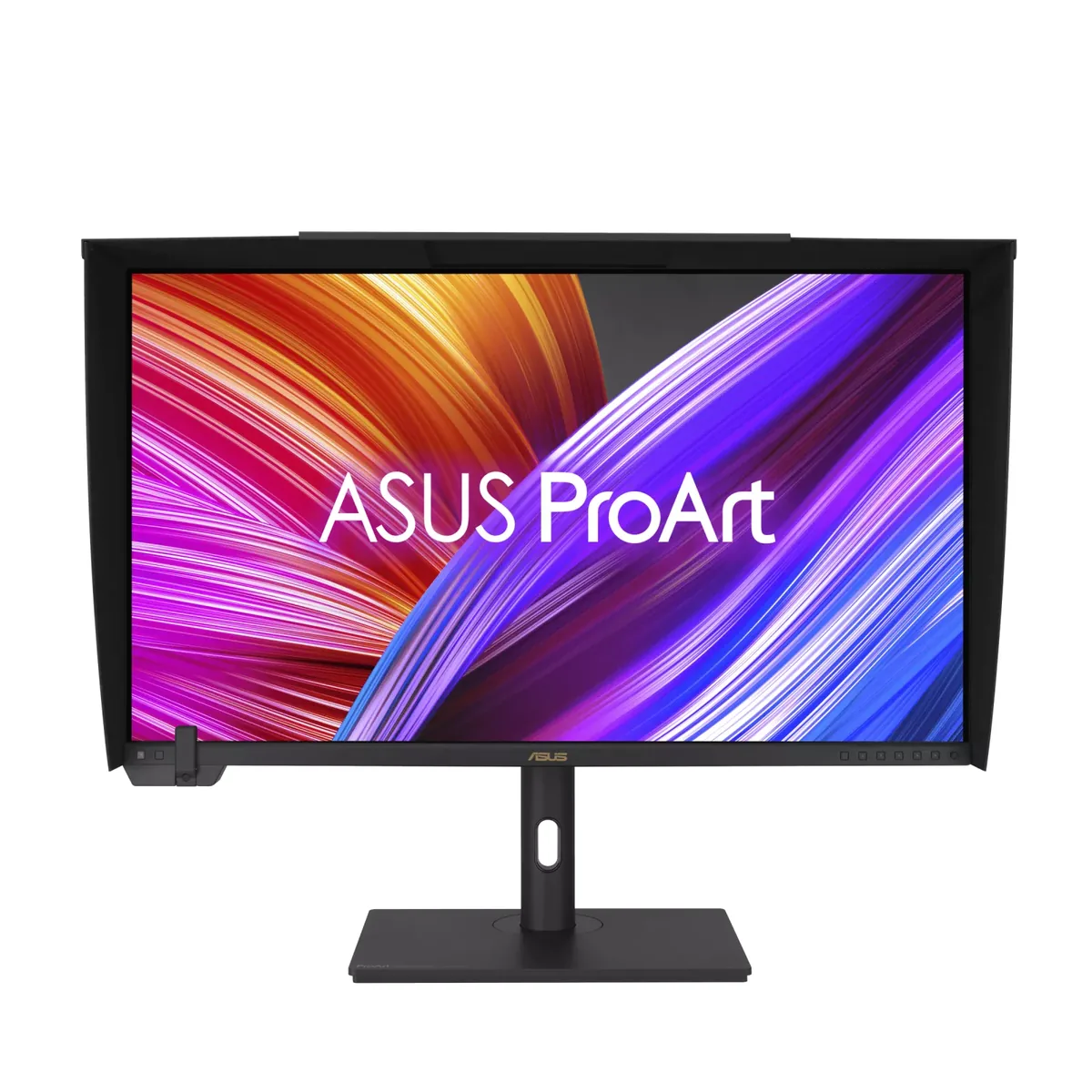
ASUS~$2,999
ASUS ProArt PA32UCXR
32″ · 3840×2160 · 60 Hz · Mini-LED IPS
- Sharpness
- 58ppd · sharp
- HDR
- Real HDR
- USB-C power
- 90 W
- 2,304 dimming zones
- DisplayHDR 1400
- Calibrates itself
Best for: Grading HDR where the display itself has to be trusted
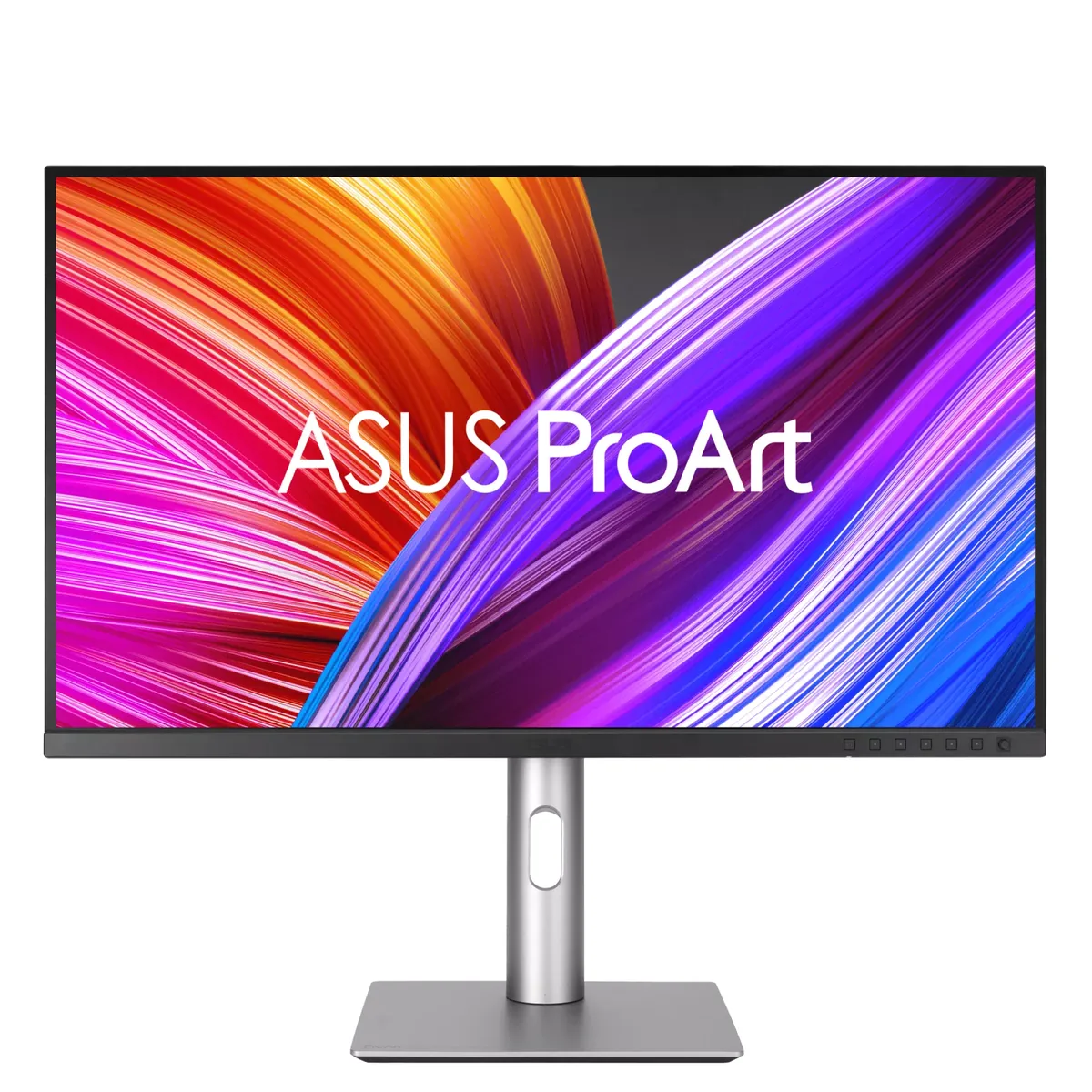 4K/5K creator~$429
ASUS
Factory-calibrated to a Delta-E under two and shipped with the report in the box, at a price where that is normally unheard of. Ninety-nine percent of both DCI-P3 and Adobe RGB covers print and video work from the same panel, and 96 watts of USB-C means a laptop docks to it. The 60 Hz refresh is the giveaway that this is a colour tool rather than a general-purpose screen.
Approx. price
~$429
snapshot, not a live price
Accepts an HDR signal
an edge-lit backlight with no dimming zones — HDR mode changes the tone curve, not the contrast
Port speed — can each input carry this panel?
This panel needs 17.9 Gbps at 3840×2160, 60 Hz and 30 bits per pixel, with no DSC to fall back on.
Best for: Colour-critical photo and video work on a real budget
The two lists above come from the maker’s specifications and from published third-party measurements, not from owner reports. Where owner discussion has been read it appears in its own section below, so the two are never mistaken for each other.
What this one competes on is price, and it competes well: people shopping for a colour-accurate 4K 27-inch panel under $500 keep landing here, and owners doing compositing, photo editing and social video work generally report the presets are trustworthy enough to skip buying a colorimeter. The USB-C input delivering enough power for a laptop, plus downstream ports, means it often replaces a dock as well as a monitor.
Where it disappoints is contrast and uniformity. Backlight bleed and glow come up constantly, and the most damning post comes from a grader who says an eleven-year-old Eizo picked up second-hand still beats it for the work he does. Individual units are worse than that: a heavy green cast that no profile could fix sent one owner back to the previous generation of the same monitor, and another found an area of the screen permanently dimmer than the rest. One careful owner measured the gamut short of the claim and had no way to tell whether he had a bad panel or a generous spec sheet. Smaller irritations: no Display P3 preset despite the marketing, and a sleep behaviour that drops the monitor off the system as a display until you power-cycle it.
The buyers who stay happy are hobbyists and working generalists — editors, photographers and CAD users who want accurate colour and a lot of pixels for a modest price, in a room where they control the light. Anyone whose deliverable depends on judging shadow detail is better served saving for a panel with real black levels, and anyone buying two of these should expect to compare them side by side before keeping both.
Prospective buyers hear this before they order, and owners largely confirm it. Backlight bleed shows up in enough owner photos to count as characteristic rather than exceptional, and dark-room viewing is where people notice it most. The practical consequence is that it is a poor choice for grading shadow detail or watching films in the dark, and a fine one for daylight work where the black floor matters less.
For hobby and general commercial work, owners repeatedly report the factory sRGB and Adobe RGB modes are close enough to trust, and that is a large part of why this model gets recommended over cheaper panels. Owners who do measure have found variance — one recorded a gamut figure several points under the specification — so if your output is being judged by someone else, measure your own unit rather than assuming the box.
This gets asked more than any other setup question about the monitor, because the P3 coverage figure is prominent in the marketing while the menu offers sRGB, Adobe RGB, Rec. 709 and DCI-P3 style presets instead. Owners working on Macs generally end up managing P3 at the operating-system level with a profile rather than in the monitor, and use the monitor's own wide-gamut mode as the container.
Laptop owners describe the monitor dropping off entirely when it sleeps, so moving the mouse does not wake it and the only recovery is switching the monitor off and on. One owner went looking through the manual for a way to keep it awake instead and settled on preventing sleep from the computer side. If you dock and undock constantly, plan on disabling the monitor's own sleep timer.
Return it, based on what owners report. The green-cast case could not be corrected by any display setting or system profile and cost the owner a professional job's worth of frustration before he swapped models. The dim-patch case was odd enough — partly correcting itself as the cursor moved over it — that it read as hardware rather than software. Both problems were visible on day one, which is the right time to act on them.
32″ · 3840×2160 · 60 Hz · Mini-LED IPS
Best for: Grading HDR where the display itself has to be trusted
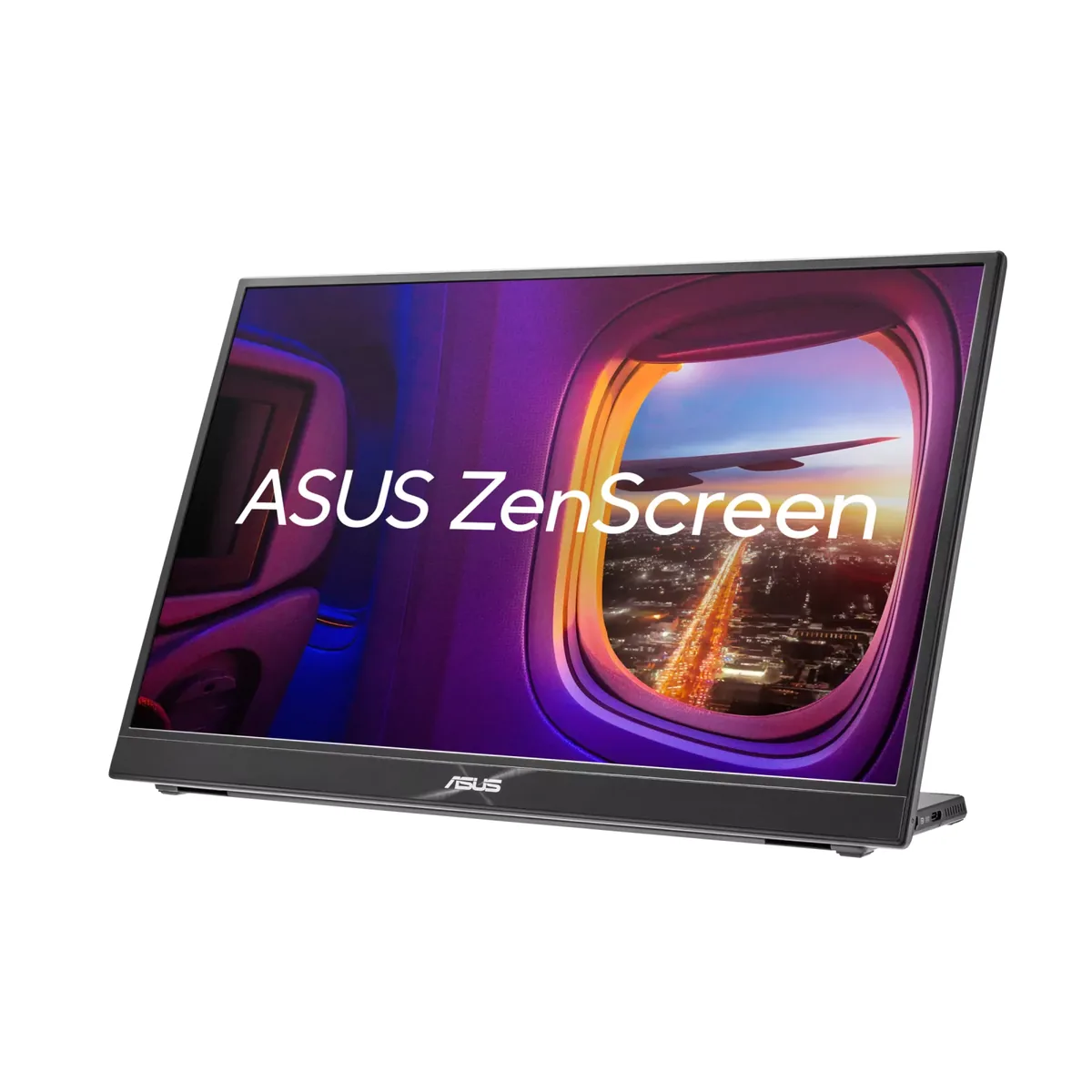
16″ · 2560×1600 · 120 Hz · IPS
Best for: A second screen in a bag that is good enough to be the only screen
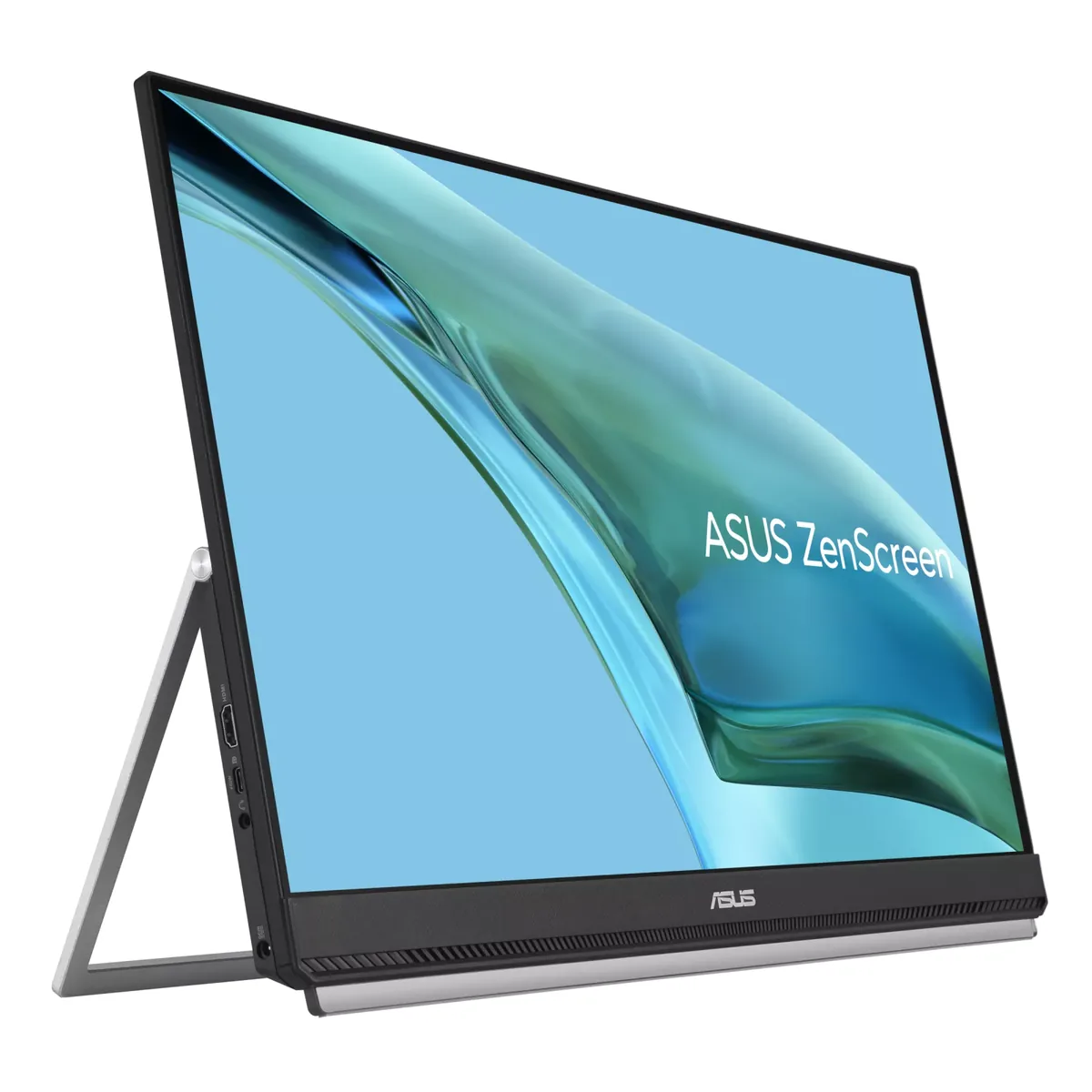
23.8″ · 1920×1080 · 75 Hz · IPS
Best for: A full-size second screen for a desk you do not keep