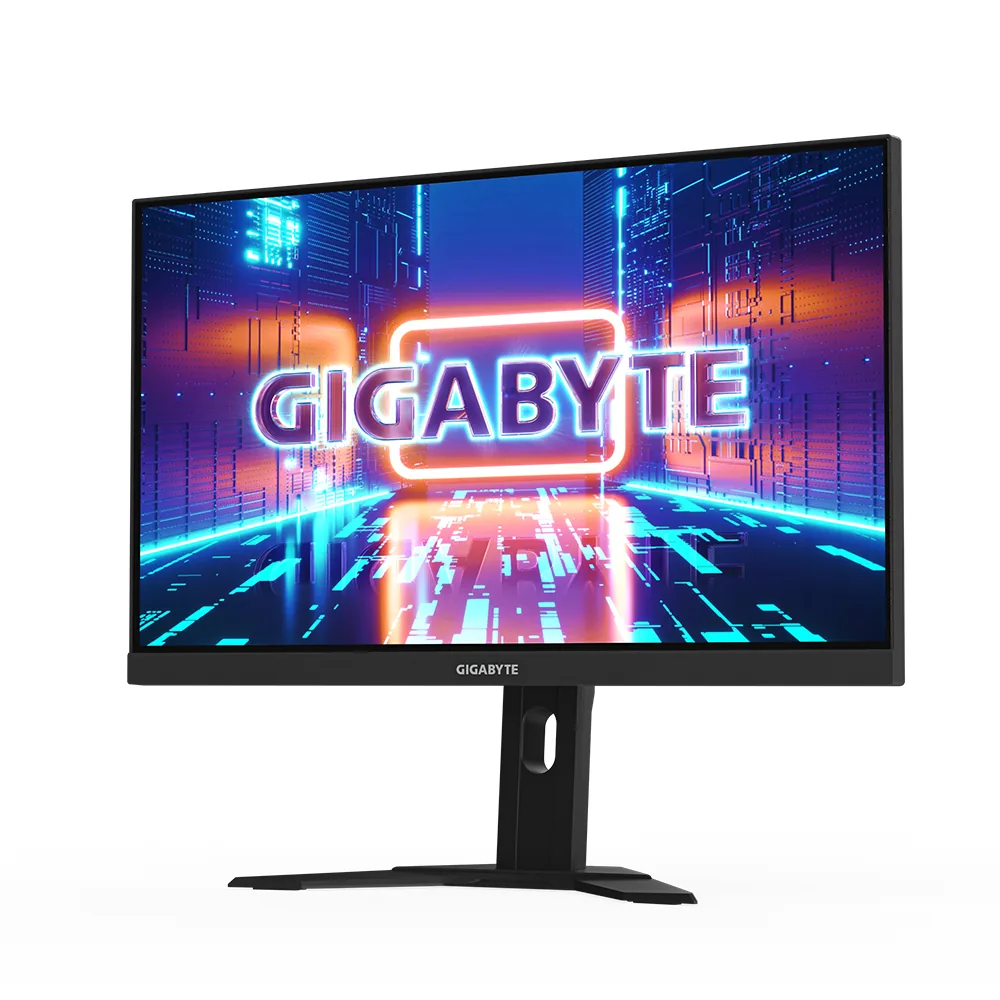
Gigabyte~$530
Gigabyte M27U
27″ · 3840×2160 · 160 Hz · Fast IPS
- Sharpness
- 68ppd · retina-class
- HDR
- Real HDR
- USB-C power
- 18 W
- 4K at 160 Hz
- KVM built in
- 2× HDMI 2.1
- Console at full speed
Best for: A 4K gaming desk shared between a PC and a work laptop
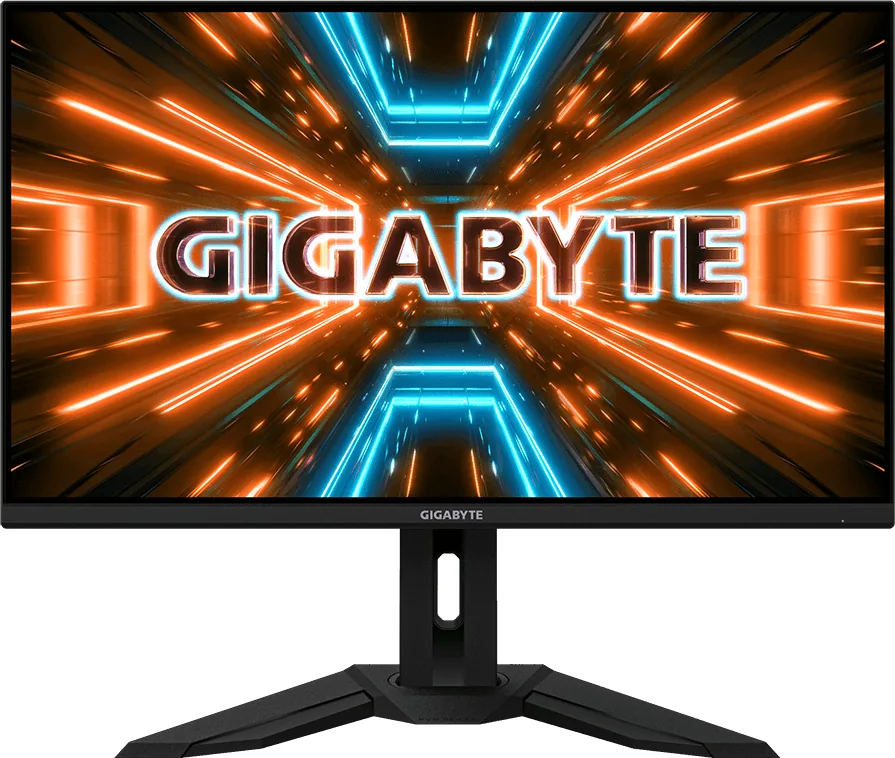 Gaming~$550
Gigabyte
Five years after launch, the combination it offers has barely been beaten: 32-inch 4K, 144 Hz, two HDMI 2.1 ports and a KVM, for well under six hundred dollars. Newer panels are brighter and have better colour, and none of them have made this one look like a bad buy.
Approx. price
~$550
snapshot, not a live price
Accepts an HDR signal
400 nits claimed, short of the 600 this site treats as the floor for a visible HDR effect
Port speed — can each input carry this panel?
This panel needs 43.0 Gbps at 3840×2160, 144 Hz and 30 bits per pixel, and supports DSC compression.
Best for: A large 4K gaming desktop that also has to switch between two machines
The two lists above come from the maker’s specifications and from published third-party measurements, not from owner reports. Where owner discussion has been read it appears in its own section below, so the two are never mistaken for each other.
Longevity is the striking thing here. This panel has been the default 32-inch 4K recommendation for long enough that buyers now ask whether it is still the right answer, and the replies mostly say yes while grumbling that the price never really fell. It earns that position on breadth rather than excellence: 4K at 144 Hz, a KVM people actually use, and enough inputs that one screen serves a MacBook, a desktop and a console.
The failure reports are worth reading before buying. Intermittent signal dropouts show up more than once, in one case a couple of seconds of black screen up to twenty times a day that survived a firmware update and outlasted the warranty. Speakers that distort at random are a separate and oddly consistent complaint. Uniformity is the third: a buyer with a colorimeter who documented brightness falling off across one side was told by the retailer that this is normal at this price, which is a fair summary of what a mid-priced large IPS panel actually delivers. Smaller irritations pile up around the edges — USB-C that carries video but not enough power to charge a laptop, HDR engaging itself when a game starts, and inputs that do not run at the full rate their version number suggests.
People who work long days and want a big, sharp, bright-room screen without worrying about burn-in still land here, and the used market makes it cheap. Anyone whose priority is contrast, HDR, or a tidy single-cable laptop desk should look at what the extra money buys elsewhere, because those are precisely the three things this monitor does not do.
At least one owner documented this carefully: a couple of seconds of lost signal, occurring from a handful to twenty times a day, unchanged by a firmware update or by swapping cables and ports. It is worth ruling out the cable and the graphics driver first because those are free, but if the behaviour persists, treat it as a hardware fault and raise it while the monitor is still in warranty rather than living with it the way that owner had to.
Owners report sound quality that varies at random, from acceptable to clearly distorted, which is different from the usual complaint that monitor speakers are just thin. One owner of a refurbished unit assumed his were broken and was told by others that they had the same experience. Plan on external speakers or a headset — several owners went straight to asking which ones to buy.
No — the USB-C input carries the picture but delivers only a trickle of power, and owners who expected a one-cable desk have gone looking for adapters and power injectors to make up the difference. If single-cable docking matters to you, budget for a separate charger or a small dock, or look at a monitor with a proper power-delivery figure on the spec sheet.
This is the most-asked setup question about the monitor, and the sequence owners describe is: connect one machine by DisplayPort or HDMI plus a USB-B upstream cable, connect the other over USB-C, then bind the KVM to a menu shortcut so switching is one button. The part people miss is that the upstream USB cable is what actually moves the keyboard and mouse — the video cable alone will not do it.
Buyers compare it with office-grade panels for exactly this reason, and the honest answer from owners is that it is a gaming panel with decent coverage rather than a calibrated one. Requests for good colour settings are a running theme, and the frequency of those posts tells you the factory picture needs work. For paid colour work, budget for a colorimeter or buy a display built for it.
Owners have asked about flicker specifically in console use, which is a known behaviour on many variable-refresh panels when frame rates swing widely. If you see it, the usual fixes are capping the game's frame rate so it stays in a narrower band, or turning variable refresh off for that title. It is not reported as constant, so test with the games you actually play before deciding it is a problem.
27″ · 3840×2160 · 160 Hz · Fast IPS
Best for: A 4K gaming desk shared between a PC and a work laptop
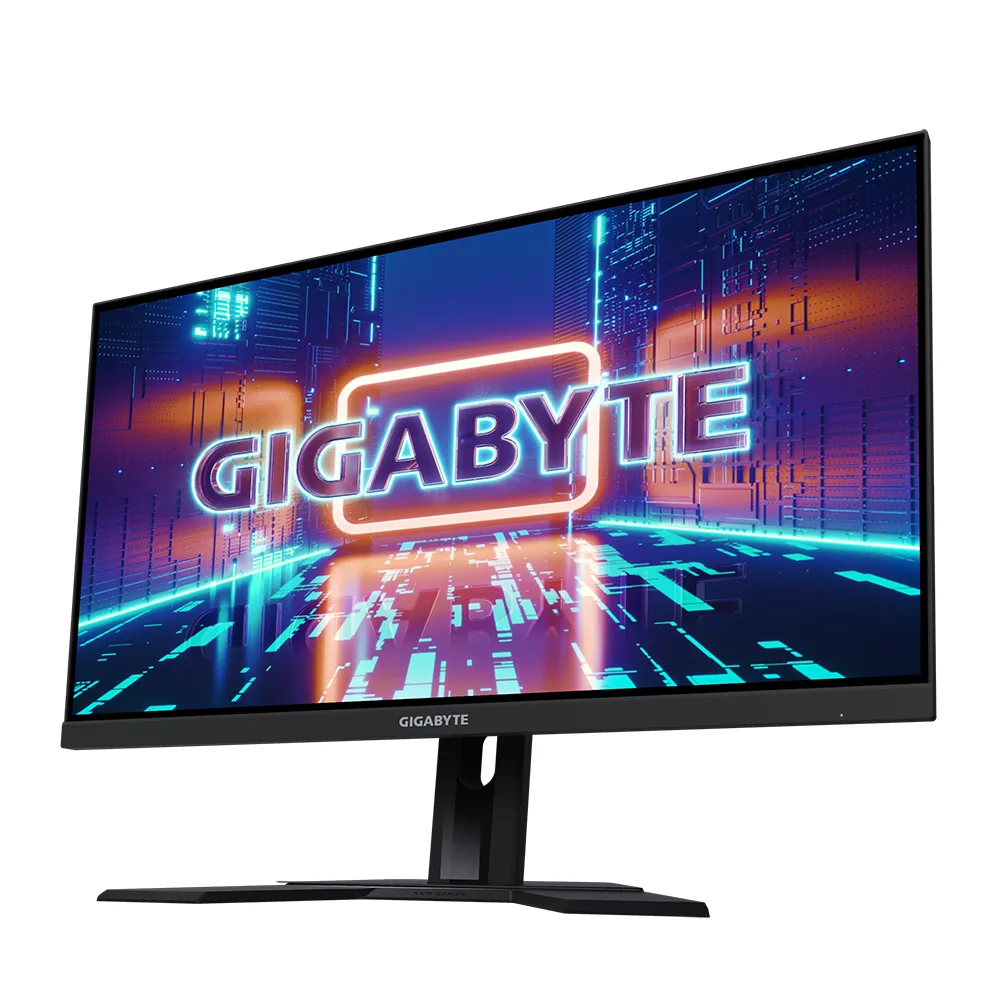
27″ · 2560×1440 · 240 Hz · Fast IPS
Best for: High-refresh 1440p and a KVM on the smallest budget that buys both
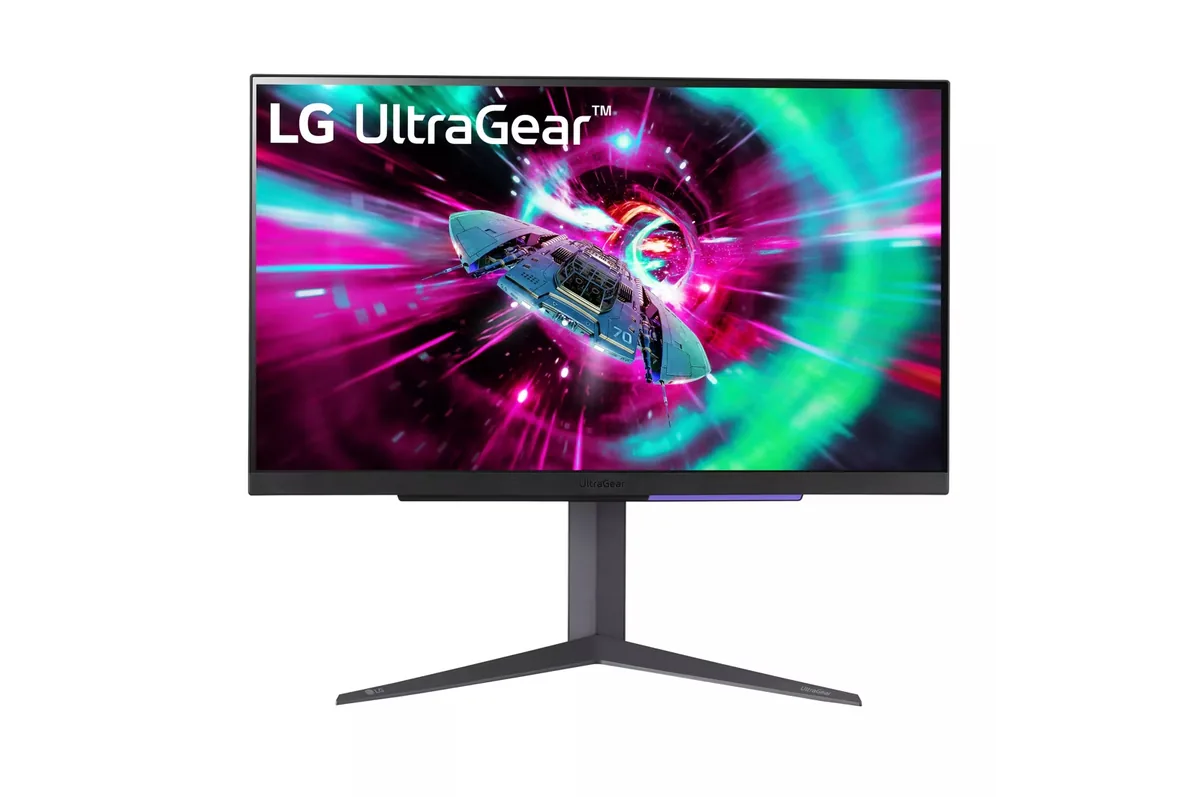
27″ · 3840×2160 · 144 Hz · IPS
Best for: One desk shared by a PC and a current console, without a bandwidth compromise on either