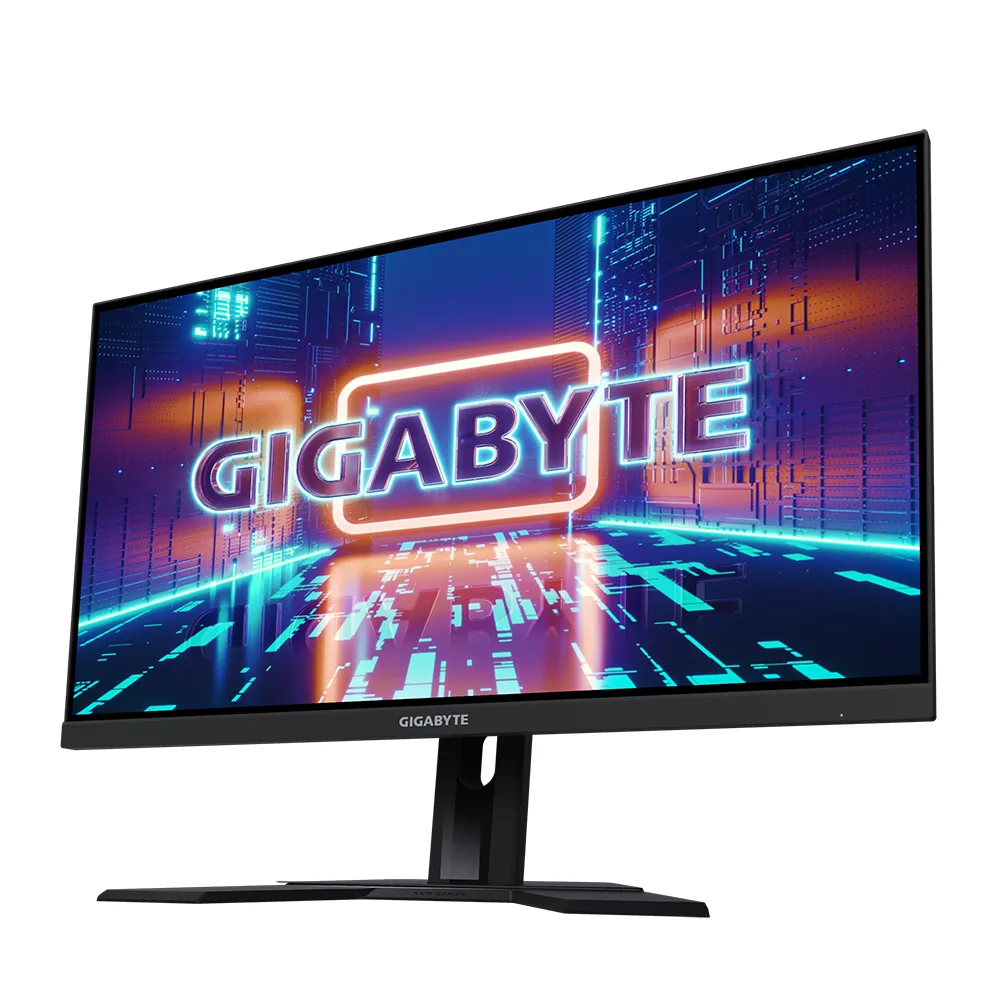
Gigabyte M27U monitorGaming~$530

Gigabyte

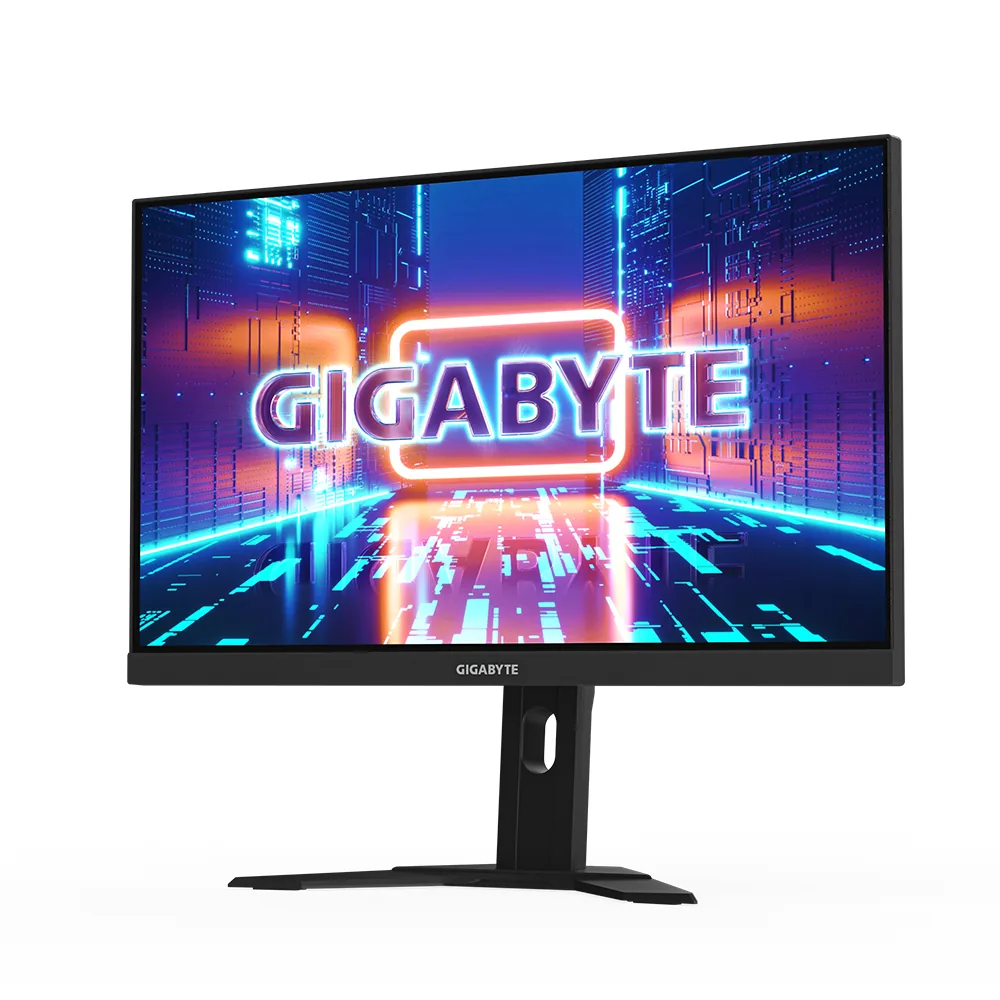
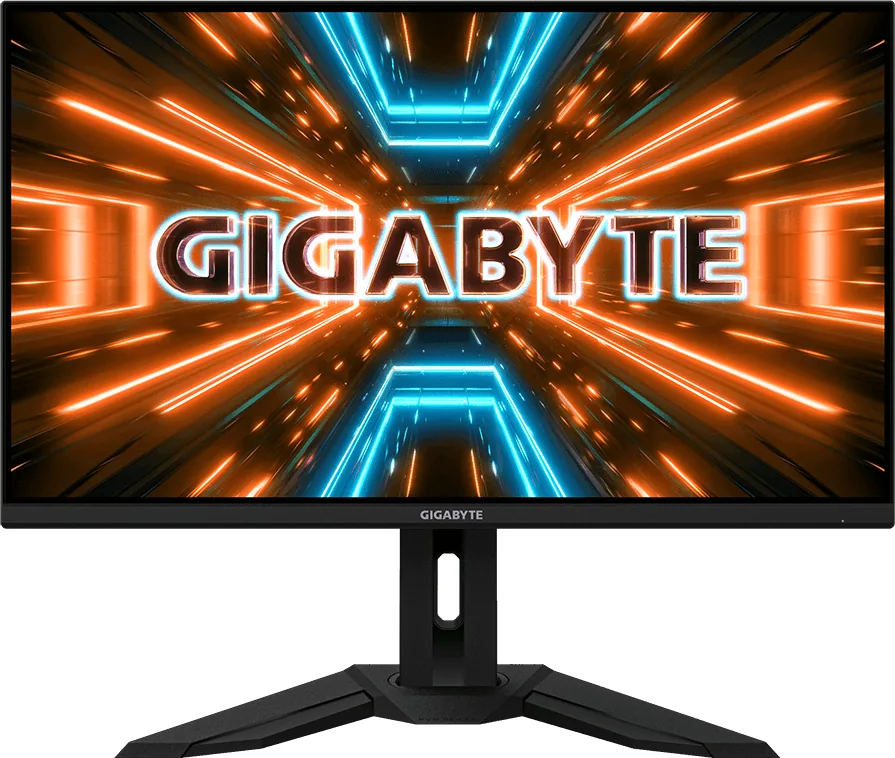
Gigabyte M27U

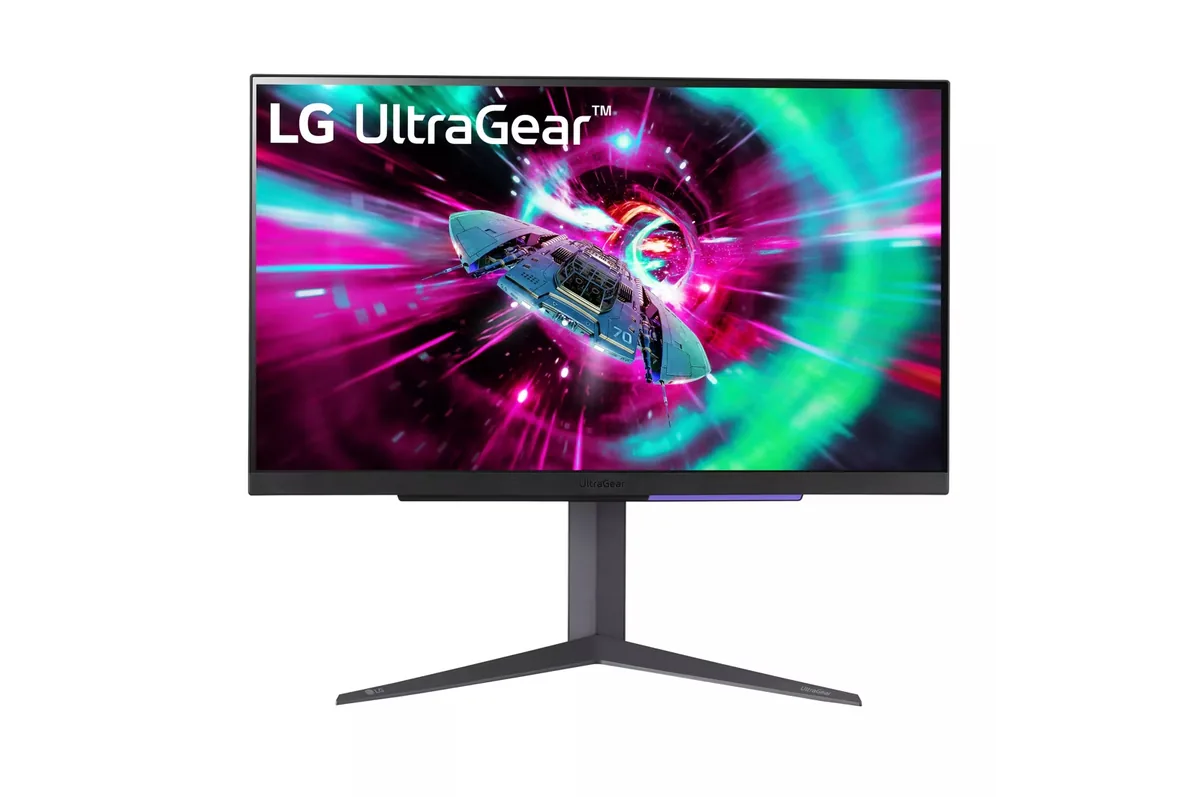
Gigabyte's habit of fitting a KVM to mid-priced gaming monitors is what separates this from LG's 27GR93U, which is otherwise the same proposition: 27-inch 4K, two HDMI 2.1 ports and an edge-lit IPS panel, with no way to share one keyboard between two machines. The M27U also carries a DisplayHDR 600 badge where the LG stops at 400, which buys brighter highlights rather than deeper black. A little over five hundred dollars with a KVM and a three-port hub is a lot of desk hardware for the money.

Approx. price

~$530

snapshot, not a live price

Sharpness

68ppd · retina-class

past the ~1 arcminute limit of 20/20 acuity — the grid is gone

HDR tier

Real HDR

600 nits claimed behind 8 dimming zones

Peak brightness

600nits claimed598measured · PC Monitors

DisplayHDR 600

USB-C power

18 W

tops up a handset; not a laptop supply

Max refresh

160 Hz

no grey-to-grey figure published

Port speed — can each input carry this panel?

  • 2×HDMI 2.1· full speed(DSC)
  • DisplayPort 1.4· full speed(DSC)
  • USB-C (DP Alt Mode)· full speed(DSC)

This panel needs 47.8 Gbps at 3840×2160, 160 Hz and 30 bits per pixel, and supports DSC compression.

Best for: A 4K gaming desk shared between a PC and a work laptop

Specifications

Approx. price
~$530
Type
Gaming
Resolution
3840×2160
Pixels per degree
68 — retina-class
Panel
Fast IPS
Finish
matte
VRR
G-Sync Compatible
HDR tier
Real HDR
HDR certification
DisplayHDR 600
Peak brightness
600 nits claimed
Measured peak
598 nits · PC Monitors
Colour gamut
95% DCI-P3
Colour depth
8-bit+FRC
HDMI
2 × HDMI 2.1
DisplayPort
1 × DisplayPort 1.4
DSC
Supported
Port speed
3 of 3 inputs at full speed
USB-C
Video in over USB-C
USB-C power
18 W — Phone and tablet
KVM
Built in
USB hub
3 ports
Speakers
Built in
Stand
height, tilt
VESA
100x100
Weight
14.3 lb
Released
2023
$ per inch
$20
$ per megapixel
$64

Features

  • 27-inch 4K at 160 Hz
  • Built-in KVM switch
  • Two HDMI 2.1 inputs
  • Three-port USB hub with USB-C
  • Tactical switch for 1080p high-refresh mode

What it does well

  • The KVM has its own button on the back rather than living three menu levels down, which matters on a desk that switches machines several times a day
  • 160 Hz is an overclock of a 150 Hz panel and still matches the fastest 27-inch 4K LCDs here; only an OLED goes quicker
  • 68 pixels per degree, comfortably retina-class for desktop text
  • Both HDMI 2.1 inputs take a console at 4K120, fitting it into 24 Gbps with DSC

What it gives up

  • The USB-C port carries 18 W — enough for a phone, not for a laptop
  • HDR reaches roughly the 600 nits it claims, but contrast stays at 1000:1, so bright scenes gain punch and dark ones stay grey
  • Measured DCI-P3 coverage lands nearer 91% than the 95% on the spec sheet
  • Tilts and raises 130 mm, but the stand neither swivels nor pivots

The two lists above come from the maker’s specifications and from published third-party measurements, not from owner reports. Where owner discussion has been read it appears in its own section below, so the two are never mistaken for each other.

What owners say

The reason this one gets recommended is money, and the recommendation is nearly automatic: anyone asking for 4K at high refresh without OLED money ends up choosing between this and a handful of near-identical MSI, Acer and AOC panels, often on whichever is cheapest that week. Owners who bought it for programming plus gaming are the happiest cohort, because 4K at 27 inches solves the text problem and 160 Hz solves the game problem in one purchase, with a KVM thrown in for the second machine.

The complaint that actually changes minds is backlight glow. The most persuasive owner post is a photograph from a developer whose bottom corners glowed red on dark backgrounds badly enough to interfere with reading code, and who only kept the monitor because the return period expired while he was deciding. Owners comparing it against the older 28-inch version of the same idea add two more specifics: this one cannot dim as far, and its colour is a shade behind, in exchange for cleaner motion without that model's uncorrectable overshoot. Setup gripes follow: a green-leaning, washed-out default picture, no desktop app for tuning, and an HDMI port that does not carry the full bandwidth the version number implies.

Buy it if the room has light in it, the work is text and the games are fast, and the budget stops at $500. If you watch films in the dark, or you code at 10% brightness, the glow and the brightness floor are the two things that will bother you — and stock outside the US is inconsistent enough that European buyers have reported paying a substantial premium or waiting months.
What owners like

  • Ask for a 4K 160 Hz panel under $500 and this is the answer that keeps coming back, usually against the MSI, Acer and AOC equivalents — one buyer reported catching it at €274, which is well under where the class normally sits
  • Owners who compared it directly with the older 28-inch model in the same line report it does not carry that panel's overdrive overshoot, which on the older screen could not be fully switched off, so motion looks cleaner
  • The built-in KVM is a real reason people choose it: owners run a desktop and a laptop, or a PC and a console, through one screen and one set of peripherals
  • Software developers buy it for the text — 4K at 27 inches is dense enough that owners moving up from 1440p describe their old panel as looking soft afterwards
  • It handles a PS5 or Series X at high refresh alongside PC duty, which is why so many of the shopping posts about it come from people with both

Common complaints

  • Backlight glow is the dominant complaint, and one owner made the case in a photo: red-tinted glow rising from the bottom corners that made dark code editors and space scenes hard to read, plus visible vignetting, kept only because the return window ran out first
  • Minimum brightness does not go as low as the 28-inch model it sits beside, which matters to owners who work in a dark room, and the same comparison gives that older panel slightly better colour
  • The HDMI 2.1 implementation does not run at full bandwidth, and console owners specifically ask what that costs them before buying
  • Out-of-the-box colour draws complaints about looking washed out and green-leaning, and there is no desktop utility for the settings, so every adjustment happens through the on-screen menu
  • Scattered unit problems turn up: a white translucent square on the panel, the screen dropping to black at random after a house move, and units not offering the full refresh rate until the connection is sorted out

Questions owners ask about the Gigabyte M27U

Does the limited HDMI bandwidth matter for a PS5 or Series X?

It is the question console buyers ask most often about this monitor, because the port carries the 2.1 label without the full data rate behind it. In practice consoles negotiate a 4K high-refresh mode with variable refresh, and what a reduced rate squeezes is the most demanding combinations of bit depth and colour sampling rather than the basic mode. If you want certainty, check what the on-screen display reports once the console is connected rather than trusting the spec sheet.

How much backlight glow is normal, and when should I send it back?

Glow and bleed are the most-reported issue, and the benchmark owner case involved red-tinted corners visible on any dark scene. The test is not whether you can find it on a black test pattern in a dark room, which almost every panel fails, but whether it intrudes on content you actually look at. If you can see it in a code editor or a night scene at your normal brightness, treat it as a defect and act inside the return window — the owner who waited regretted it.

Can it be dimmed enough for working at night?

Less than you might want. Owners comparing it against the older 28-inch version of the same monitor note that this one's minimum brightness is noticeably higher, which is the single most common reason night-shift users prefer the older panel. If most of your use is a dark room with a dark theme, check the lowest setting early rather than assuming you will adapt.

How does it differ from the 28-inch model it sits next to in the line-up?

Owners who have used both give a clean trade: the 28-inch panel overshoots on overdrive in a way that cannot be fully disabled, so it always shows some inverse ghosting, while this one does not. Going the other way, the older panel has slightly better colour and dims further. Size and pixel density are the other axis — the same 4K resolution stretched over 28 inches is a little less dense.

Is there a desktop app for changing settings, or is it all in the menu?

Owners have gone looking for a utility and come up empty, so picture modes, overdrive and the KVM all get driven from the on-screen controls. It is a genuine annoyance if you switch between a calibrated work profile and a gaming profile several times a day. The workaround owners settle on is configuring the custom picture modes once and assigning the shortcut buttons to swap between them.

Others in the same part of the catalog

Gigabyte M32U monitor
Gigabyte~$550

Gigabyte M32U

31.5″ · 3840×2160 · 144 Hz · Fast IPS

Sharpness
59ppd · sharp
HDR
Accepts an HDR signal
  • 32-inch 4K 144 Hz
  • KVM
  • Under $600
  • Console at full speed

Best for: A large 4K gaming desktop that also has to switch between two machines

Gigabyte M27Q X monitor
Gigabyte~$400

Gigabyte M27Q X

27″ · 2560×1440 · 240 Hz · Fast IPS

Sharpness
46ppd · sharp
HDR
Accepts an HDR signal
  • 240 Hz for ~$400
  • KVM
  • 92% DCI-P3

Best for: High-refresh 1440p and a KVM on the smallest budget that buys both

LG UltraGear 27GR93U monitor
LG~$500

LG UltraGear 27GR93U

27″ · 3840×2160 · 144 Hz · IPS

Sharpness
68ppd · retina-class
HDR
Accepts an HDR signal
USB-C power
No USB-C power
  • 4K at 144 Hz
  • 2× HDMI 2.1
  • 95% DCI-P3
  • Console at full speed

Best for: One desk shared by a PC and a current console, without a bandwidth compromise on either

More from Gigabyte →

← Back to the catalog