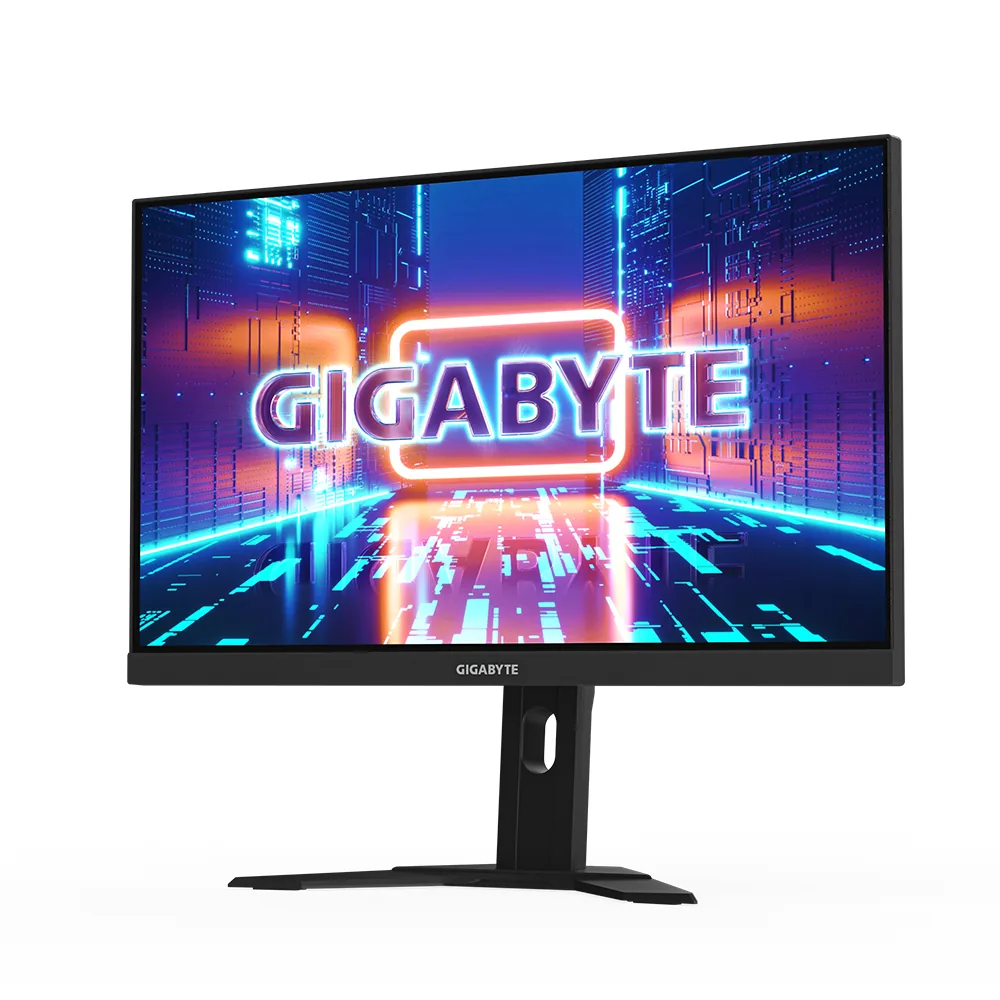
Gigabyte~$530
Gigabyte M27U
27″ · 3840×2160 · 160 Hz · Fast IPS
- Sharpness
- 68ppd · retina-class
- HDR
- Real HDR
- USB-C power
- 18 W
- 4K at 160 Hz
- KVM built in
- 2× HDMI 2.1
- Console at full speed
Best for: A 4K gaming desk shared between a PC and a work laptop
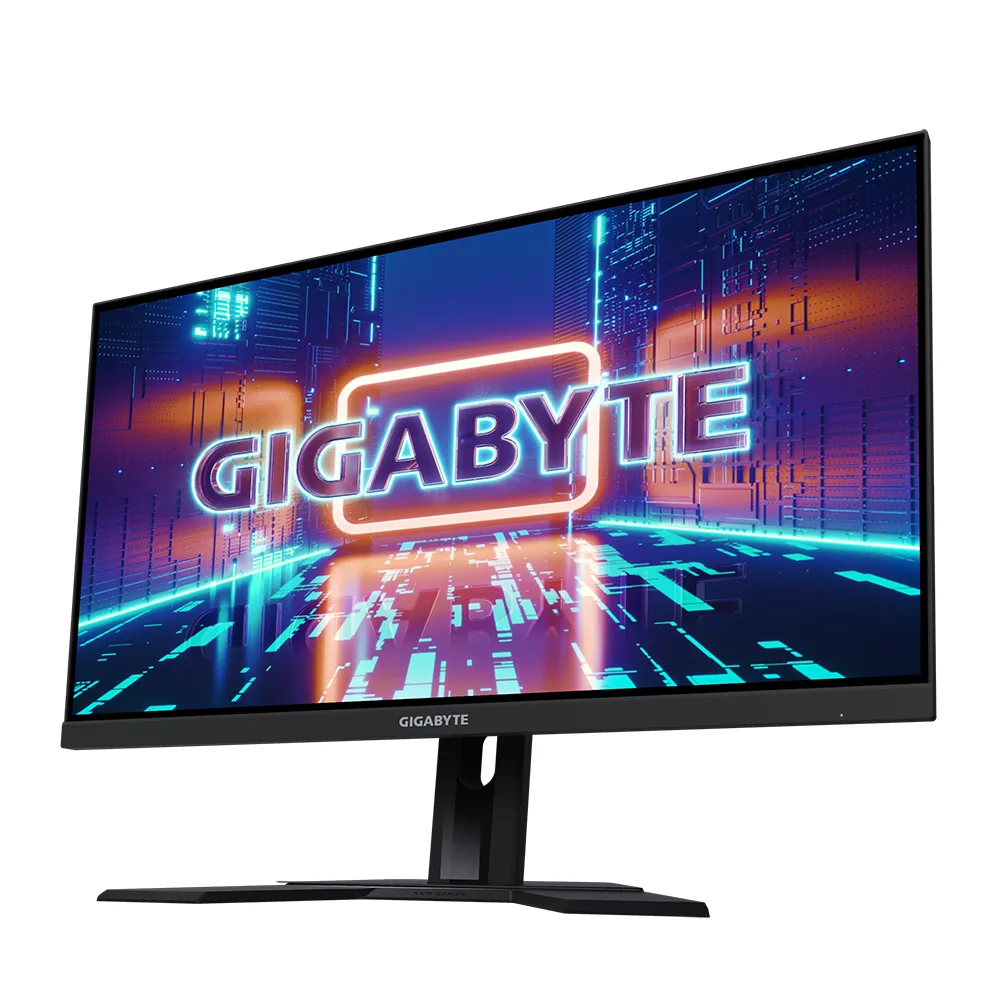 Gaming~$400
Gigabyte
Two hundred and forty hertz at 1440p with a KVM for around $400 undercuts the next monitor here that manages all three by more than $200. What it gives up to get there sits on the connector panel: HDMI 2.0 and no DSC, so only DisplayPort reaches 240 Hz and a console stops at 1440p120. The panel is a conventional RGB stripe, so Windows text needs no ClearType coaxing.
Approx. price
~$400
snapshot, not a live price
Accepts an HDR signal
an edge-lit backlight with no dimming zones — HDR mode changes the tone curve, not the contrast
Port speed — can each input carry this panel?
This panel needs 31.9 Gbps at 2560×1440, 240 Hz and 30 bits per pixel, with no DSC to fall back on.
Best for: High-refresh 1440p and a KVM on the smallest budget that buys both
No input on this monitor carries 2560×1440 at 240 Hz and 30 bits per pixel at once. The panel will reach its advertised refresh rate at 8 bits per channel instead, which is what the specification sheet is quietly describing. How the arithmetic works.
The two lists above come from the maker’s specifications and from published third-party measurements, not from owner reports. Where owner discussion has been read it appears in its own section below, so the two are never mistaken for each other.
Bought as a fast, cheap 1440p panel with a KVM bolted on, it mostly delivers exactly that. The most enthusiastic owner post comes from someone stepping up from a 24-inch 1080p screen who found the colour, the smoothness and even the adjustable stand a revelation, and that is the honest audience: this is a big upgrade from an entry-level monitor and a lateral move from anything better.
Two things complicate the purchase. The first is overdrive — overshoot comes up on both revisions, and several owners report that motion looks worse at mid frame rates than at the top of the range, which is the opposite of what people expect when they buy for speed. The second is the revisions themselves: the same model name covers more than one hardware version, published measurements cover only the earlier one, owners cannot reliably tell which they received, and the colour settings people share do not transfer between them. Add the usual scattering of bleed complaints and a few in-service faults — a horizontal line appearing, flickering lines on the first cold start of the day — and the picture is a competent panel with more variability than its price suggests.
Good fit: someone who plays shooters, works on the same screen, refuses to worry about burn-in, and wants the speed without the OLED price. Poor fit: anyone who wants a known quantity, since which physical panel arrives is partly a lottery, and anyone whose frame rates sit well below the ceiling, where the overdrive tuning is least convincing.
Check the label on the back of the panel rather than the retail listing, because sellers frequently do not say. It matters more than it should: owners report that published measurements and the shared colour settings that circulate were made on the earlier revision, and people with the later one find those numbers do not land the same way. If you are buying to match an existing unit for a dual setup, ask the seller for the revision before ordering.
Overdrive on this panel is tuned for the top of its refresh range, so at mid frame rates the pixel transitions are pushed harder than the refresh rate needs and you see overshoot — a bright trailing edge rather than a smear. The fix is to step the overdrive setting down from the most aggressive mode when you are playing something that runs at half rate, rather than leaving it maxed and blaming the panel.
One owner rebooted and found the top refresh rate gone from the list, with text showing colour fringing at anything above 60 Hz — the signature of the connection falling back to reduced colour sampling. That combination points at the link itself rather than the monitor: reseat or replace the DisplayPort cable, check you are in the right input, and confirm the driver has not quietly fallen back after an update.
An owner reported exactly this — lines on the first power-on of the day or after a long idle period, clearing on their own, unaffected by refresh rate, power outlet or cable changes. Behaviour that correlates with a cold panel and nothing else reads as a hardware issue rather than a signal one, so it is worth raising as a warranty claim early, while the pattern is still easy to demonstrate.
27″ · 3840×2160 · 160 Hz · Fast IPS
Best for: A 4K gaming desk shared between a PC and a work laptop
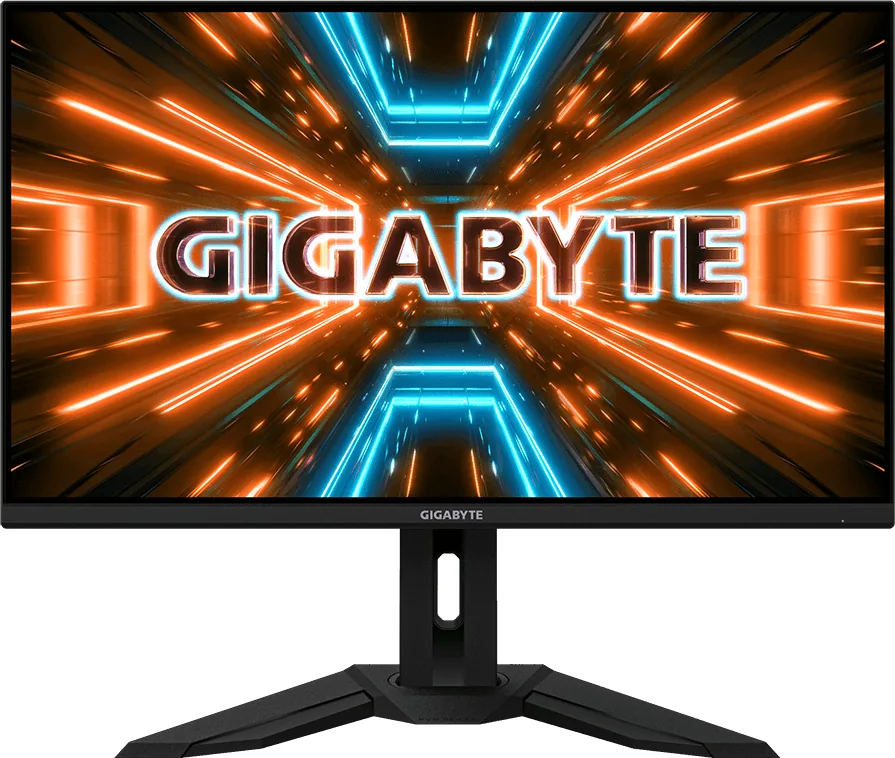
31.5″ · 3840×2160 · 144 Hz · Fast IPS
Best for: A large 4K gaming desktop that also has to switch between two machines
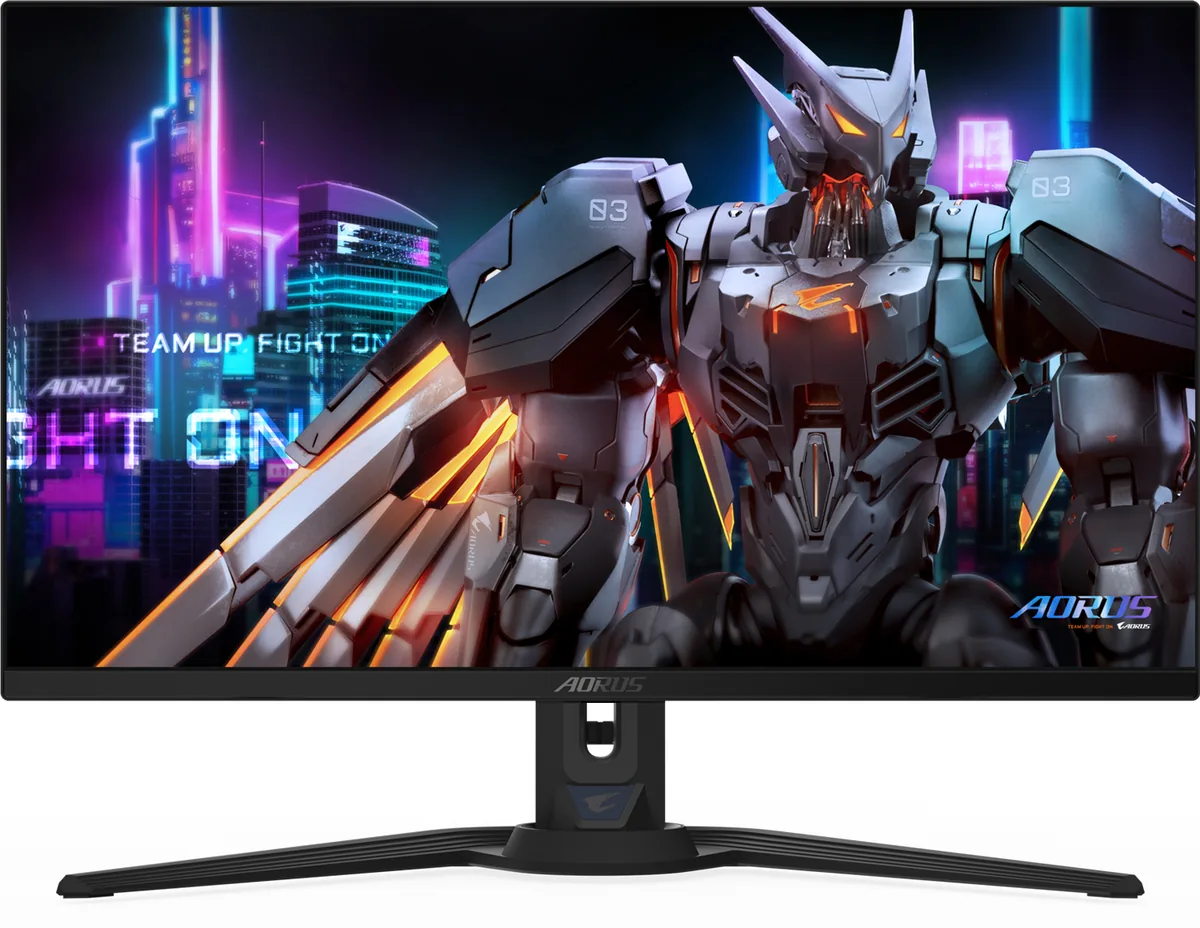
26.5″ · 2560×1440 · 360 Hz · QD-OLED
Best for: A fast OLED for a desk that switches between two machines