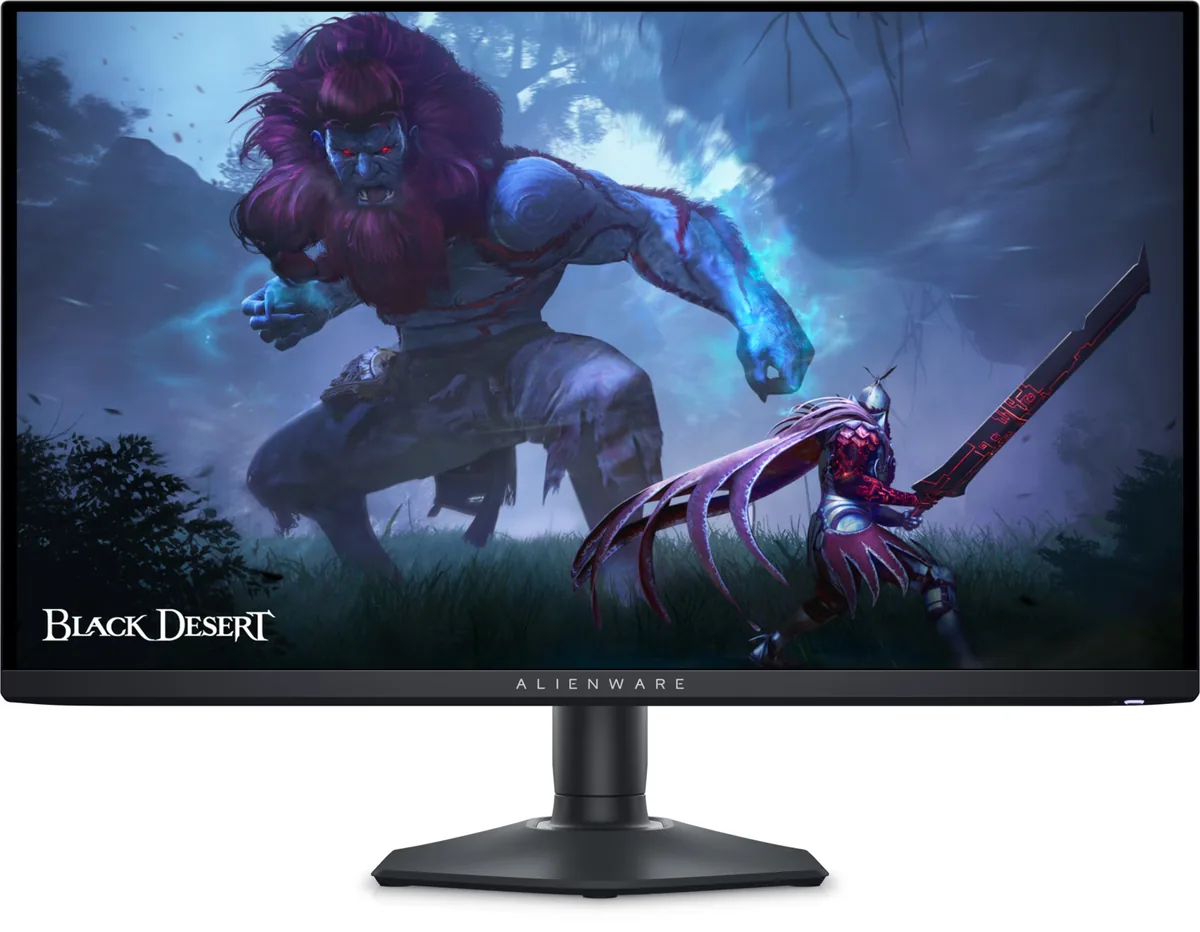
Alienware AW3225QF monitorOLED gaming~$1,000

Alienware

Alienware AW3225QF

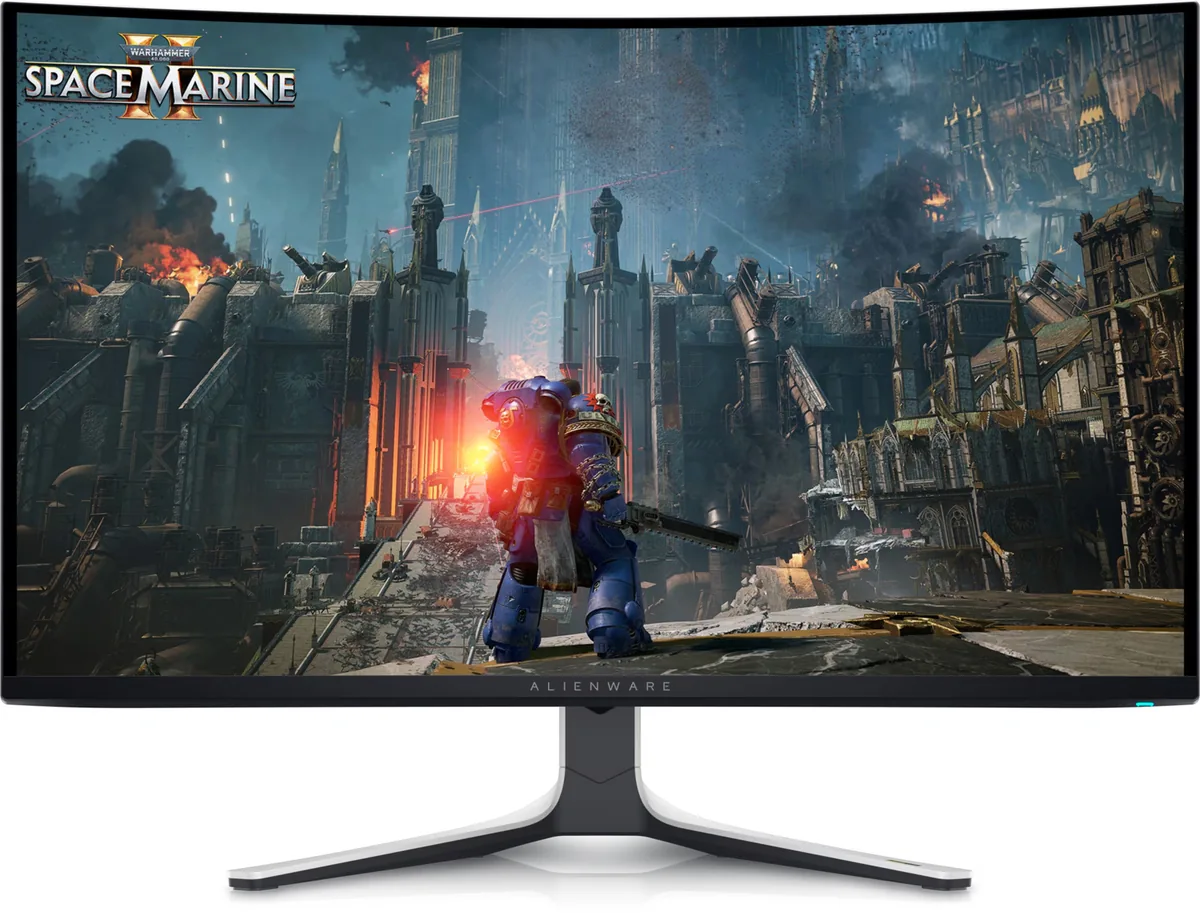
A gentle 1700R curve on a 32-inch 4K QD-OLED, which sounds like a contradiction and works better than it reads — the curve is shallow enough to be invisible on a desktop and just enough to even out the viewing distance at the edges. TFTCentral measured 1,014 nits on a 1% window in its peak-brightness mode against a 1,000-nit claim, one of the few panels here that meets its own number. Dolby Vision support is unusual on a monitor.

Approx. price

~$1,000

snapshot, not a live price

Sharpness

58ppd · sharp

text is clean; pixel edges show if you look for them

HDR tier

Real HDR

per-pixel emissive — every pixel is its own backlight, so a highlight can sit beside true black

Peak brightness

1,000nits claimed1,014measured · TFTCentral

DisplayHDR True Black 400

USB-C power

None

video and data only, or no USB-C at all

Max refresh

240 Hz

0.03 ms GtG rated

Port speed — can each input carry this panel?

  • 2×HDMI 2.1· full speed(DSC)
  • DisplayPort 1.4· full speed(DSC)

This panel needs 71.7 Gbps at 3840×2160, 240 Hz and 30 bits per pixel, and supports DSC compression.

Best for: A single flagship gaming panel where 4K and 240 Hz both matter

Specifications

Approx. price
~$1,000
Type
OLED gaming
Resolution
3840×2160
Pixels per degree
58 — sharp
Panel
QD-OLED
Finish
semi-glossy
Response time
0.03 ms GtG
VRR
G-Sync Compatible
HDR tier
Real HDR
HDR certification
DisplayHDR True Black 400
Peak brightness
1,000 nits claimed
Measured peak
1,014 nits · TFTCentral
Local dimming
Per-pixel (emissive)
Static contrast
effectively infinite
Colour gamut
99% DCI-P3
HDMI
2 × HDMI 2.1
DisplayPort
1 × DisplayPort 1.4
DSC
Supported
Port speed
2 of 2 inputs at full speed
USB-C
None
KVM
None
USB hub
4 ports
Speakers
None
Stand
height, tilt, swivel
VESA
100x100
Weight
20.61 lb
Released
2024
$ per inch
$32
$ per megapixel
$121

Features

  • 32-inch 4K QD-OLED at 240 Hz
  • Dolby Vision and HDR10 support
  • 1700R curve
  • Three-year warranty covering burn-in
  • Four-port USB hub

What it does well

  • TFTCentral measured 1,014 nits on a 1% window in the HDR Peak 1000 mode, just above Dell's own 1,000-nit claim
  • 139 pixels per inch on an emissive panel: 4K sharpness with per-pixel black at the same time
  • Dolby Vision decoding on a monitor, which almost nothing else here offers
  • Three years of warranty explicitly covering burn-in
  • The 1700R curve evens out viewing distance without bending straight lines enough to notice

What it gives up

  • TFTCentral measured only 271 nits in SDR, so daylight is the enemy
  • Semi-glossy QD-OLED still reflects what is behind you and raises black level under room light
  • The only USB-C is a downstream port and the hub upstream is USB-B, so nothing docks here on one cable
  • No KVM despite a four-port hub
  • QD-OLED subpixel geometry still fringes text; Windows ClearType helps but does not fix it

The two lists above come from the maker’s specifications and from published third-party measurements, not from owner reports. Where owner discussion has been read it appears in its own section below, so the two are never mistaken for each other.

What owners say

Buyers arrive at this one from two directions. Some want 4K on an emissive panel and find it is the cheapest route to 140 pixels per inch with per-pixel black; others want Dolby Vision on a desktop monitor, which narrows the field to almost nothing. Both groups tend to report the same first week: the picture is startling, and the settings menu is a project.

The settings are where most of the owner conversation lives. Peak 1000 mode buys you real highlight brightness and pays for it with brightness limiting so obvious on a white web page that owners compensate with graphics-driver gamma and contrast just to keep desktop whites steady. True Black 400 sidesteps that and gives up the highlights. On top of that sit Dolby Vision, a console mode and per-game tone-mapping sliders, and the usual outcome is that someone tunes one game beautifully and finds the next one looks wrong. The other recurring friction is connection-level: a monitor that wakes at 120 Hz until power-cycled, and HDMI inputs that some laptops and consoles simply refuse to negotiate with while DisplayPort works first time.

Worth knowing before buying: the 1700R curve is shallow, and the people who worry about it in advance are mostly worrying about desk work rather than games — where it does come up as a real limit is watching a film with two or three other people sitting off-axis. Bright rooms are the other limit. Full-field SDR output is modest and the coating is glossy, so this is a monitor for a room whose lighting you control, not a window-facing desk.
What owners like

  • First-time OLED buyers coming off IPS and TN panels describe the change as a different medium rather than a better monitor — one owner running a 4K game near 200 fps said the drool was the problem, not the picture.
  • Owners who compared it against the 1440p 27-inch Alienware almost always cite the density: 140 pixels per inch at 32 inches is the reason people pay the difference.
  • Dolby Vision decoding is a genuine deciding factor for the people who shop on it — several buyers went looking specifically for a 4K QD-OLED that would take a Dolby Vision stream and ended up here.
  • Three years of warranty with burn-in written in, plus Dell's service reputation, repeatedly breaks the tie for buyers weighing it against a cheaper LG.
  • Dell discounts it hard and often. Owners report closing at well under list with a coupon and a gift card stacked on a sale, which is not something every brand in this class does.
  • The on-screen menu gives you real control — several HDR presets, a console mode, gamma and colour-space selection — which is what makes the tuning advice below possible at all.

Common complaints

  • Automatic brightness limiting in the Peak 1000 mode is aggressive enough that large white areas visibly dim, and owners who want the highlights end up raising gamma and contrast on the graphics card to make white screens match what True Black 400 gives them.
  • Dolby Vision plus five Smart HDR presets plus per-game tone mapping is a lot of dials. New owners report spending hours on sliders and still getting a washed-out picture in specific titles.
  • A recurring handshake problem: the monitor comes back from sleep or a cold boot offering only 120 Hz, with 240 Hz missing from the list until the monitor itself is switched off and on.
  • HDMI is the flaky input on some hosts. Owners have hit freezes and immediate standby over HDMI on laptops and an Xbox while DisplayPort on the same machine was faultless.
  • Early units shipped with bubbling and damage under the factory screen film. One buyer went through four replacements before the packaging changed.
  • Low-bitrate streaming video shows visible graininess in dark scenes — owners report it looking worse on this panel than on the 1440p IPS it replaced, because per-pixel black leaves compression nowhere to hide.

Questions owners ask about the Alienware AW3225QF

Why is my monitor stuck at 120 Hz instead of 240 Hz?

This comes up constantly, usually after waking from sleep or a fresh boot: 240 Hz simply is not offered in Windows or the driver until the monitor itself is powered off and back on, after which it reappears. Owners have reported it on both DisplayPort and HDMI and with several different cables, so a cable swap is rarely the fix. Check that the monitor's firmware is current and that DSC is enabled, since 4K at 240 Hz in 10-bit needs compression to fit DisplayPort 1.4.

Which HDR mode should I actually use — Peak 1000, True Black 400, or Dolby Vision?

Owners split along content lines. Peak 1000 gives the brightest highlights but brings noticeable dimming when a lot of the screen goes white, which is why several people run True Black 400 for desktop and mixed use and switch up only for HDR games with strong highlight detail. Dolby Vision is worth having for film and for the handful of games that carry it, but a few owners report leaving it off because it interacts awkwardly with per-game tone mapping. Expect to keep two presets and switch, rather than finding one that does everything.

Why do dark scenes in streaming video look grainy?

Several owners have described exactly this, sometimes noting it looks worse than on the 1440p IPS panel they replaced. It is the source rather than the screen: streaming services compress dark gradients heavily, and a panel that can hold genuine near-black has nothing to hide the blocking in. The same file played from a high-bitrate local copy generally looks clean.

Is the curve a problem for watching a film with other people?

For one person at a desk the 1700R curve is shallow enough that most owners stop noticing it within days. Sitting two or three people side by side is the case where it genuinely comes up — a buyer asked precisely this before upgrading from a flat 4K panel, because the off-axis viewers are the ones who see the geometry. If family movie nights are a regular use, a flat 32-inch is the safer shape.

Should I take this or the 1440p 360 Hz Alienware?

The comparison owners keep running is 110 pixels per inch at 360 Hz against 140 at 240 Hz. People who play competitive shooters and value frame timing over detail go to the 1440p panel and are happy; people who also read and write on the screen, or who play story games, consistently say the density is the upgrade they actually feel. Your graphics card matters too — driving 4K at high frame rates is a much bigger ask.

How should I clean the screen?

Use distilled water on a clean microfibre cloth, nothing else. One owner used spring water on a spot and marked the coating permanently, which is not a repair job. Avoid anything with alcohol or ammonia, do not spray the panel directly, and wipe gently — the anti-reflective layer on these panels is the part that damages, not the glass.

Others in the same part of the catalog

Alienware AW2725Q monitor
Alienware~$900

Alienware AW2725Q

26.7″ · 3840×2160 · 240 Hz · QD-OLED

Sharpness
69ppd · retina-class
HDR
Real HDR
USB-C power
No USB-C power
  • 4K at 27 inches OLED
  • 240 Hz
  • 165 ppi
  • Console at full speed

Best for: An OLED that has to handle text as well as it handles motion

Alienware AW2725DF monitor
Alienware~$650

Alienware AW2725DF

26.7″ · 2560×1440 · 360 Hz · QD-OLED

Sharpness
46ppd · sharp
HDR
Real HDR
USB-C power
No USB-C power
  • 360 Hz QD-OLED
  • Around $650
  • 3-year burn-in cover

Best for: Competitive play on an OLED without flagship pricing

MSI MPG 321URX QD-OLED monitor
MSI~$950

MSI MPG 321URX QD-OLED

31.5″ · 3840×2160 · 240 Hz · QD-OLED

Sharpness
59ppd · sharp
HDR
Real HDR
  • 4K 240 Hz OLED
  • 90 W USB-C + KVM
  • Under $1,000
  • Console at full speed

Best for: A 32-inch 4K OLED that docks a laptop without flagship pricing

More from Alienware →

← Back to the catalog