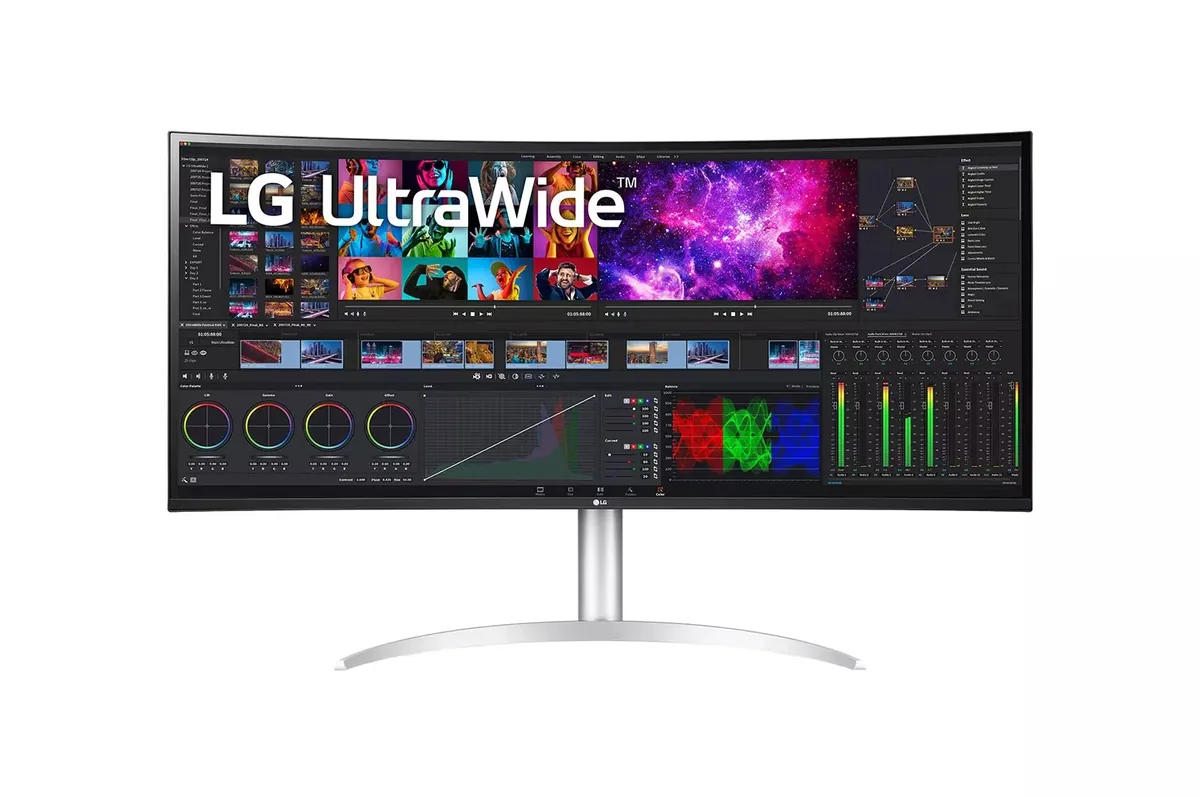
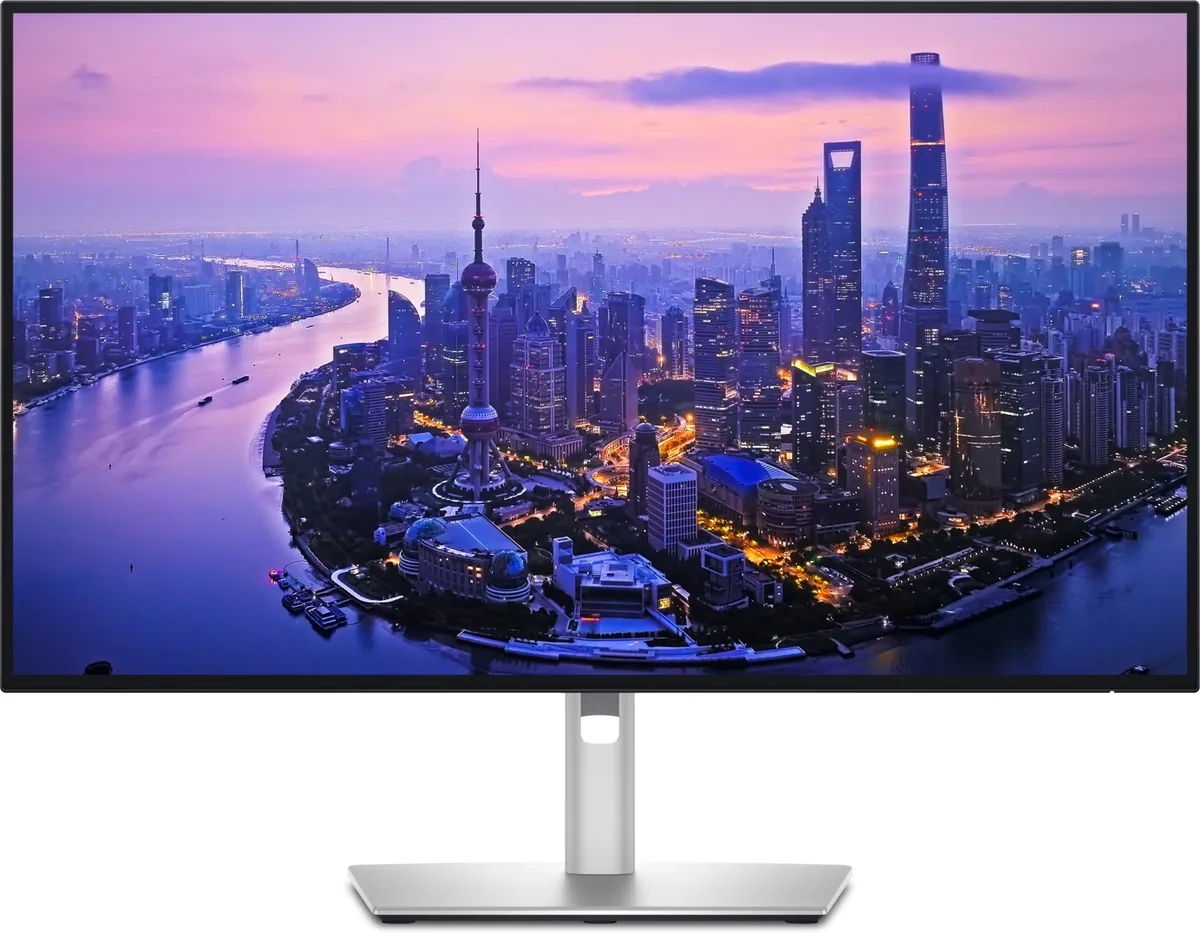
Dell UltraSharp U4025QW monitorUltrawide~$2,400

Dell

Dell UltraSharp U4025QW

The 5K2K ultrawide brought up to date — LG's 40WP95C established this panel size at 72 Hz, and Dell's version runs it at 120 with IPS Black contrast, 140 watts of Thunderbolt and a KVM. What comes out is the most thoroughly equipped productivity monitor in this catalog, and Dell prices it accordingly at twenty-four hundred dollars.

Approx. price

~$2,400

snapshot, not a live price

Sharpness

59ppd · sharp

text is clean; pixel edges show if you look for them

HDR tier

Accepts an HDR signal

the maker publishes no dimming-zone count, so the certificate is the only evidence of local dimming there is

Peak brightness

600nits claimed

DisplayHDR 600

USB-C power

140 W

enough for a 16-inch laptop at full draw

Max refresh

120 Hz

5 ms GtG rated

Port speed — can each input carry this panel?

  • HDMI 2.1· full speed(DSC)
  • DisplayPort 1.4· full speed(DSC)
  • Thunderbolt (DP 1.4)· full speed(DSC)

This panel needs 47.8 Gbps at 5120×2160, 120 Hz and 30 bits per pixel, and supports DSC compression.

Best for: One screen replacing a dual-4K setup, driven and powered by one cable

Specifications

Approx. price
~$2,400
Type
Ultrawide
Resolution
5120×2160
Pixels per degree
59 — sharp
Finish
matte
VRR
Adaptive-Sync
HDR tier
Accepts an HDR signal
HDR certification
DisplayHDR 600
Peak brightness
600 nits claimed
Colour gamut
99% DCI-P3
Colour depth
8-bit+FRC
HDMI
1 × HDMI 2.1
DisplayPort
1 × DisplayPort 1.4
DSC
Supported
Port speed
3 of 3 inputs at full speed
USB-C
Video in over USB-C
USB-C power
140 W — 16-inch workstation
KVM
Built in
USB hub
7 ports
Speakers
Built in
Stand
height, tilt, swivel
VESA
100x100
Weight
26.94 lb
Released
2024
$ per inch
$60
$ per megapixel
$217

Features

  • 5120×2160 at 120 Hz across 39.7 inches
  • IPS Black panel with 2000:1 contrast
  • Thunderbolt 4 with 140 W power delivery
  • KVM with picture-by-picture across two sources
  • Seven-port USB hub with Ethernet

What it does well

  • 5120×2160 at 120 Hz over Thunderbolt with DSC — the same resolution LG's panel runs at 72 Hz
  • 140 watts charges a 16-inch pro laptop while carrying the display and the network on one cable
  • 140 pixels per inch means the enormous canvas stays sharp rather than trading density for width
  • KVM and picture-by-picture together make two machines genuinely share one desk
  • 99% DCI-P3 with 8-bit-plus-dithering colour and IPS Black contrast

What it gives up

  • Twenty-four hundred dollars, which buys two very good 4K monitors and a Thunderbolt dock with change left over
  • Dell publishes no dimming-zone count behind the DisplayHDR 600 badge — brighter HDR, with no contrast figure to go with it
  • One HDMI input and one DisplayPort, so a console and a second PC cannot both sit on the non-Thunderbolt inputs
  • 5 ms response, and the adaptive sync here is plain Adaptive-Sync rather than a certified gaming tier

The two lists above come from the maker’s specifications and from published third-party measurements, not from owner reports. Where owner discussion has been read it appears in its own section below, so the two are never mistaken for each other.

What owners say

Owners describe two entirely different monitors depending on what is plugged into it. From a Windows desktop with a recent graphics card it lands as advertised — 5120×2160 at 120Hz negotiated without fuss, sharp text at 150% scaling, and a shape that a programmer who came from two 1440p panels says suits code better than the pair it replaced. Add the Thunderbolt hub, the Ethernet port and the ambient light sensor and it reads as a dock and a workstation display in one, which is how people justify the price to themselves.

From a Mac or a console it is a harder sell. No owner has produced 120Hz from an Apple machine or a PlayStation, despite working through the bundled cables and third-party alternatives, and on a MacBook Air the best genuinely usable scaled mode one owner found was a little over 3000 pixels wide at 60Hz — which is a lot of money for a resolution a cheaper panel could deliver. Windows owners have their own edge cases: the KVM passes keystrokes but not the software that drives a keyboard's macro keys, and custom resolutions cannot be created over HDMI, which matters for older games that will not run at 5K2K.

The clearest case for it is a Windows or Thunderbolt desktop used for coding, analysis, engine work or editing, on a desk deep enough and wide enough to take it — measure the clearance underneath, because at least one owner replaced their desk over it. It is a poor fit for a MacBook Air, for console gaming at high refresh rates, or for anyone whose real need is screen area rather than pixel density, where two or three ordinary panels do the same job for a quarter of the outlay.
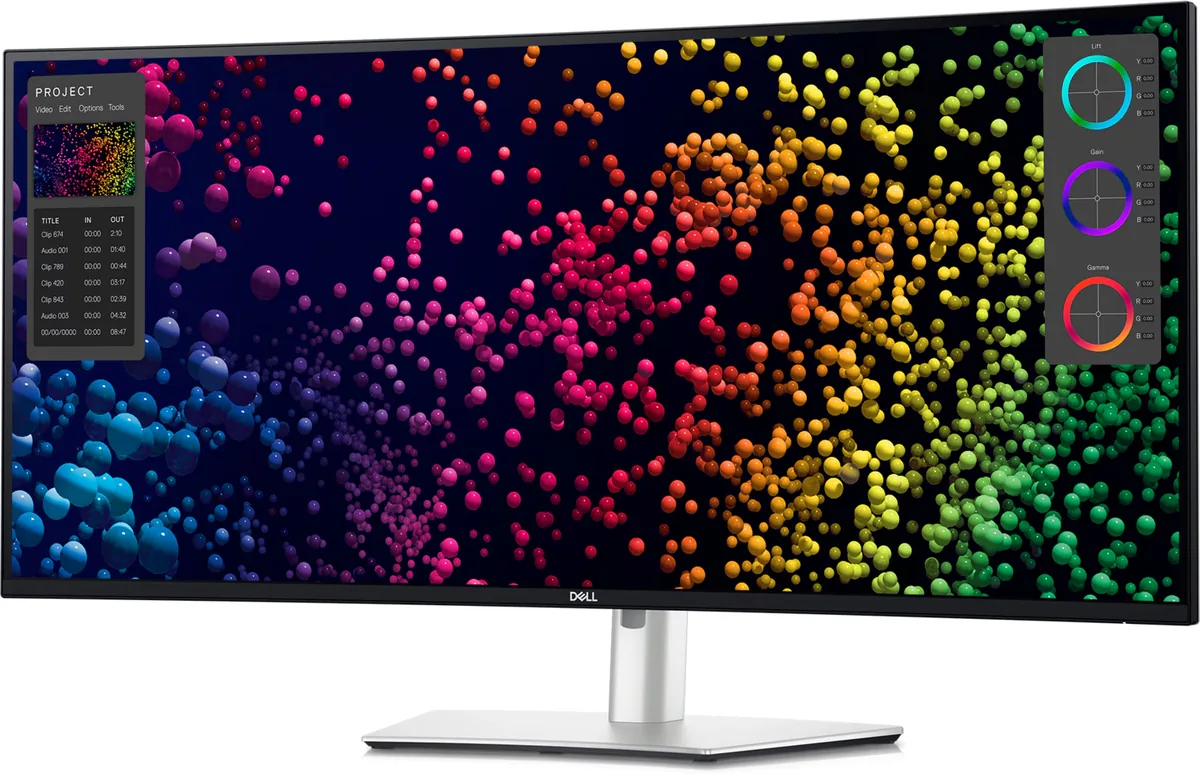
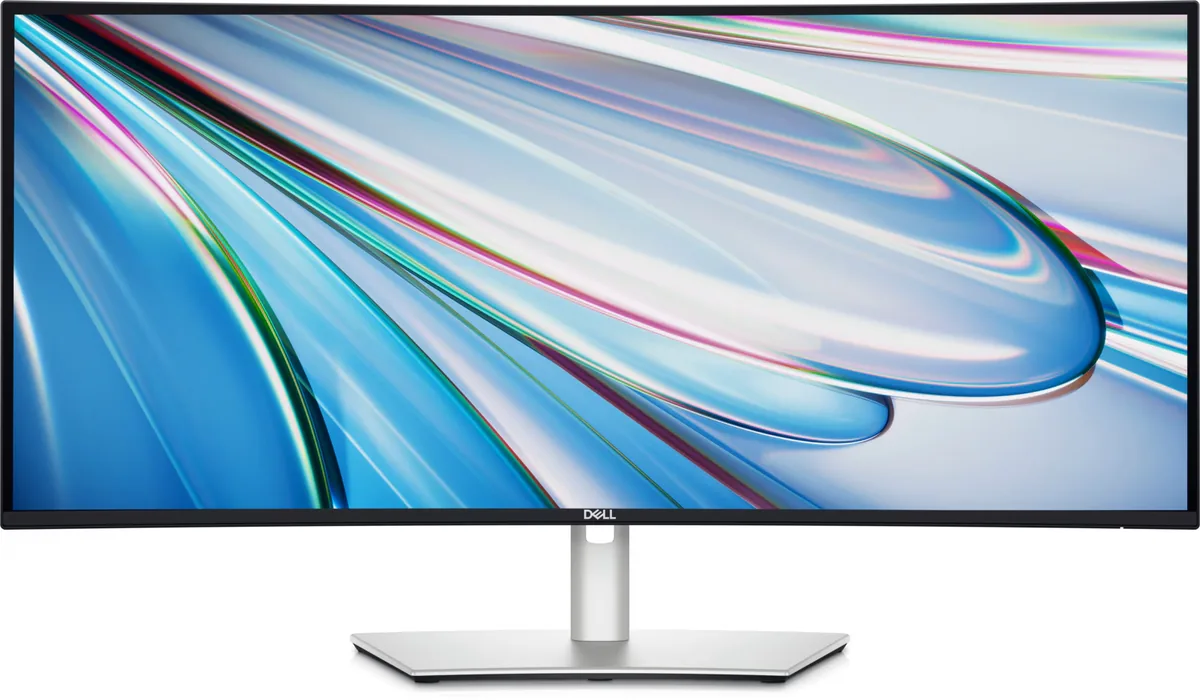
What owners like

  • A programmer who replaced two 24-inch 1440p panels with it reports sharper text and image quality across the board, and calls the shape right for code — more lines of it vertically, at a font size that is easier to read than the pair it replaced
  • On a Windows desktop it simply works: an owner with a 3080 Ti had 5120×2160 at 120Hz negotiated automatically, ran 150% scaling and had no complaints about how text rendered
  • The ambient light sensor gets singled out as genuinely useful rather than a gimmick, keeping brightness comfortable through a whole working day without intervention
  • Thunderbolt hub, wired Ethernet and a KVM mean it replaces a dock as well as a monitor, which is what makes the price defensible for owners running a work laptop and a personal machine on one desk
  • The gentle curve and the colour accuracy win over people coming from 38-inch ultrawides — one doing data analysis calls 5K2K at 120Hz amazing and expects to keep it for years
  • Dell discounts it more than most people realise: owners report taking a few hundred dollars off through employee-purchase pricing or simply by asking support for a code before ordering

Common complaints

  • 120Hz from a Mac or a console has eluded the owners who tried — one worked through the supplied Thunderbolt cable, a second Thunderbolt cable and a third-party cable to DisplayPort on a Mac Studio, and the supplied HDMI cable with performance mode enabled on a PS5, and stayed at 60Hz throughout
  • On Apple laptops the practical resolution collapses: an owner on an M2 MacBook Air found roughly 3008×1270 at 60Hz to be the best usable scaled mode, with the native resolution technically available but far too small to work in
  • The KVM breaks peripheral software — a keyboard's macro keys and its configuration utility stopped working when routed through it, while the keyboard itself typed normally, which defeats the point of using the switch
  • Custom resolutions are unavailable over HDMI 2.1: an owner on a 4070 Ti Super wanted a 3440×1440 mode for games that will not run at the native resolution and found Nvidia's customise button greyed out through every suggested workaround
  • It is physically enormous — one owner had to buy a new desk because the monitor left no clearance underneath for their speakers, and the built-in speakers are not good enough to avoid the problem
  • Even owners who love it want more brightness, and the $2,400 list price is the objection in nearly every discussion, with prospective buyers weighing it against two or three ordinary panels for a fraction of the money

Questions owners ask about the Dell UltraSharp U4025QW

Can I get 120Hz out of a Mac or a PlayStation 5?

No owner here has managed it. One tried the monitor's own Thunderbolt cable, the cable from their previous Dell, and a third-party Thunderbolt-to-DisplayPort cable from a Mac Studio with an M1 Max, then the supplied HDMI cable on a PS5 with performance mode enabled, and got 60Hz every time — Fortnite stayed pinned at 59 to 60 frames with no 120Hz option offered. Treat 120Hz as a Windows-desktop feature until someone proves otherwise.

What scaling setting should I use?

On Windows, owners are happy: 150% scaling with no text oddities on one machine, and a programmer who prefers 100% global scaling with text size raised to 120% so his development tools behave. On macOS it is the sticking point — an M2 MacBook Air owner using BetterDisplay settled at around 3008×1270 at 60Hz as the best usable high-density mode, because the native resolution is unworkably small.

Does the built-in KVM work with gaming keyboards?

Partly, and the part that fails is annoying. An owner switching between machines found their keyboard typed normally through the KVM but its macro keys and the manufacturer's control software stopped working entirely — even the macro menu key went dark. Connecting the keyboard directly to a computer restored it, which as they point out defeats the purpose of the switch.

Can I set a lower resolution like 3440×1440 for older games?

Not easily. An owner on a 4070 Ti Super connected over HDMI 2.1 could not get 3440×1440 offered as an option and found the custom-resolution button greyed out in Nvidia's control panel, after trying display versus GPU scaling, 8-bit colour, 60Hz, and disconnecting other displays. If a game you care about cannot handle 5120×2160, verify this before buying rather than assuming a driver-side fix exists.

How much desk does it actually need?

More than people plan for. One owner had their unit delivered, set it up beside a 27-inch panel, and discovered there was no longer enough clearance underneath for their desktop speakers — they ended up shopping for a new desk. Measure both the width and the height under the panel, and if you intend to run separate speakers or a soundbar, plan where they go before it arrives.

Is one 40-inch screen better than two or three smaller ones for work?

The people who have made the switch mostly say yes, with caveats. Replacing two 24-inch 1440p monitors gained one owner vertical space and better text at the cost of some width, and buyers tired of a bezel down the middle of their view are the most satisfied. The honest counterargument is money: a third ordinary panel costs a fraction of this monitor, and if your bottleneck is area rather than sharpness, that is the cheaper answer.

Others in the same part of the catalog

Dell UltraSharp U3425WE monitor
Dell~$1,050

Dell UltraSharp U3425WE

34″ · 3440×1440 · 120 Hz · IPS

Sharpness
46ppd · sharp
HDR
No HDR
  • 21:9 at 120 Hz
  • Thunderbolt 4, 90 W
  • KVM
  • Console at full speed

Best for: A wide business desktop where two source machines share one keyboard

LG UltraWide 40WP95C monitor
LG~$1,800

LG UltraWide 40WP95C

39.7″ · 5120×2160 · 72 Hz · IPS

Sharpness
59ppd · sharp
HDR
No HDR
  • 5K2K 21:9
  • Thunderbolt 4, 96 W
  • 98% DCI-P3

Best for: A wide code-and-timeline desktop driven by one Thunderbolt cable

Dell UltraSharp U2725QE monitor
Dell~$850

Dell UltraSharp U2725QE

27″ · 3840×2160 · 120 Hz · IPS

Sharpness
68ppd · retina-class
HDR
Accepts an HDR signal
  • IPS Black 3000:1
  • Thunderbolt 4, 140 W
  • KVM
  • Console at full speed

Best for: A two-machine desk that should run from one cable and one keyboard

More from Dell →

← Back to the catalog