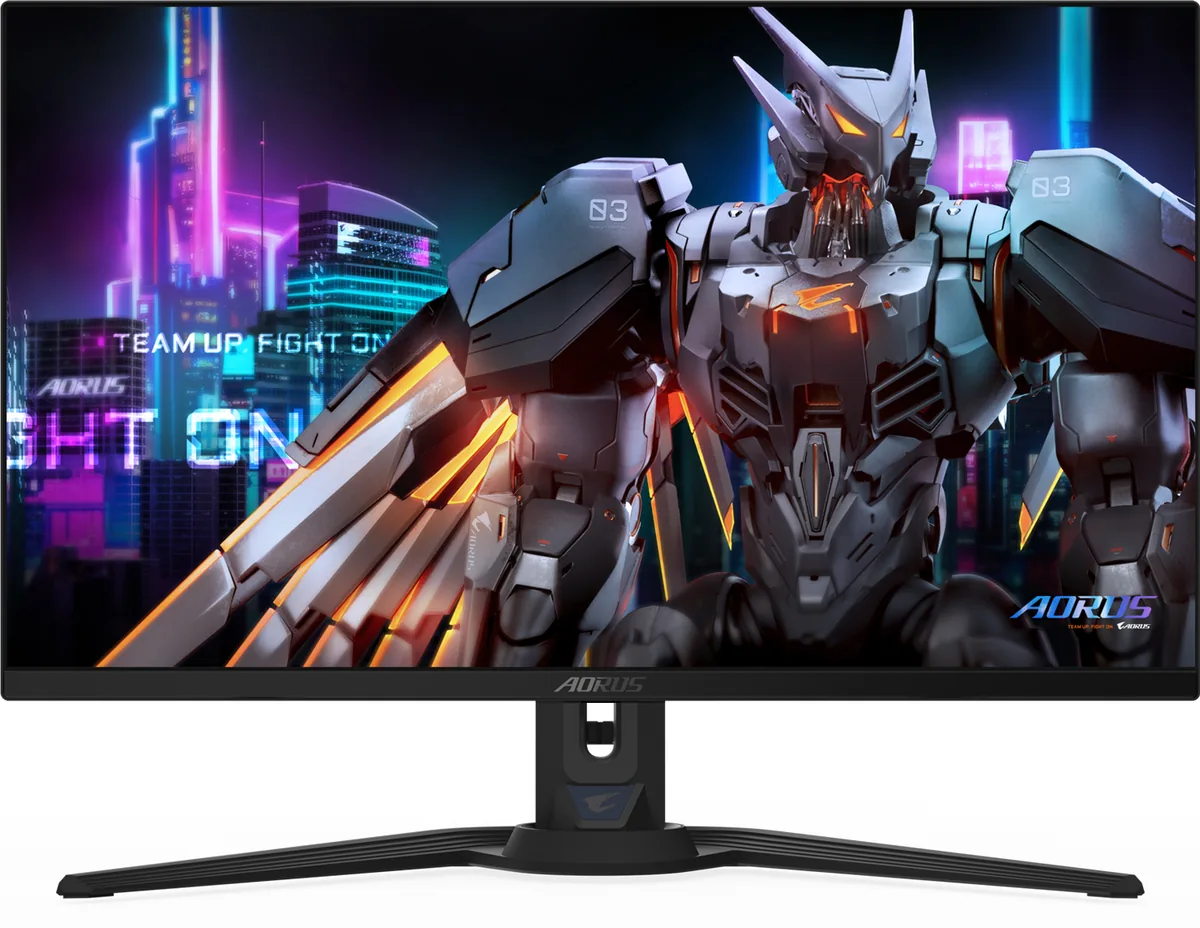
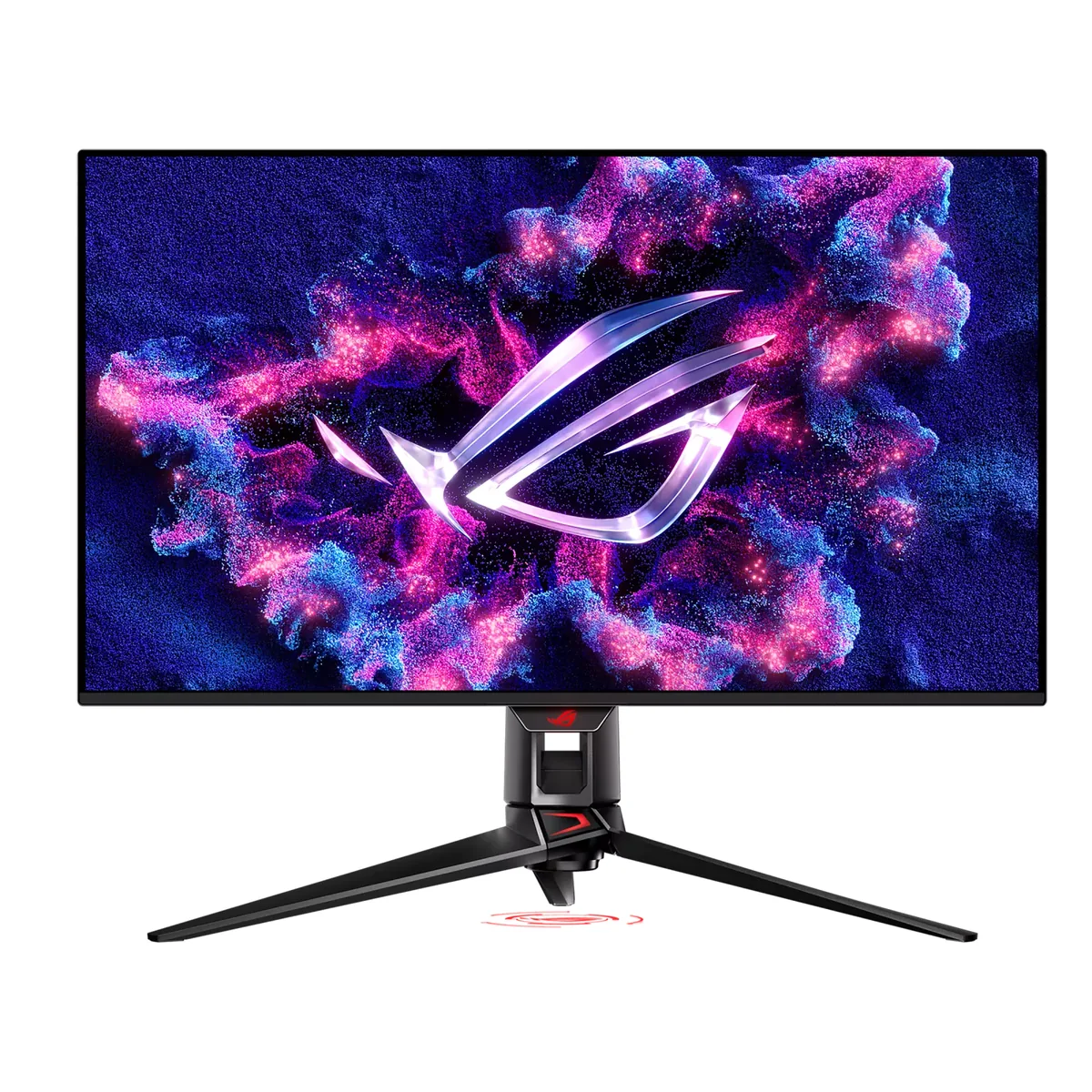
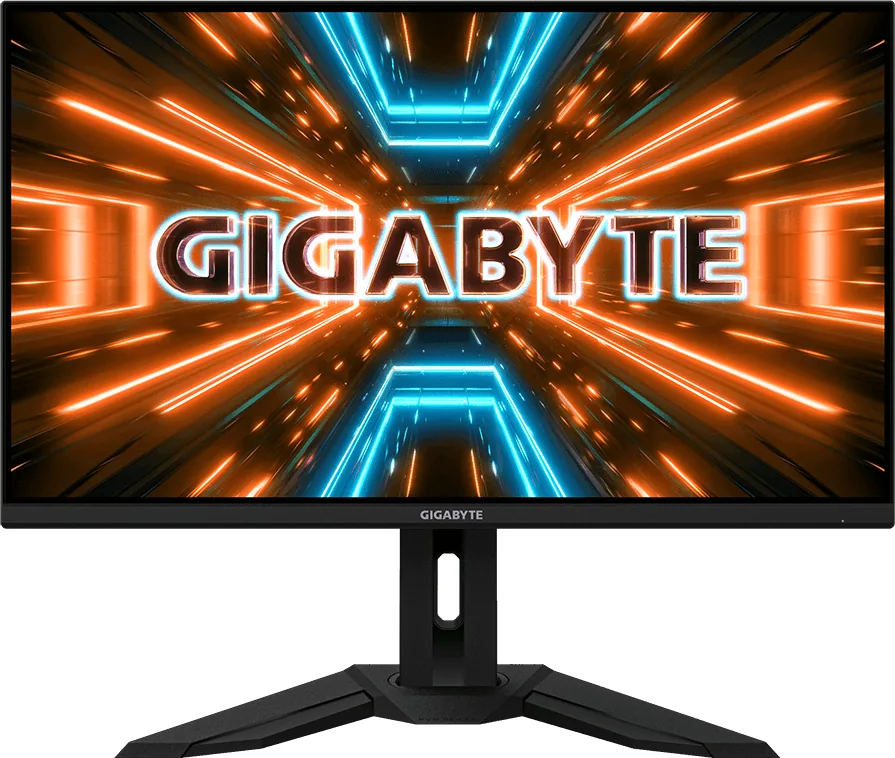
Gigabyte AORUS FO27Q3
26.5″ · 2560×1440 · 360 Hz · QD-OLED
- Sharpness
- 46ppd · sharp
- HDR
- Real HDR
- USB-C power
- 18 W
- 360 Hz OLED
- KVM
- 3-year burn-in cover
- Console at full speed
Best for: A fast OLED for a desk that switches between two machines
OLED gaming~$1,199Gigabyte
The only 32-inch 4K OLED here with DisplayPort 2.1 at the full UHBR20 rate, which carries 4K at 240 Hz in 10-bit without compression — every rival does the same job through DSC. Whether that is worth paying for depends entirely on whether your graphics card has a UHBR20 output, and most do not. A KVM comes along as well.
Approx. price
~$1,199
snapshot, not a live price
Real HDR
per-pixel emissive — every pixel is its own backlight, so a highlight can sit beside true black
Port speed — can each input carry this panel?
This panel needs 71.7 Gbps at 3840×2160, 240 Hz and 30 bits per pixel, and supports DSC compression.
Best for: A 4K OLED driven uncompressed by a DisplayPort 2.1 graphics card
The two lists above come from the maker’s specifications and from published third-party measurements, not from owner reports. Where owner discussion has been read it appears in its own section below, so the two are never mistaken for each other.
What sets this one apart from the pile of 32-inch 4K QD-OLEDs is a full-bandwidth DisplayPort 2.1 input, and owners are explicit that this is why they bought it — not because compression looks bad, but because they wanted nothing to do with the alt-tab blackouts and edge-case bugs that come with a compressed link. Owners talk about the resulting picture the way people talk about a first OLED: one has left a well-liked 42-inch OLED television dark for a month since it arrived, another returned a rival 32-inch 4K panel after comparing them.
The careful criticism comes from the owner who ran it beside the MSI panel built on the same generation of glass and concluded that the extra brightness here is bought with accuracy — colours slightly washed, dark tones and greys less separated. A green cast on a new unit is reported separately, and the coating is bright enough that one owner keeps a second monitor on the desk for daytime use. Then there is the software: the brightest HDR mode declares a peak figure to the system far below what it can actually do, which breaks driver-level tone mapping badly enough that owners went looking for ways to override the reported value.
Reliability reports are mixed rather than bad. Brief signal dropouts several times a day appear more than once and survived a firmware update in one case; USB-C stopped delivering power and picture overnight for another owner; the KVM sometimes refuses to switch to the laptop; and one unit wakes itself to display a laptop lock screen, which is exactly what you do not want on an OLED. Worth it for someone who wants uncompressed 4K at 240 Hz and games in a dark room. Not the choice for a bright office, or for a buyer who wants the most accurate panel in this class rather than the brightest.
Owners buying it say yes, and their reasoning is about side effects rather than image quality: a compressed link is what produces the black screens some people see when alt-tabbing out of a game, and it complicates things like custom resolutions. Nobody in these threads claims they can see compression artefacts — one long argument concluded that nobody had demonstrated a proper on/off comparison at all. Buy it to avoid the failure modes, not because the picture is visibly better.
Several new owners hit this and the cause is almost always upstream of the monitor. Check that you are on the DisplayPort input rather than HDMI, that the cable is the one supplied, and critically that the graphics card can actually drive 4K at high refresh — one owner posting about this was temporarily connected to an old laptop. Over USB-C from a Mac, 60 Hz is also what several owners report as the ceiling.
In its brightest HDR mode the monitor reports a peak brightness to the system that is less than half of what that mode actually produces, so anything that trusts the declared figure tone-maps to the wrong target. This drew a long thread of owners looking for a way to override the reported value. The practical options are using the monitor's other HDR mode, or letting the game handle HDR rather than the driver.
The manual cycle is gated behind several hours of accumulated use, which owners discovered by trying to run it too soon, and there was real confusion over whether those hours have to be continuous. Leave it alone — the automatic cycle runs on its own schedule and is what actually protects the panel. Running it manually every few hours is not the maintenance routine some owners assumed it was.
One owner saw exactly this pattern, from twice a day to six times in a minute, and both a different cable and a firmware update reduced it without eliminating it. Start with the cable and the input, because that is cheap and it genuinely helped in that case. If it persists after a firmware update, raise it as a fault while it is easy to reproduce rather than hoping a later update fixes it.

26.5″ · 2560×1440 · 360 Hz · QD-OLED
Best for: A fast OLED for a desk that switches between two machines

31.5″ · 3840×2160 · 240 Hz · QD-OLED
Best for: A flagship OLED that is also the dock and the KVM for a work laptop

31.5″ · 3840×2160 · 144 Hz · Fast IPS
Best for: A large 4K gaming desktop that also has to switch between two machines