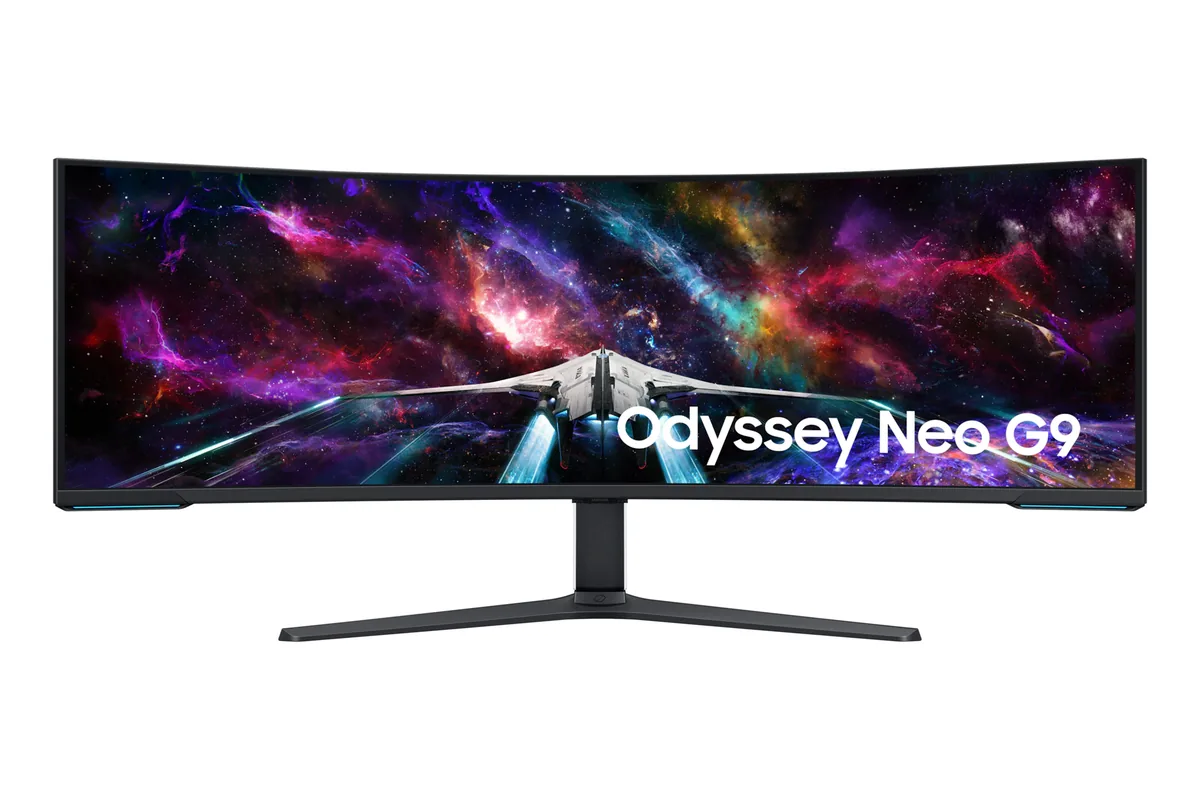
Samsung Odyssey Neo G9 G95NC monitorUltrawide~$2,100

Samsung

Samsung Odyssey Neo G9 G95NC

Two 4K panels wide at 240 Hz is more data than HDMI 2.1 can carry even with compression, so the UHBR13.5 DisplayPort here is not a spec-sheet flourish — no other monitor in this catalog outruns HDMI 2.1 that way. Behind the VA panel sit 2,392 mini-LED dimming zones, which is what puts it in the real-HDR tier rather than the badge tier.

Approx. price

~$2,100

snapshot, not a live price

Sharpness

59ppd · sharp

text is clean; pixel edges show if you look for them

HDR tier

Real HDR

1000 nits claimed behind 2,392 dimming zones

Peak brightness

1,000nits claimed1,300measured · Display Ninja

DisplayHDR 1000

USB-C power

None

video and data only, or no USB-C at all

Max refresh

240 Hz

1 ms GtG rated

Port speed — can each input carry this panel?

  • 3×HDMI 2.1· full speed at 8-bit
  • DisplayPort 2.1 UHBR13.5· full speed(DSC)

This panel needs 143.3 Gbps at 7680×2160, 240 Hz and 30 bits per pixel, and supports DSC compression.

Best for: The widest single-panel desktop made, given a card with a DisplayPort 2.1 output

Specifications

Approx. price
~$2,100
Type
Ultrawide
Resolution
7680×2160
Pixels per degree
59 — sharp
Panel
Mini-LED VA
Finish
matte
VRR
FreeSync Premium Pro
HDR tier
Real HDR
HDR certification
DisplayHDR 1000
Peak brightness
1,000 nits claimed
Measured peak
1,300 nits · Display Ninja
Local dimming
2,392 zones
Colour gamut
95% DCI-P3
Colour depth
8-bit+FRC
HDMI
3 × HDMI 2.1
DisplayPort
1 × DisplayPort 2.1 UHBR13.5
DSC
Supported
Port speed
1 of 2 inputs at full speed
USB-C
None
KVM
Built in
USB hub
2 ports
Speakers
None
Stand
height, tilt, swivel
VESA
100x100
Weight
41.9 lb
Released
2023
$ per inch
$37
$ per megapixel
$127

Features

  • 7680×2160 at 240 Hz — two 4K panels side by side
  • 2,392-zone mini-LED backlight
  • DisplayPort 2.1 UHBR13.5
  • 1000R curve
  • DisplayHDR 1000 certified

What it does well

  • 2,392 dimming zones behind a VA panel produce HDR highlights an OLED at this size cannot sustain
  • DisplayPort 2.1 at UHBR13.5, which is the bandwidth 7680×2160 at 240 Hz actually requires
  • 140 pixels per inch across 57 inches — the same density as a 32-inch 4K panel, just far more of it
  • No burn-in risk at all, which matters on a screen likely to hold a static taskbar all day
  • 1000R curve is tight enough that the far ends are actually aimed at you

What it gives up

  • 42 pounds and 4.4 feet wide; many desks physically cannot take it
  • Mini-LED blooming is visible around bright objects on dark backgrounds, which per-pixel OLED does not do
  • VA response leaves dark-transition smearing that the 1 ms rating does not capture
  • Driving 7680×2160 at 240 Hz needs a graphics card with a DisplayPort 2.1 output, which most installed cards are not
  • No USB-C input at twenty-one hundred dollars, so a laptop still brings its own charger and cable

The two lists above come from the maker’s specifications and from published third-party measurements, not from owner reports. Where owner discussion has been read it appears in its own section below, so the two are never mistaken for each other.

What owners say

What it is like to own divides almost perfectly into logistics and luck. The logistics are real and solvable: 7680×2160 is a lot of pixels to feed, so 240Hz needs a DisplayPort 2.1 card, laptops mostly cannot reach native resolution at all, and the stand is large enough that a mounting plan becomes part of the purchase. Owners have worked all of it out in public — television wall mounts into studs, imported heavy-duty arms, cheap USB-C-to-DisplayPort cables that surprise people by working.

The luck is the part nobody can plan around. Ask whether anyone has owned one without a fault and the answers come back in both directions, and the specific worry that recurs is the power supply. Set against that, the owners who did get a good unit are among the most enthusiastic in any ultrawide discussion, and Samsung's firmware has demonstrably fixed at least the adaptive-sync flicker that plagued early units. Picture quality complaints, where they exist, are about the mini-LED backlight rather than the resolution: a faint structure over flat colour, and HDR video that arrives much too dark until you work through the settings.

The strongest case for it is a developer or analyst with a DisplayPort 2.1 desktop, a deep desk, and a wall to bolt it to — this is the only super ultrawide with real pixel density, and it genuinely replaces a monitor array. It is a poor fit if your main machine is a laptop, if you need one-cable USB-C docking, or if you would rather not own a nearly five-foot-wide display whose failure reports you will have read before it arrives.
What owners like

  • Pixel density is the reason productivity buyers choose this over the 1440p super ultrawides — a developer weighing it against the 40-inch 21:9 alternatives called the extra resolution fantastic for programming, and it is the one thing nobody who bought it for work regrets
  • Two 4K panels' worth of desktop replaced whole multi-monitor arrays for several owners, and one coming from a curved 48-inch 4K television described the jump in clarity as night and day
  • DisplayPort 2.1 means full 7680×2160 at 240Hz is genuinely reachable — an owner on a mid-range Radeon reports running the native resolution at 240Hz on the desktop, which no earlier super ultrawide could do
  • Less demanding machines get further than expected: a Surface Pro 8 on integrated graphics drove the full resolution at 120Hz over a twenty-dollar USB-C-to-DisplayPort cable with no drivers or firmware updates
  • Samsung does ship fixes — firmware 1005.3 eliminated almost all of the adaptive-sync brightness flicker one owner had been living with on a 4090
  • Owners who have run it since launch report essentially trouble-free use beyond an occasional pop from the speakers at power-on, and it is discounted by several hundred dollars often enough to be worth waiting for

Common complaints

  • Reliability is the question that dominates every discussion of it, with enough reports of units and power supplies failing early that prospective buyers open posts asking whether anyone has had a good experience — worth buying somewhere with a generous replacement policy
  • 240Hz at native resolution requires DisplayPort 2.1, and one buyer returned the monitor after discovering their card could not feed it; HDMI 2.1 on the box led them to assume it would, and 120Hz is the ceiling on older high-end Nvidia and Radeon cards
  • The stand swallows a desk, and there is no easy mounting answer — owners ended up with full-motion television wall mounts screwed into studs, or importing a heavy-duty arm from another country, because the standard heavy arms are not rated for it
  • Driving the full resolution from a work laptop mostly does not happen: owners are stuck at 4K or 5120×1440 over HDMI and resort to running the laptop into two inputs in picture-by-picture, then hunting for a dock or switch that can do better
  • Backlight behaviour is visible to picky eyes — a desktop user describes a subtle lattice over flat colours and inconsistent letter widths, and the dimming-zone edges on this family of Neo panels have sent other buyers back for refunds
  • Out of the box HDR film and TV playback is reported as far too dark, and the settings that brighten it wash out the rest of the desktop; adaptive sync under Linux also produced white edge flicker until it was switched off

Questions owners ask about the Samsung Odyssey Neo G9 G95NC

What graphics card do I actually need for 7680×2160 at 240Hz?

One with DisplayPort 2.1. An owner running a Radeon RX 7700 XT reports the native resolution at 240Hz on the desktop, while a buyer with an older Radeon returned the monitor once they found it could not reach the rate, and the same 120Hz ceiling applies to Nvidia's previous flagship. HDMI 2.1 on the specification sheet is what misleads people — it does not carry this resolution at 240Hz.

How do people mount something this big?

Not with an ordinary monitor arm. Owners have gone two routes: a full-motion television wall mount rated for 47 to 84 inches, bolted into studs rather than drywall anchors, with the mount's vertical bars hidden behind the panel; or a heavy-duty arm strong enough to hold the tilt, which at least one owner shipped internationally because nothing suitable was sold locally. Both were described as worth the effort — the factory stand takes most of a desk.

Can my work laptop drive the whole screen?

Sometimes, with the right cable. A Surface Pro 8 on integrated graphics managed the full 7680×2160 at 120Hz through a USB-C-to-DisplayPort cable, no software needed. But several owners with business laptops are stuck at 4K or 5120×1440 over HDMI and end up feeding the laptop into two inputs and using picture-by-picture as a workaround. There is no single USB-C connection here that carries video and charges the laptop.

Is the image clean enough for reading and code all day?

Mostly yes, and the resolution is the reason people buy it for work. One owner doing software development and spreadsheets does report a subtle lattice over flat colours, photos looking oddly granular, and two identical letters rendering at different widths — worth knowing if you are sensitive to that. Check your refresh rate too: they found the monitor reporting 120Hz while Windows was running the desktop at 60Hz.

Should I be worried about it failing?

Enough owners have reported dead units, and specifically dead power supplies, that prospective buyers go looking specifically for positive experiences. The counterweight is selection bias: people who have a problem post about it, and long-term owners who reply mostly report no faults beyond a pop from the speakers at start-up. Treat it as a reason to buy where returns and replacements are easy rather than a reason to avoid it.

Why are films and shows so dark on it?

That is the most common complaint after the mounting problem, and it comes from HDR tone mapping rather than the panel. Owners find video extremely dark with HDR enabled in Windows, and that raising brightness to fix it leaves the rest of the desktop washed out. Expect to keep separate picture settings for video and for everything else, and to spend an evening on it.

Others in the same part of the catalog

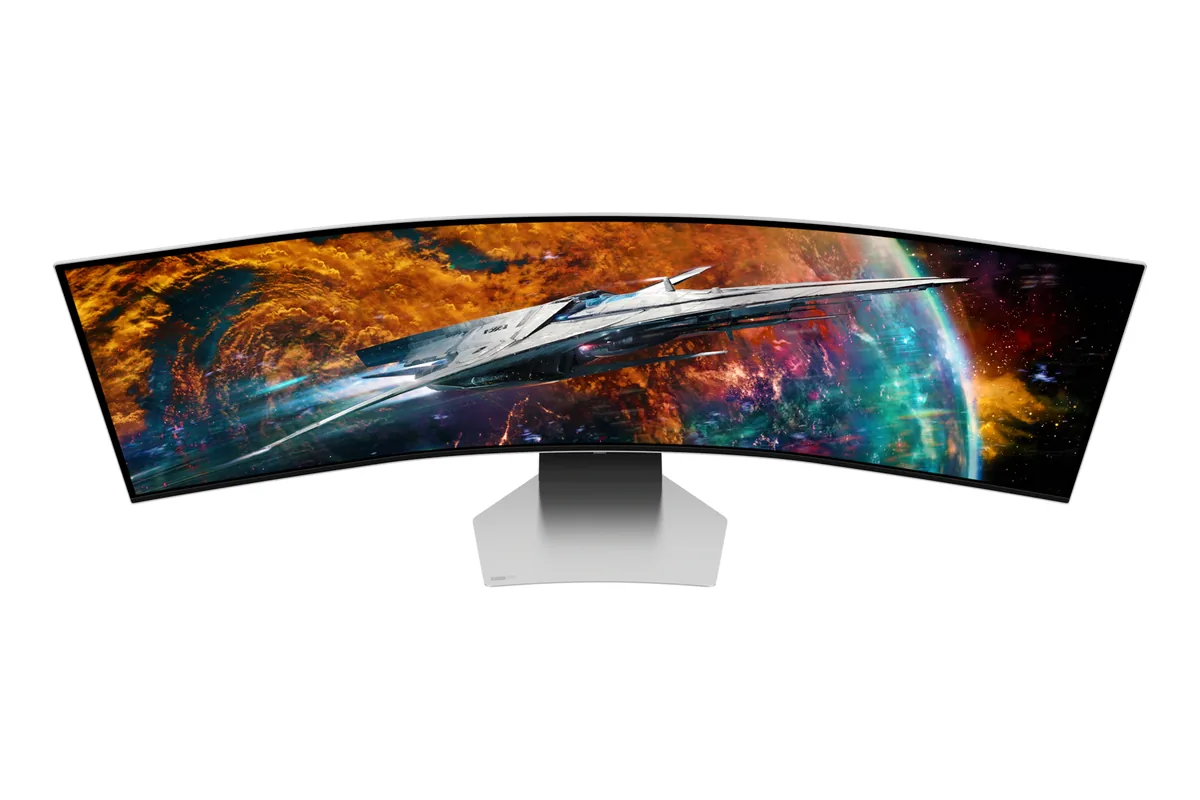
Samsung Odyssey OLED G9 G95SC monitor
Samsung~$1,100

Samsung Odyssey OLED G9 G95SC

49″ · 5120×1440 · 240 Hz · QD-OLED

No longer listed by Samsung
Sharpness
45ppd · sharp
HDR
Real HDR
USB-C power
No USB-C power
  • 49-inch 32:9
  • 240 Hz OLED
  • Two 1440p screens wide
  • Console at full speed

Best for: Replacing a dual-27-inch setup with one unbroken 240 Hz canvas

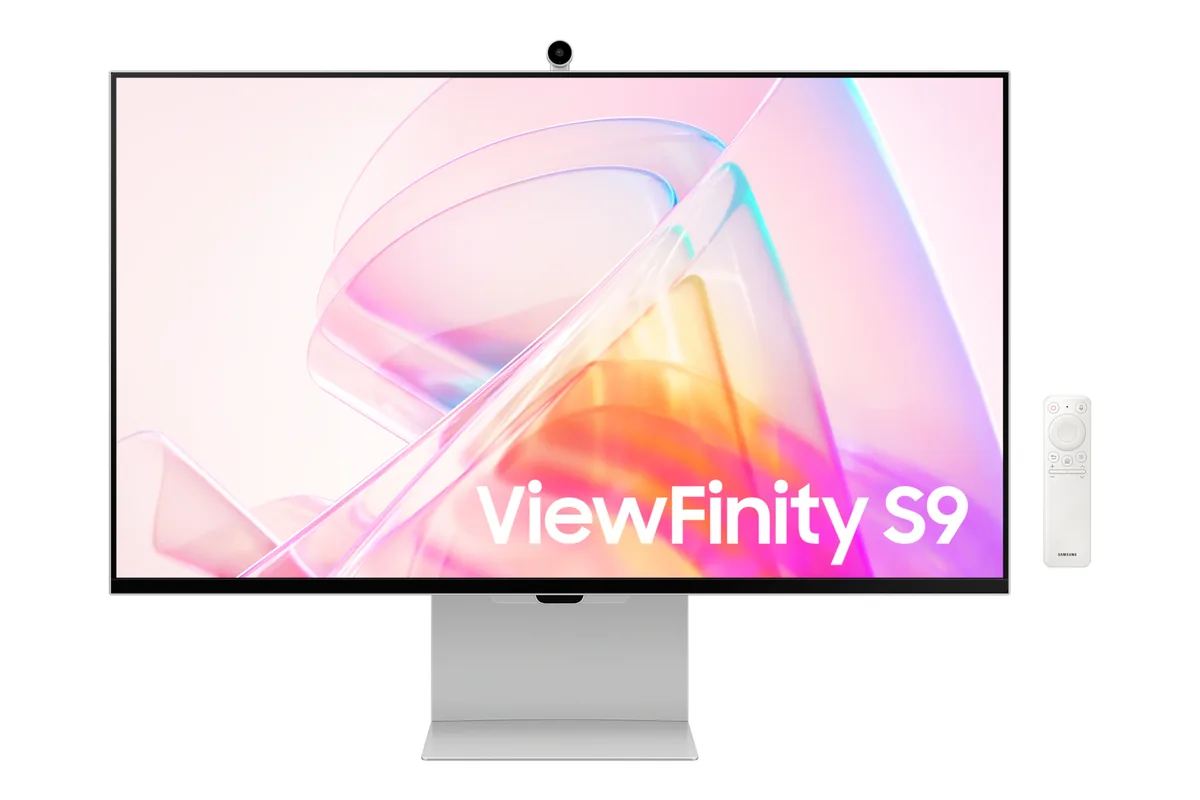
Samsung ViewFinity S9 monitor
Samsung~$1,600

Samsung ViewFinity S9

27″ · 5120×2880 · 60 Hz · IPS

Sharpness
91ppd · retina-class
HDR
No HDR
  • 5K at 27 inches
  • Thunderbolt 4, 90 W
  • Matte 5K

Best for: macOS at a true 2× scaling factor without a glass panel

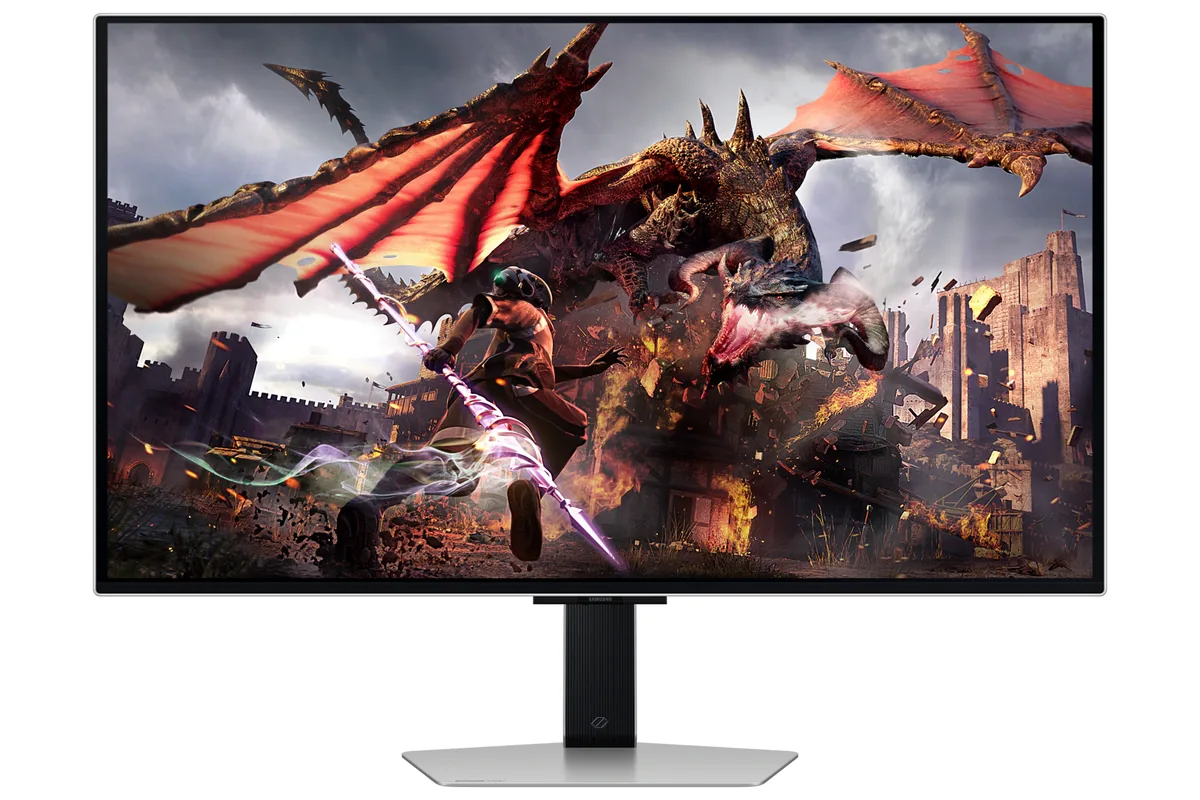
Samsung Odyssey OLED G8 G80SD monitor
Samsung~$1,300

Samsung Odyssey OLED G8 G80SD

32″ · 3840×2160 · 240 Hz · QD-OLED

No longer listed by Samsung
Sharpness
58ppd · sharp
HDR
Real HDR
USB-C power
No USB-C power
  • 32-inch 4K OLED
  • 240 Hz
  • Smart apps built in
  • Console at full speed

Best for: A 4K OLED desktop that also needs to work without a PC attached

More from Samsung →

← Back to the catalog