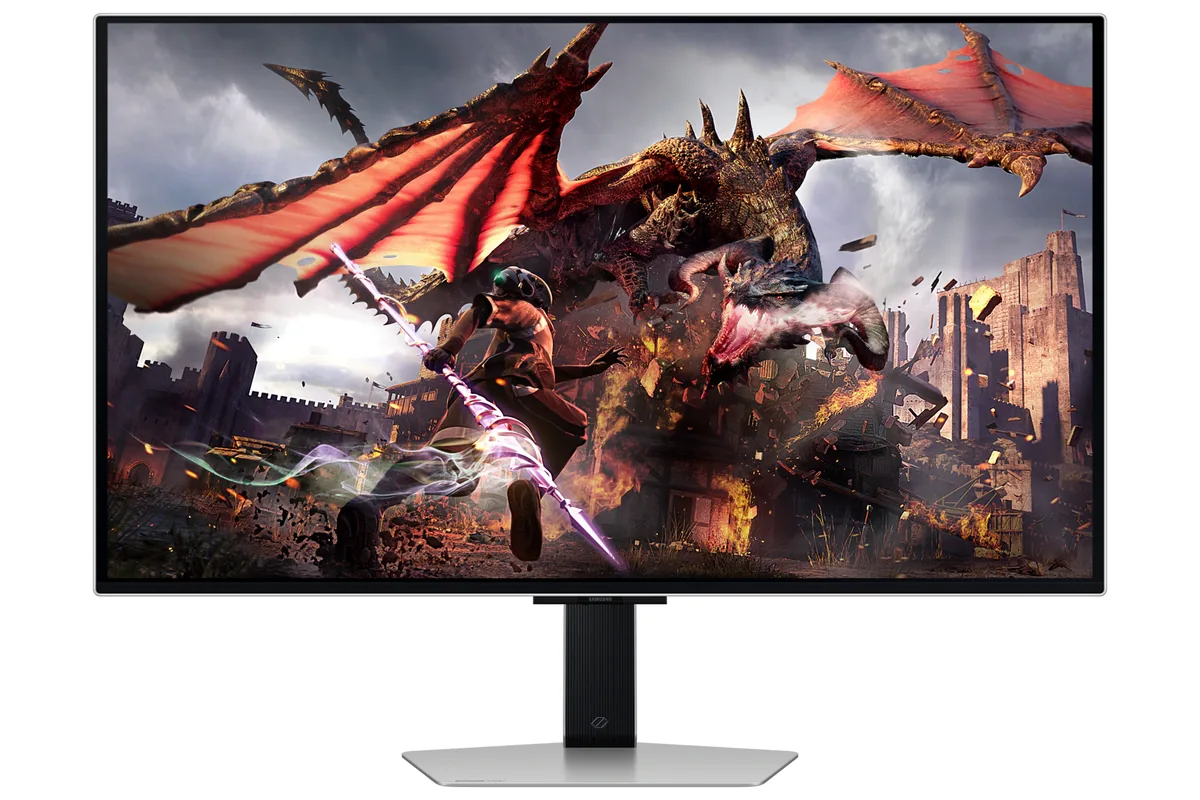
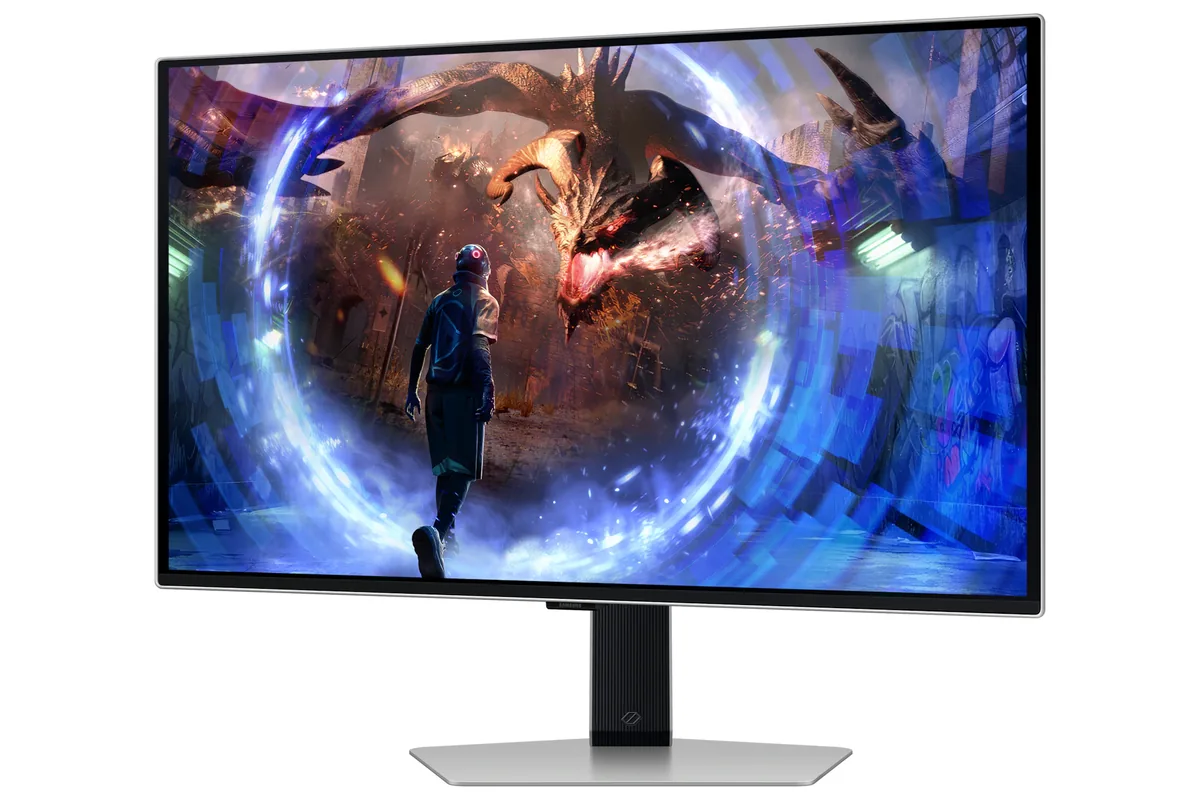
Samsung Odyssey OLED G9 G95SC monitorUltrawide~$1,100

Samsung

Samsung Odyssey OLED G9 G95SC

No longer listed by Samsung

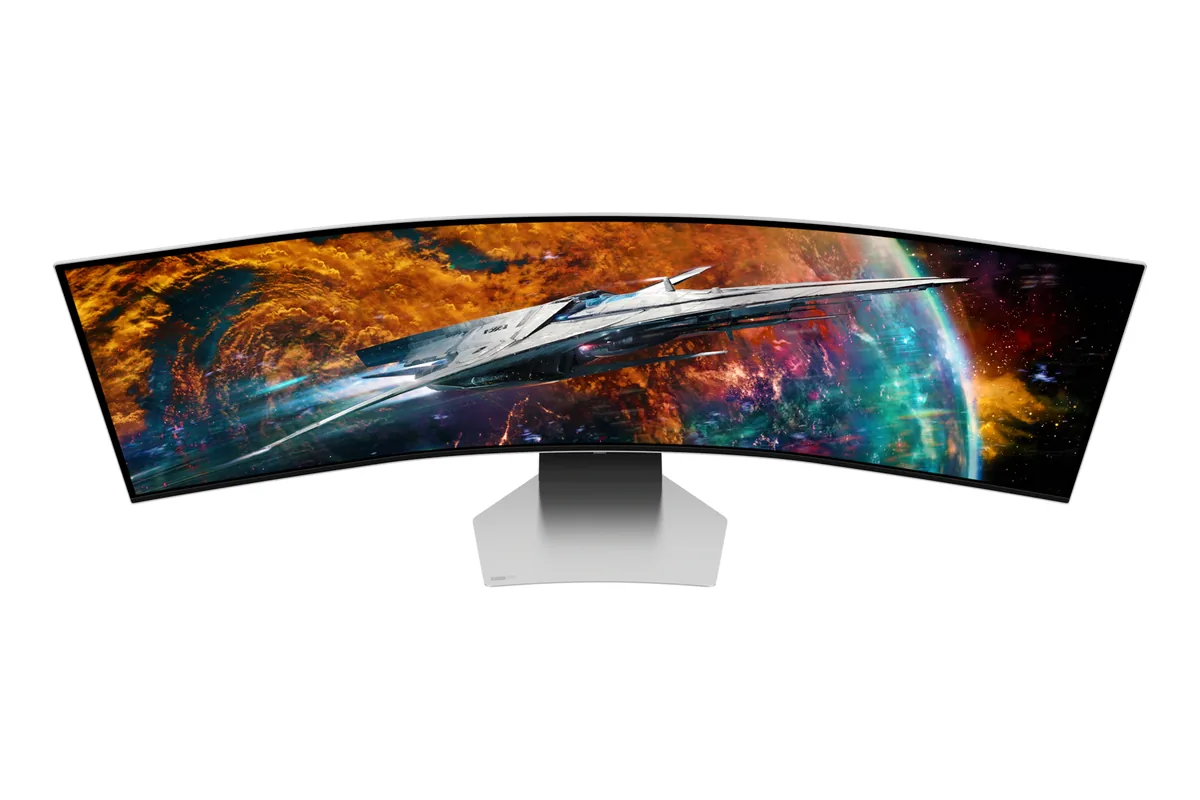
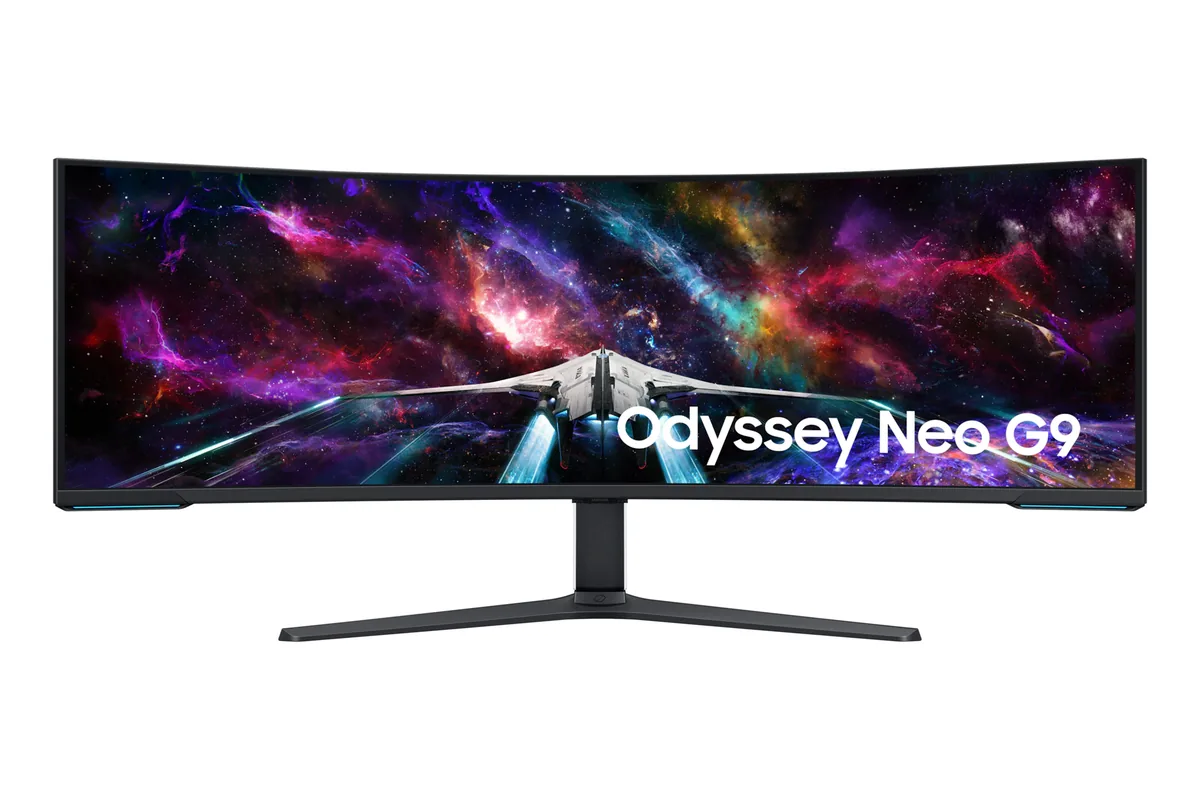
Two 27-inch 1440p monitors fused into one 1800R curve, with an OLED panel behind them. That comparison is exact rather than approximate: 5120×1440 is precisely two 2560×1440 panels side by side, and at 109 pixels per inch the density matches too. What it adds over an actual pair is the absence of a bezel down the middle and 240 Hz across the whole span.

Approx. price

~$1,100

snapshot, not a live price

Sharpness

45ppd · sharp

text is clean; pixel edges show if you look for them

HDR tier

Real HDR

per-pixel emissive — every pixel is its own backlight, so a highlight can sit beside true black

Peak brightness

400nits claimed

DisplayHDR True Black 400

USB-C power

None

video and data only, or no USB-C at all

Max refresh

240 Hz

0.03 ms GtG rated

Port speed — can each input carry this panel?

  • 2×HDMI 2.1· full speed(DSC)
  • DisplayPort 1.4· full speed(DSC)

This panel needs 63.7 Gbps at 5120×1440, 240 Hz and 30 bits per pixel, and supports DSC compression.

Best for: Replacing a dual-27-inch setup with one unbroken 240 Hz canvas

Specifications

Approx. price
~$1,100
Type
Ultrawide
Resolution
5120×1440
Pixels per degree
45 — sharp
Panel
QD-OLED
Finish
semi-glossy
Response time
0.03 ms GtG
VRR
G-Sync Compatible
HDR tier
Real HDR
HDR certification
DisplayHDR True Black 400
Peak brightness
400 nits claimed
Local dimming
Per-pixel (emissive)
Static contrast
effectively infinite
Colour gamut
99% DCI-P3
HDMI
2 × HDMI 2.1
DisplayPort
1 × DisplayPort 1.4
DSC
Supported
Port speed
2 of 2 inputs at full speed
USB-C
None
KVM
None
USB hub
3 ports
Speakers
Built in
Stand
height, tilt
VESA
100x100
Burn-in cover
not published
Weight
28.4 lb
Released
2023
$ per inch
$22
$ per megapixel
$149

Features

  • 5120×1440 super-ultrawide QD-OLED at 240 Hz
  • 1800R curve across 49 inches
  • Picture-by-picture splitting the panel into two halves

What it does well

  • Exactly two 1440p monitors of horizontal space with no bezel in the middle of your view
  • 240 Hz across a 32:9 panel is something no LCD ultrawide of this size matches
  • Per-pixel blacks make the enormous panel usable in a dark room without a glowing grey rectangle
  • Picture-by-picture splits it cleanly into two independent 2560×1440 halves
  • Two 5 W speakers, which a monitor this size usually leaves out

What it gives up

  • Very few games handle 32:9 properly; many letterbox it and some stretch the HUD
  • 28 pounds and nearly four feet wide — check the desk before ordering
  • 250 nits full-field SDR spread over a very large semi-glossy panel is dim in daylight
  • No KVM and no USB-C video input, despite being the obvious monitor for two machines
  • The 1800R curve is gentle enough that the far edges are still noticeably further away than the centre

The two lists above come from the maker’s specifications and from published third-party measurements, not from owner reports. Where owner discussion has been read it appears in its own section below, so the two are never mistaken for each other.

What owners say

Two questions dominate the buying conversation around this 49-inch 32:9 OLED, and neither is about picture quality: whether the smart-TV software will get in the way, and whether an OLED this wide survives a working week of spreadsheets. On the first, the split is genuine — one owner calls the remote and its menus delightful, another shops for the app-free sibling specifically to escape them. On the second, the people who bought it for work-plus-play mostly report going in with mitigations rather than reassurance.

What owners agree on is that the second-generation panel is a visible step up from the first-wave 34-inch QD-OLEDs. Desktop text and low-resolution video both read as cleaner, the width is the thing nobody regrets, and the industrial design earns compliments in a category that usually does not. The recurring practical failure is the cable in the box: it produces artifacts, or nothing at all, and the fix is to replace it before you start troubleshooting your graphics card. Mac owners should read the fine print — 120Hz is the realistic ceiling in the accounts here, and getting even the native resolution recognised took extra software.

This makes most sense for someone with a Windows desktop, a taste for immersion over pixel density, and patience for a monitor that boots into its own interface. Pixel pitch at this size is close to a 27-inch 1440p panel, so it is a wide screen rather than a sharp one. If you need two unequal windows from two machines, or you live on a MacBook, the picture-in-picture limits and the refresh-rate ceiling are real reasons to look at the 4K ultrawides instead.
What owners like

  • Owners upgrading from a 34-inch QD-OLED describe the extra width as the real prize, and say the second-generation panel looks sharper on the desktop than the first-generation Alienware they replaced — one specifically noted 1080p video stopping looking fuzzy
  • The silver-accented stand and chassis get unprompted compliments, and the remote-driven on-screen menu wins over some of the people who expected to hate it — animations, sounds and first-run setup all get called satisfying
  • Streaming apps run on the monitor itself, so owners watch a film or a series without waking the PC, and the eARC audio path can feed a real speaker setup
  • Multi View puts two machines side by side, which is how work-and-play owners run a corporate laptop next to a gaming desktop on one panel
  • Samsung discounts it aggressively — it was repeatedly listed several hundred dollars under list, and education and employee-pricing routes put owners near the price of a 34-inch QD-OLED
  • Recent firmware stopped prompting for the four-hour screen-optimization cycle that owners of the older QD-OLED panels had to sit through, which several read as more confidence in this generation's burn-in behaviour

Common complaints

  • The bundled DisplayPort cable is the most-reported fault on this monitor: one owner could not get a picture out of it at all and fell back to the short HDMI cable, and others chased artifacting for hours before learning a better cable fixed it
  • 5120×1440 at 240Hz from a Mac is effectively unavailable — owners report settling for 120Hz, and the one who got the resolution working at all needed a specific USB-C-to-DisplayPort cable plus third-party resolution software
  • Multi View hard-caps each pane at 2560×1440, so the asymmetric side-by-side layouts the older non-OLED G9 allowed are gone; asking for an uneven split leaves black bars
  • The smart-TV layer is polarising enough that some shoppers deliberately buy the app-free sibling model to avoid it, and one owner found the picture settings they had read about were buried or missing behind it
  • Choosing HDMI to get multi-channel audio over eARC cost one owner image quality — they described everything as grainy afterward and could not get it back on DisplayPort
  • Eight-hour-a-day spreadsheet and code work on a 32:9 OLED still makes buyers nervous about static-interface wear, and the ones who bought anyway plan around it with short sleep timers and auto-hiding taskbars

Questions owners ask about the Samsung Odyssey OLED G9 G95SC

Why does my picture artifact or show no signal at 240Hz?

Try a different DisplayPort cable before anything else. Owners have lost hours to this — one dropped to 120Hz and still saw artifacts until they replaced the cable, and another could not get any image from the cable in the box. The bundled HDMI cable works but is short. A certified DisplayPort 1.4 cable rated for the full link is the fix people land on.

What does it take to run this from a MacBook?

More work than it should. One owner confirmed 5120×1440 at 120Hz only after pairing a USB-C-to-DisplayPort cable with SwitchResX; another running it beside other displays on an M2 Max gave up on 240Hz and accepted 120Hz permanently. If you plan to switch a Mac and a gaming PC through the single DisplayPort input, budget for a switch too.

Can I split the screen into two windows of different sizes?

No. Multi View limits each side to 2560×1440, so an even split is all you get. Owners who did uneven layouts on the earlier non-OLED G9 are disappointed by this, and setting one input to a narrower resolution just centres it with black bars rather than resizing the pane. Firmware updates had not changed it in the reports here.

Should I buy the version without the smart apps instead?

It comes down to whether you will use the apps and how much the interface bothers you. Buyers pick the app-free sibling specifically to skip the TV software, but owners of this one use the streaming apps to watch things with the computer off, and some genuinely enjoy the remote. Be aware the two models do not expose identical picture menus, so settings guides written for one do not always transfer.

Does it still make you run screen optimization every few hours?

Not on recent firmware. An owner who came from an earlier QD-OLED noticed no prompt after twelve-plus hours of use, with only pixel shift and logo-brightness limiting left under panel care. Whether the routine now runs silently during standby or has been judged unnecessary for this panel generation is not something owners can confirm from the menus.

Is a 32:9 OLED a mistake if I work on it all day?

Buyers who work in spreadsheets and email ask this constantly and the honest answer is that nobody has a multi-year report to offer yet. The people who went ahead treat it as a managed risk: short display-sleep timers, a hidden taskbar, varied content. Sharpness is the other consideration — at 49 inches this resolution gives you roughly the pixel density of a 27-inch 1440p screen, not a 4K one.

Others in the same part of the catalog

Samsung Odyssey Neo G9 G95NC monitor
Samsung~$2,100

Samsung Odyssey Neo G9 G95NC

57″ · 7680×2160 · 240 Hz · Mini-LED VA

Sharpness
59ppd · sharp
HDR
Real HDR
USB-C power
No USB-C power
  • Dual-4K 32:9
  • 2,392 dimming zones
  • DP 2.1

Best for: The widest single-panel desktop made, given a card with a DisplayPort 2.1 output

Samsung Odyssey OLED G8 G80SD monitor
Samsung~$1,300

Samsung Odyssey OLED G8 G80SD

32″ · 3840×2160 · 240 Hz · QD-OLED

No longer listed by Samsung
Sharpness
58ppd · sharp
HDR
Real HDR
USB-C power
No USB-C power
  • 32-inch 4K OLED
  • 240 Hz
  • Smart apps built in
  • Console at full speed

Best for: A 4K OLED desktop that also needs to work without a PC attached

Samsung Odyssey OLED G6 G60SD monitor
Samsung~$900

Samsung Odyssey OLED G6 G60SD

27″ · 2560×1440 · 360 Hz · QD-OLED

No longer listed by Samsung
Sharpness
46ppd · sharp
HDR
Real HDR
USB-C power
No USB-C power
  • 360 Hz
  • Matte QD-OLED
  • Burn-in covered
  • Console at full speed

Best for: A room with windows that would defeat a glossy OLED

More from Samsung →

← Back to the catalog