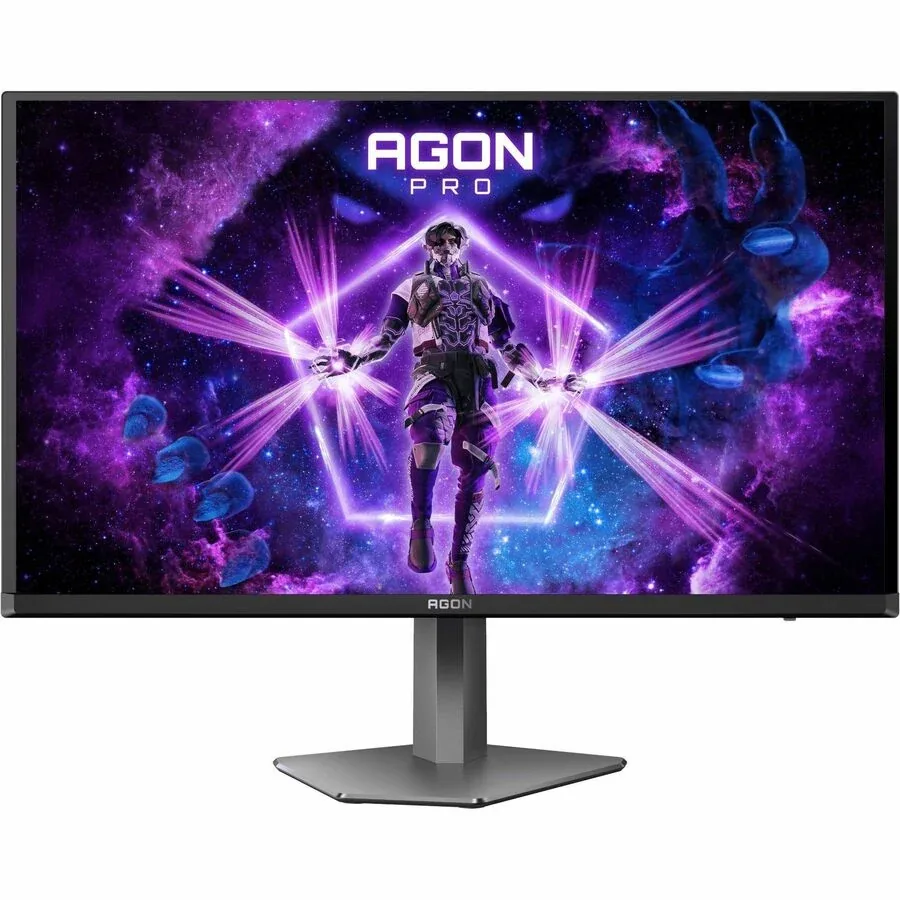
AOC~$800
AOC AGON PRO AG276QZD
26.5″ · 2560×1440 · 240 Hz · WOLED
- Sharpness
- 46ppd · sharp
- HDR
- Real HDR
- USB-C power
- No USB-C power
- 240 Hz WOLED
- 3-year burn-in cover
- Two DisplayPorts
Best for: The cheapest honest route to per-pixel contrast at 240 Hz
Short answer
Worried enough to check the warranty before buying, and not so worried that you avoid the panel. Every OLED monitor in this catalog carries at least two years of cover that explicitly names burn-in, and most carry three. The exposure that matters is hours of static bright interface at high brightness — a taskbar, a spreadsheet grid, a stream overlay — not gaming.
Organic emitters dim as they age, and they age in proportion to how hard they have been driven. Burn-in is not a mark burned onto glass; it is differential wear, where the pixels that have been showing a bright white taskbar for two thousand hours now emit slightly less light than their neighbours. You see it as a ghost of the interface on a uniform mid-grey field.
Blue emitters degrade fastest, which is why a white static element is the worst case and a coloured one is less bad. It is cumulative and it is not reversible — the panel's compensation cycles redistribute brightness to hide it rather than repair it.
Brightness is the strongest lever, and it is the one entirely under your control: running a panel at 60% of its SDR brightness rather than 100% substantially extends the time before wear becomes visible. Static high-contrast elements are the second: a permanently visible taskbar, a docked window with a white title bar, a game HUD you play for a thousand hours.
Every OLED monitor sold now ships mitigations — pixel shift by a few pixels, logo dimming, a compensation cycle that runs when the panel sleeps, and screen savers that most people disable. Leave them on and let the monitor sleep rather than showing a screen saver; the compensation cycle needs the panel off to run.
Mixed video and gaming content is close to a non-issue on a modern panel. The people who report problems on desktop monitors are overwhelmingly running static productivity interfaces at full brightness for eight hours a day, which is exactly the use case an LCD is better suited to.
This is where the buying decision actually sits. A three-year panel warranty that excludes image retention covers nothing that happens to an OLED, so the only figure worth comparing is the cover that names burn-in explicitly. Most of the monitors here state two or three years; a few makers say the warranty covers burn-in without saying for how long, and at least one names no burn-in cover at all inside a warranty document that is otherwise three years long. On a monitor you intend to keep for five or six years, that difference is a free replacement or a new purchase.
One structural point in your favour: OLED monitor warranties are far better than OLED television warranties, because monitor makers know their panels face static content all day and priced that risk in.
If the monitor will mostly show video, games and moving windows, buy the OLED and turn the brightness down. If it will show the same three windows in the same three positions at full brightness for the next four years, a Mini-LED LCD gets you most of the contrast with none of the wear — and this catalog has six of them.
26.5″ · 2560×1440 · 240 Hz · WOLED
Best for: The cheapest honest route to per-pixel contrast at 240 Hz
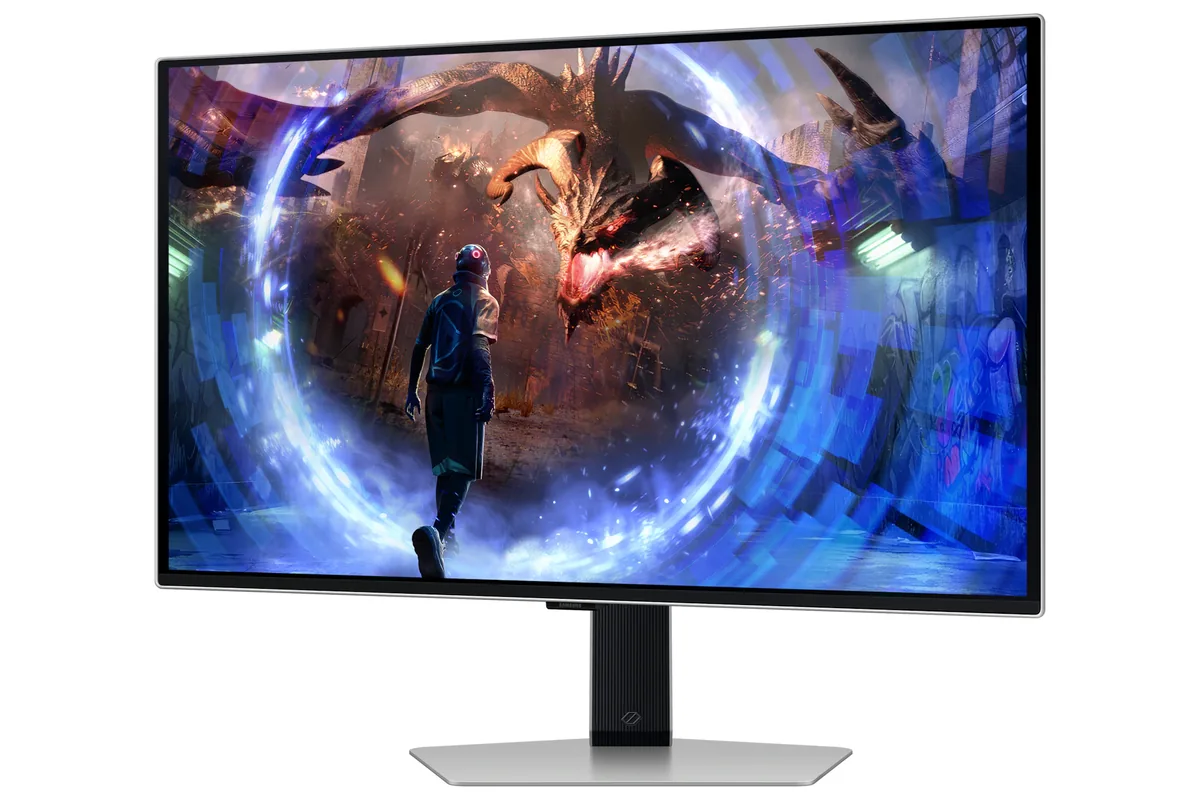
27″ · 2560×1440 · 360 Hz · QD-OLED
Best for: A room with windows that would defeat a glossy OLED
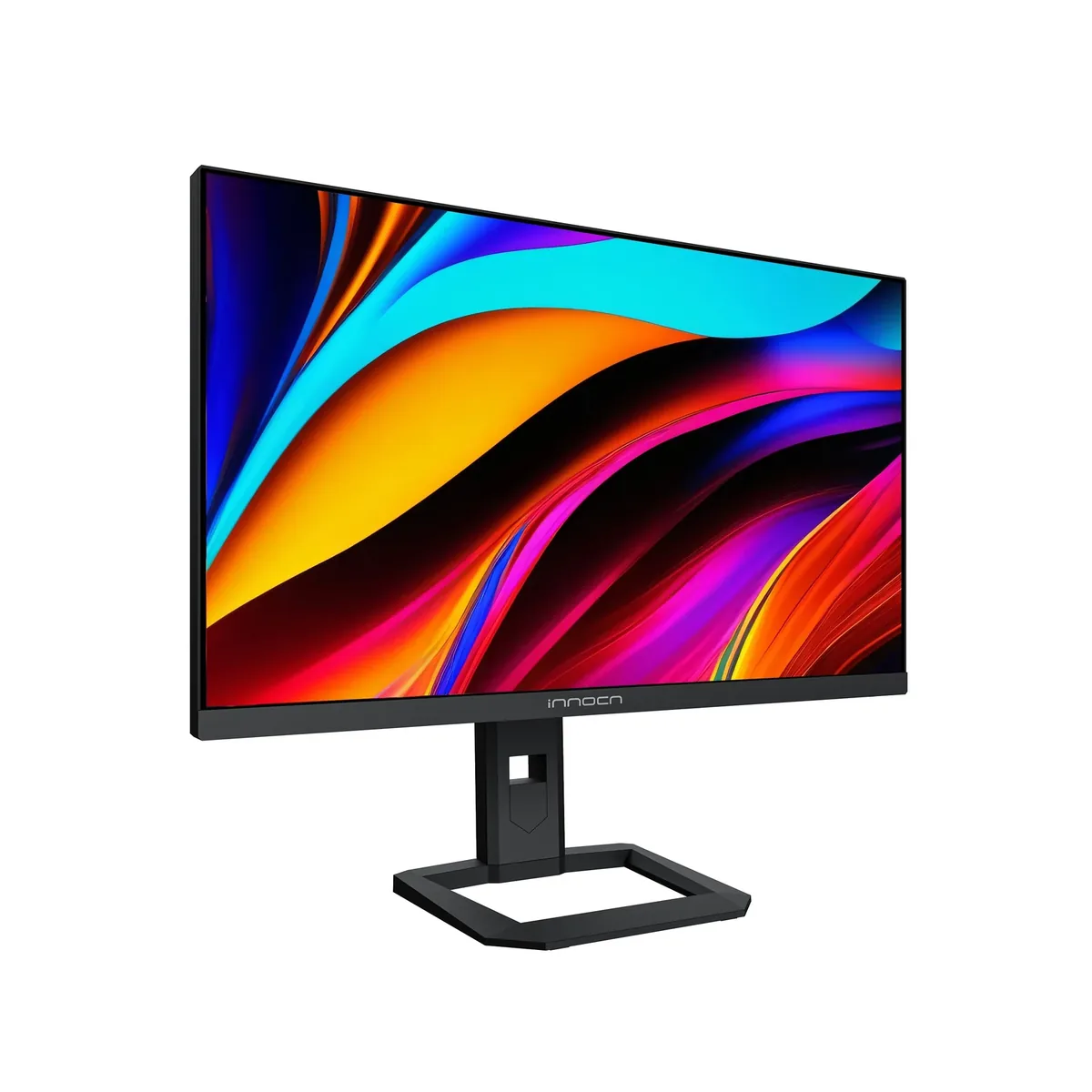
32″ · 3840×2160 · 160 Hz · Mini-LED IPS
Best for: The most local dimming per dollar on a 32-inch 4K desktop
Because subpixel antialiasing assumes the three colour dots in each pixel sit in a vertical RGB stripe, and OLED monitors do not use one: QD-OLED arranges them in a triangle, and WOLED adds a white subpixel. Windows renders the edges of small glyphs on the wrong-coloured dots, which shows as a faint red or green rim. A higher-resolution OLED hides it, macOS mostly sidesteps it, and no setting fixes it outright.
Because your monitor is almost certainly accepting an HDR signal it cannot display. DisplayHDR 400 requires 400 nits peak and permits an edge-lit backlight with zero dimming zones, so the panel switches to an HDR tone curve without gaining any contrast — and a tone curve designed for a display that can hit 1,000 nits looks grey on one that cannot. Real HDR needs per-pixel emission or a backlight divided into hundreds of zones.
Every specification explained, with the real numbers from the catalog behind each one.