Running a Laptop From One USB-C Cable

Short answer

Check the wattage against the laptop's own charger, not against the phrase "charges your laptop". Sixty-five watts holds a 13-inch ultrabook, 100 covers a 14-inch machine under normal load, and a 16-inch workstation wants 140 to stay charged while its CPU and GPU are both busy. A monitor below that figure will report that it is charging while the battery slowly drains.

What one cable is actually carrying

Three things travel over a USB-C monitor cable at once: video, as DisplayPort tunnelled through Alt Mode; USB data for whatever is plugged into the monitor's hub; and power flowing the other way, into the laptop. All three share the same physical lanes, which is why the arrangement has trade-offs the marketing does not mention.

The most common one: a link that also carries USB 3 data at full speed gives DisplayPort two of its four lanes rather than all four, halving the available video bandwidth. On a 4K monitor that can force a lower refresh rate or a colour-depth drop, and the monitor's menu usually exposes it as a choice between high-resolution video and fast USB.

Wattage, banded by what it will actually hold

Power delivery negotiates: the laptop asks and the monitor grants up to its ceiling. A 65-watt monitor and a 140-watt laptop will agree on 65, the laptop will charge when idle, and it will discharge under sustained load while the operating system cheerfully shows a charging icon. Nothing is broken; the arithmetic simply does not work.

Monitor suppliesComfortably holdsNotes
15–30 Wa phone or a tabletcommon on gaming monitors with a token USB-C port
60–65 Wa 13-inch ultrabookthe most common figure on productivity panels
90–100 Wa 14-inch laptopfine for most machines that are not workstations
140 Wa 16-inch workstation at full drawthe current ceiling, and rare

Thunderbolt, and whether you need it

Thunderbolt is a superset: it tunnels DisplayPort and PCI Express over the same connector, which is what lets a Thunderbolt monitor daisy-chain a second display or host a fast external drive. If you are plugging in a laptop, a keyboard, a mouse and a webcam, plain USB-C DisplayPort Alt Mode does everything you need and costs less.

Thunderbolt earns its money in two situations: a chain of two monitors from one port, and a Mac, where Apple's support for multi-stream DisplayPort has historically been limited and Thunderbolt is the reliable path. Roughly one monitor in seven here has it.
The specification people forget: KVM

A KVM switch inside the monitor lets one keyboard and mouse, plugged into the monitor's hub, follow whichever input is displayed — so a work laptop on USB-C and a desktop on DisplayPort share the peripherals, and one button or one hotkey moves between them. Anyone with two machines on one desk wants this, and it is absent from the specification comparison on most retail sites.

It is also not a rare feature any more: around a third of this catalog has one, including several gaming monitors, and the filter for it is on the listing page.

Monitors this comes up with

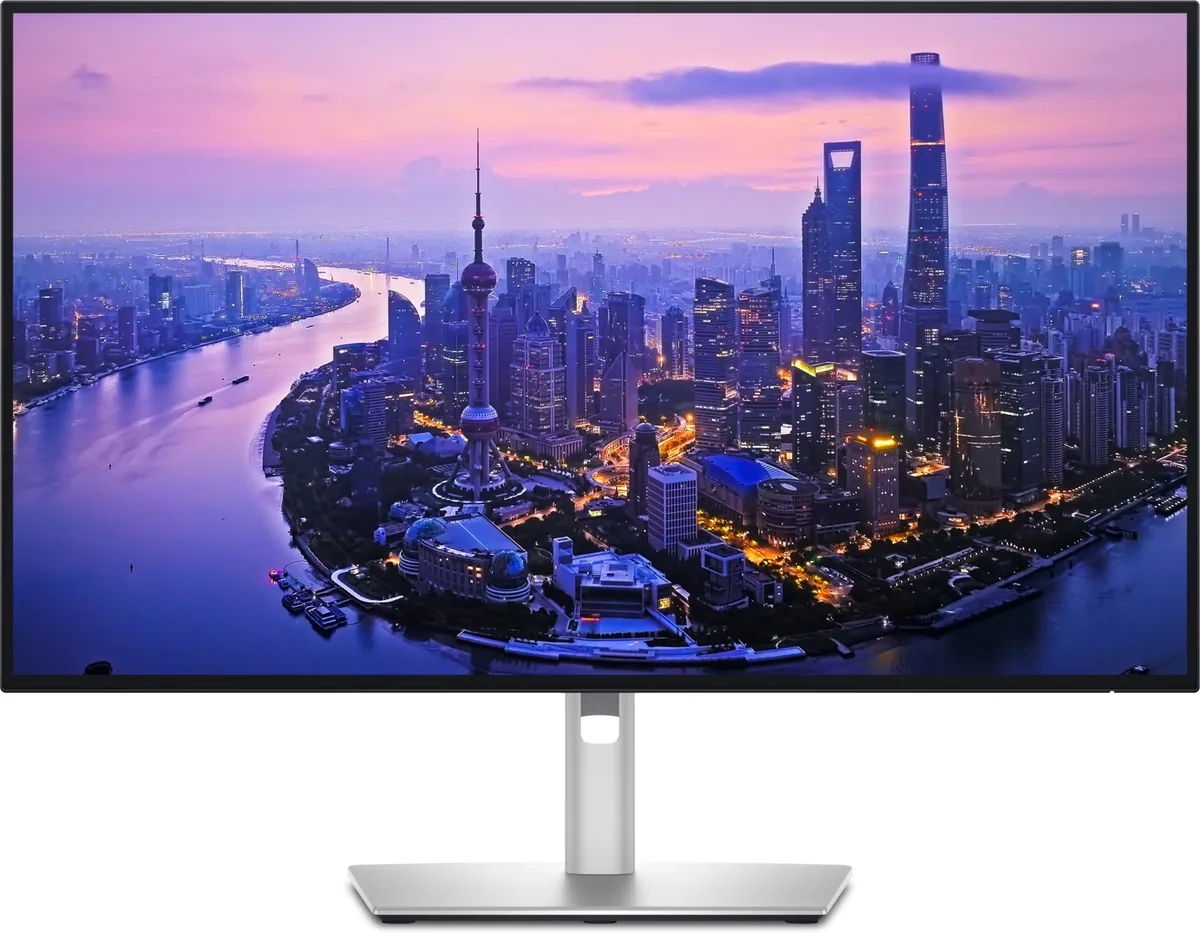
Dell UltraSharp U2725QE monitor
Dell~$850

Dell UltraSharp U2725QE

27″ · 3840×2160 · 120 Hz · IPS

Sharpness
68ppd · retina-class
HDR
Accepts an HDR signal
  • IPS Black 3000:1
  • Thunderbolt 4, 140 W
  • KVM
  • Console at full speed

Best for: A two-machine desk that should run from one cable and one keyboard

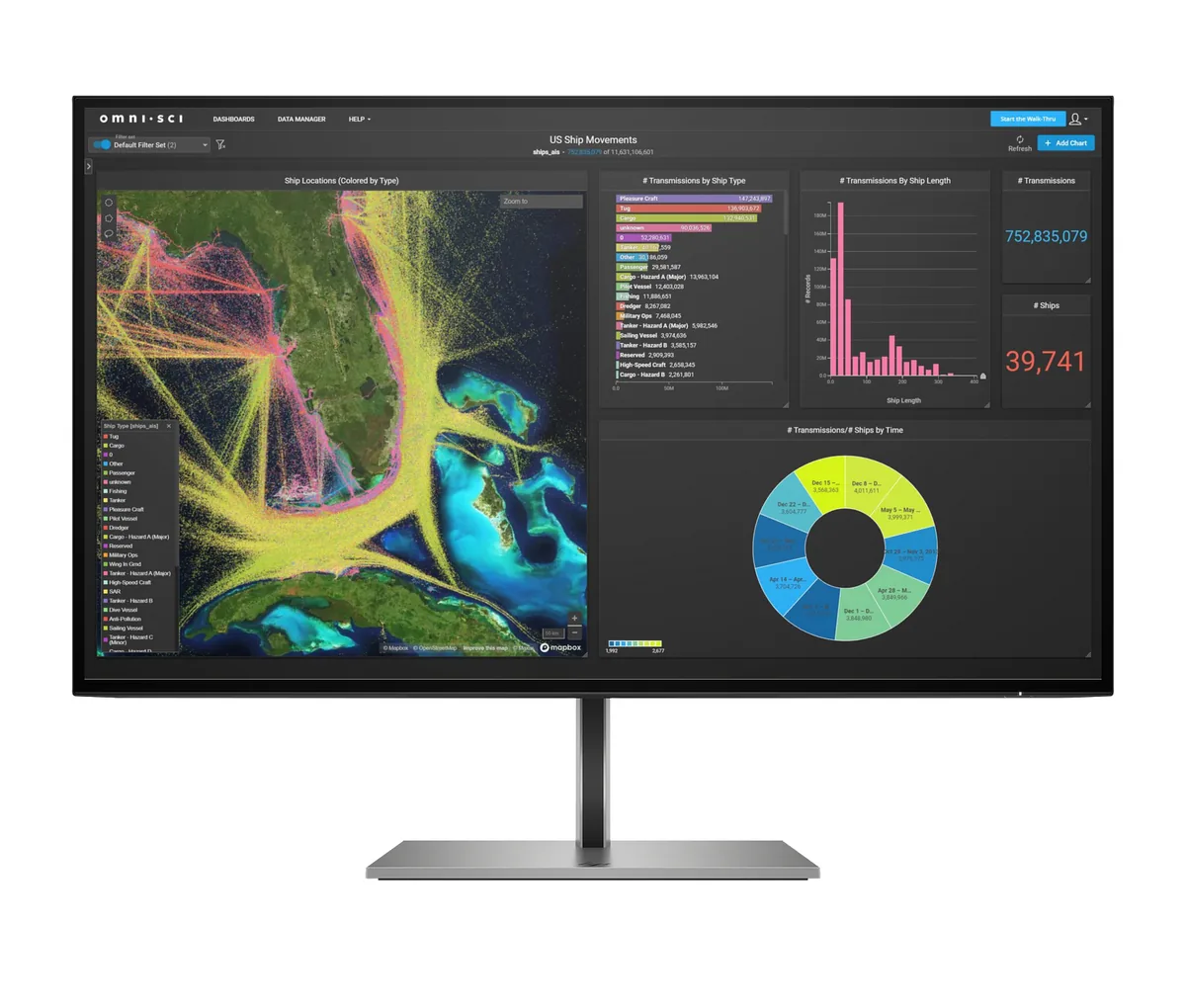
HP Z27k G3 monitor
HP~$600

HP Z27k G3

27″ · 3840×2160 · 60 Hz · IPS

Sharpness
68ppd · retina-class
HDR
No HDR
  • 100 W USB-C
  • Ethernet built in
  • 4K at 163 ppi
  • Console at full speed

Best for: One-cable docking for a work laptop that also needs a network port

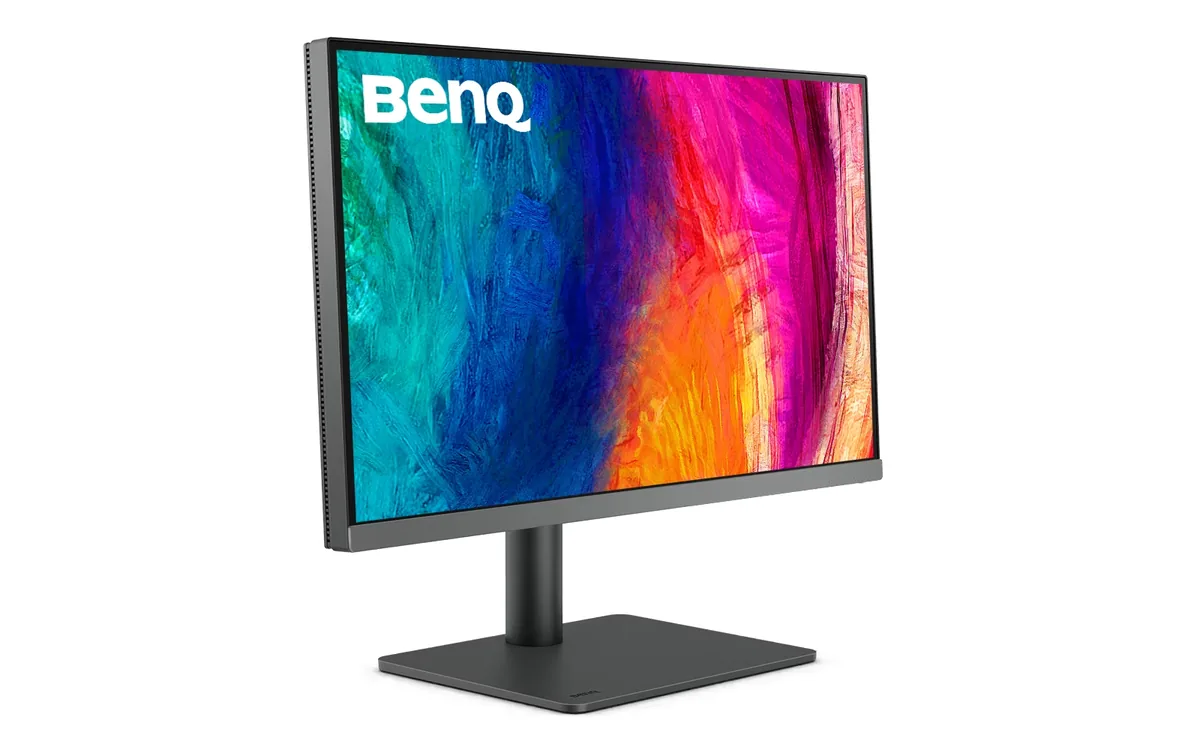
BenQ PD2706U monitor
BenQ~$580

BenQ PD2706U

27″ · 3840×2160 · 60 Hz · IPS

Sharpness
68ppd · retina-class
HDR
Accepts an HDR signal
  • 4K at 163 PPI
  • 90 W USB-C
  • KVM + 4-port hub

Best for: A designer who wants one cable to a laptop and calibrated colour out of the box

Related

  • Which Cable Can Actually Carry Your Monitor

    Multiply width by height by refresh rate by bits per pixel, add about 20% for blanking overhead, and compare the result against the port's usable data rate: 14.4 Gbps for HDMI 2.0, 42.67 for HDMI 2.1, 25.92 for DisplayPort 1.4, and up to 77.37 for DisplayPort 2.1 UHBR20. If the panel needs more than the port has, either DSC compression makes up the gap or the monitor quietly runs at 8 bits per channel instead.

  • One Ultrawide or Two Monitors?

    Two monitors if you need vertical space or want one of them in portrait; one ultrawide if you spend the day in windows that span the middle of the screen, or if a single cable to a laptop matters. A 34-inch 3440 × 1440 ultrawide is 1,440 pixels tall: exactly as tall as the 27-inch 1440p panel it replaces, and 720 lines shorter than a 4K one. Vertical is the dimension people miss.

  • How to read a monitor spec sheet

    Every specification explained, with the real numbers from the catalog behind each one.